
For a successful Zappl deployment with Intune, please follow the steps in the order outlined below. It is important that all configuration policies are deployed prior to the Zappl installer.
Configuration Policies
Zappl Preferences
We’ve utilised iMazing Profile Editor to provide an easy method of configuring Zappl preferences and generating a configuration profile for deployment.
1
Open iMazing Profile Editor
Download and open iMazing Profile Editor. Find the Zappl Application Domain and add the payload.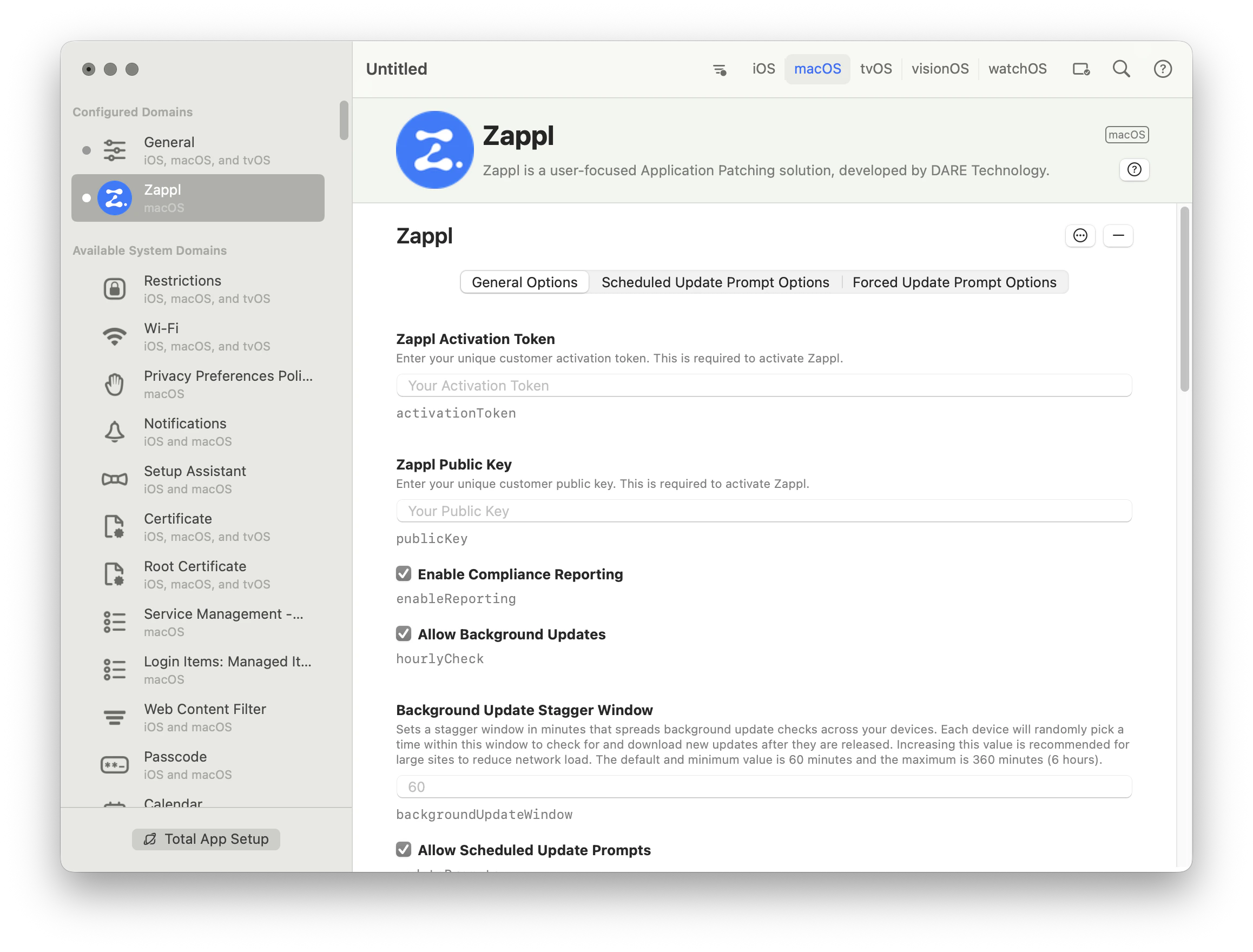
2
Add your activation credentials
Add your Zappl Activation Token and Public Key to the payload. These are required to connect devices to the Zappl servers.
3
Configure additional preferences
Alter any other preferences as required. Refer to our preferences documentation for information on all available keys.
4
Export the profile
Name and save the profile. This generates a
.mobileconfig file ready for deployment via Intune.5
Create a new policy in Intune
In Intune, navigate to Devices > macOS > Configuration and click Create, then New Policy. Set macOS as the platform, Templates as the Profile Type, and Custom as the Template Name.
6
Upload and deploy
Give the profile a name and description, then upload your 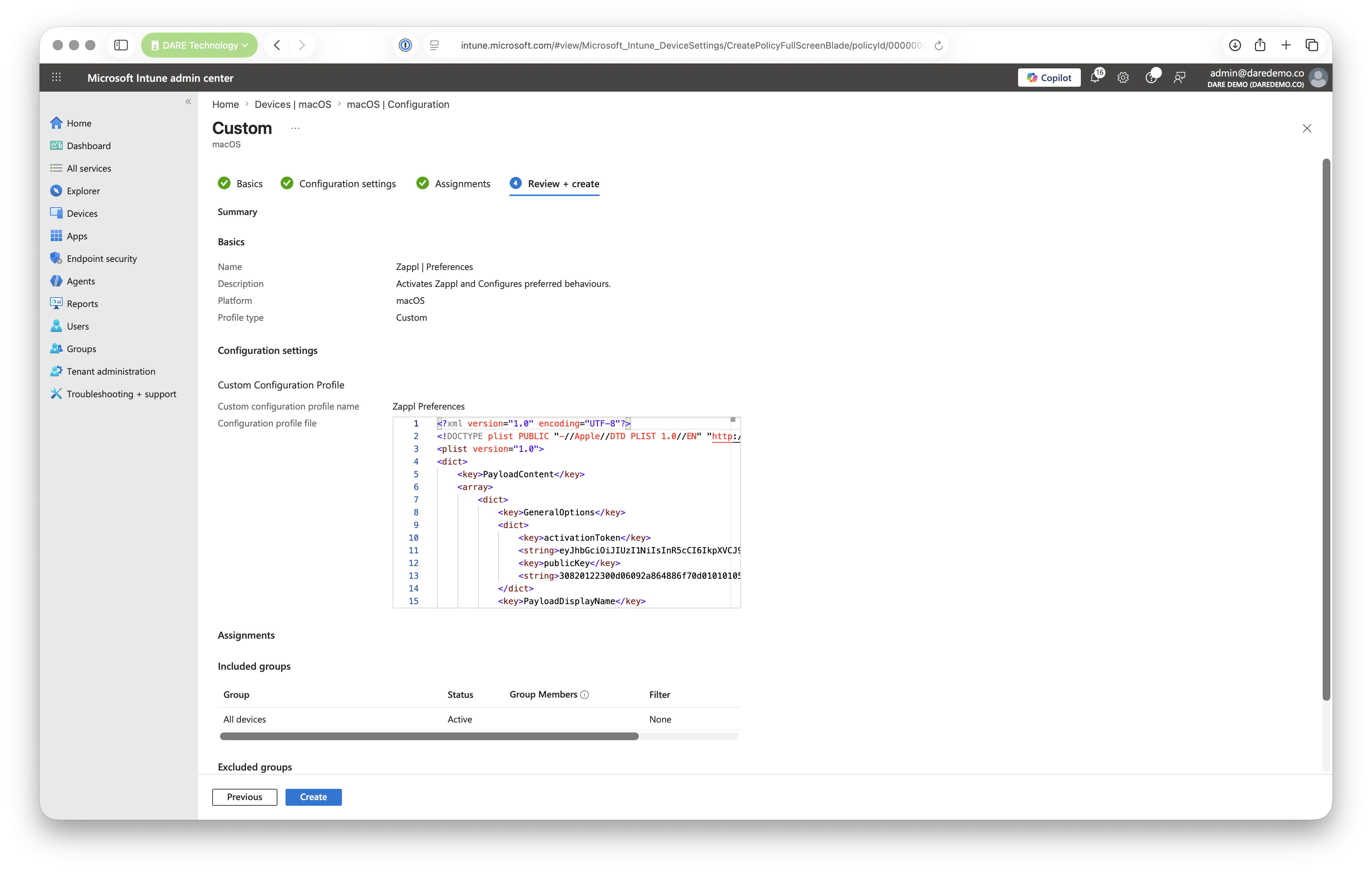
.mobileconfig file under Configuration Settings. Add your assignments (e.g. All devices), then review and Create the policy.Additional Policies
As of macOS 13 (Ventura), full disk access is required in order to update or remove macOS apps. The Zappl agent is responsible for performing all app updates, therefore full disk access (
SystemPolicyAllFiles) needs to be granted to the agent via a configuration profile.As of macOS 13 (Ventura), users can disable launch daemons through the Login Items option in System Settings. Zappl uses launch daemons to run automatically in the background, and these daemons must always be enabled for Zappl to function.
Zappl and AppBar use macOS notifications to alert users of available updates, completed installs, and any failures. These notifications must be pre-approved via a configuration profile, otherwise macOS will prompt users to allow them individually.
1
Download the additional policies
Download the following policies as JSON files:
2
Import the policies in Intune
In Intune, navigate to Devices > macOS > Configuration and click Create, then Import. Import each JSON file as a new policy, providing a name and description where necessary.
AppBar Preferences
AppBar comes with its own preferences that can be configured for custom branding and behaviour options.
There are no required keys within AppBar’s preferences. If you want to skip branding and behaviour customisation, you can skip these steps.
1
Open iMazing Profile Editor
Find the Zappl AppBar Application Domain and add the payload.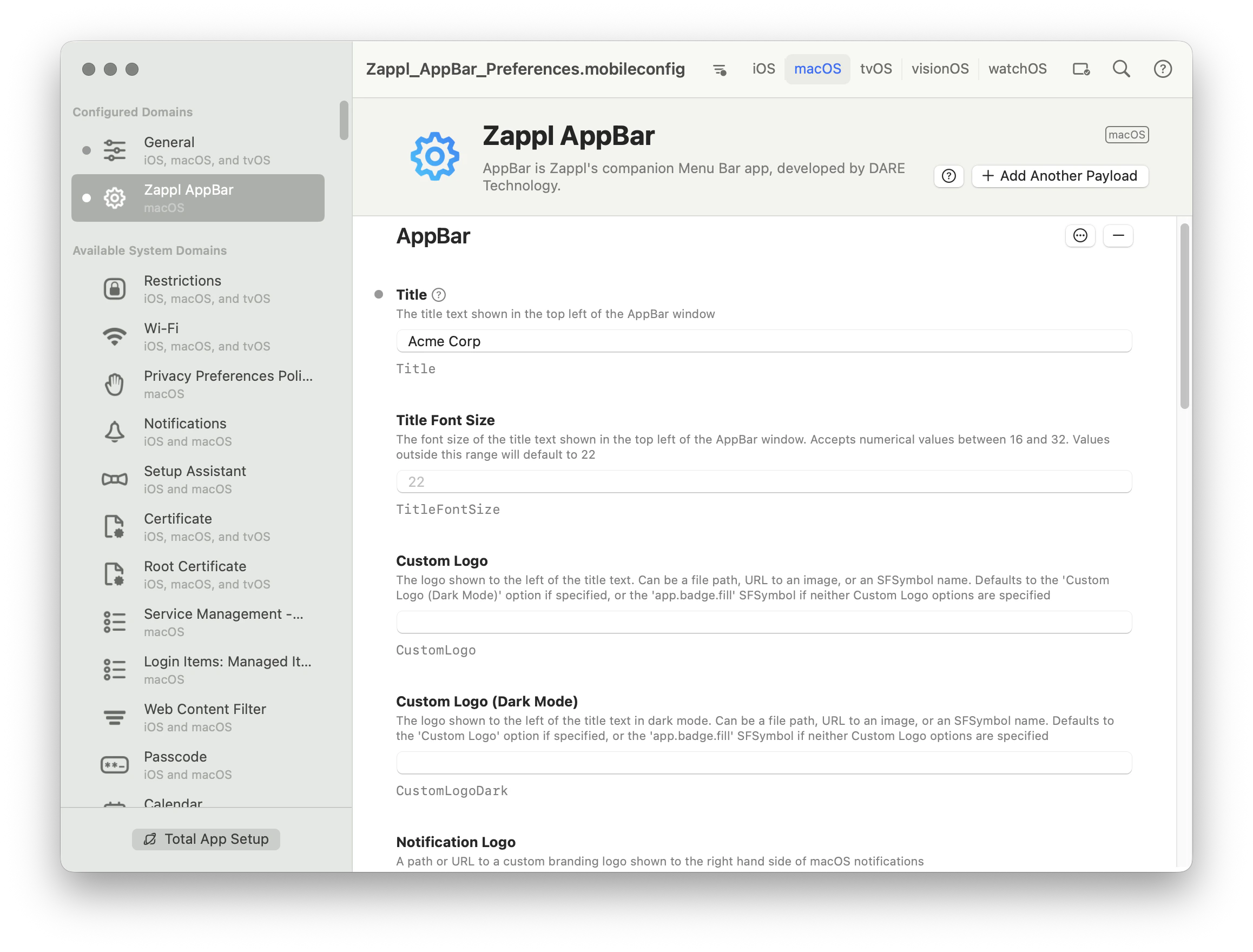
2
Configure AppBar preferences
Alter any preferences as required. Refer to our AppBar preferences documentation for information on all available keys.
3
Export the profile
Name and save the profile. This generates a
.mobileconfig file ready for deployment via Intune.4
Create a new policy in Intune
In Intune, navigate to Devices > macOS > Configuration and click Create, then New Policy. Set macOS as the platform, Templates as the Profile Type, and Custom as the Template Name.
5
Upload and deploy
Give the profile a name and description, then upload your 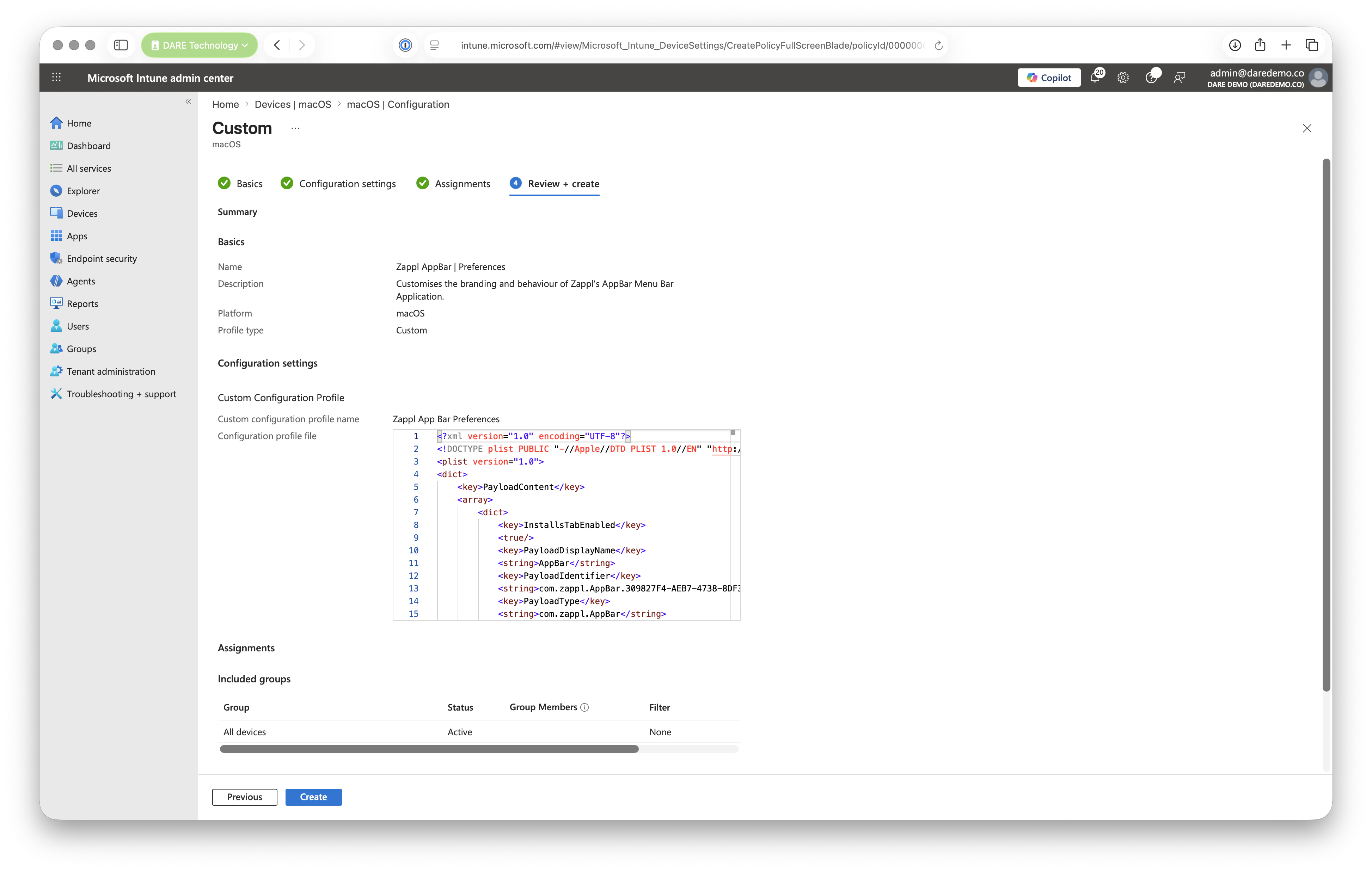
.mobileconfig file under Configuration Settings. Add your assignments (e.g. All devices), then review and Create the policy.With all policies in place, you should have the following:
- Required (All Deployments)
- Optional (AppBar Only)
- Zappl Preferences — Custom Template
- Full Disk Access — Imported JSON
- Managed Login Item — Imported JSON
- Notifications — Imported JSON
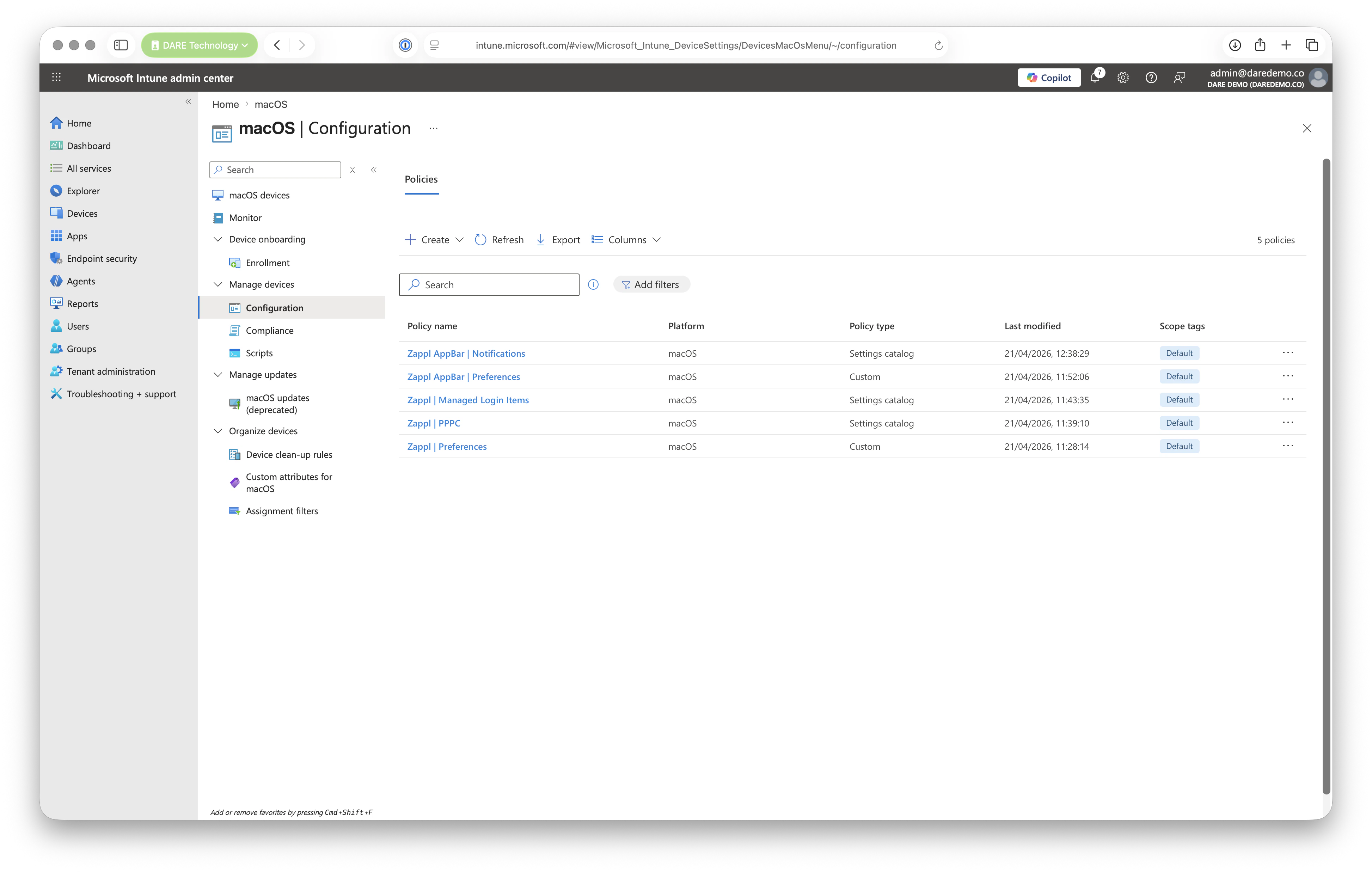
Deploying Zappl
Via Script (Recommended)
1
Download the deployment script
Download our Zappl deployment script here.
2
Edit the script variables
Open the script in your script editor of choice and alter the following variables to match your environment (shown on lines 25 and 26 of the script):
-
activationToken— Your Zappl Activation Token -
publicKey— Your Zappl Public Key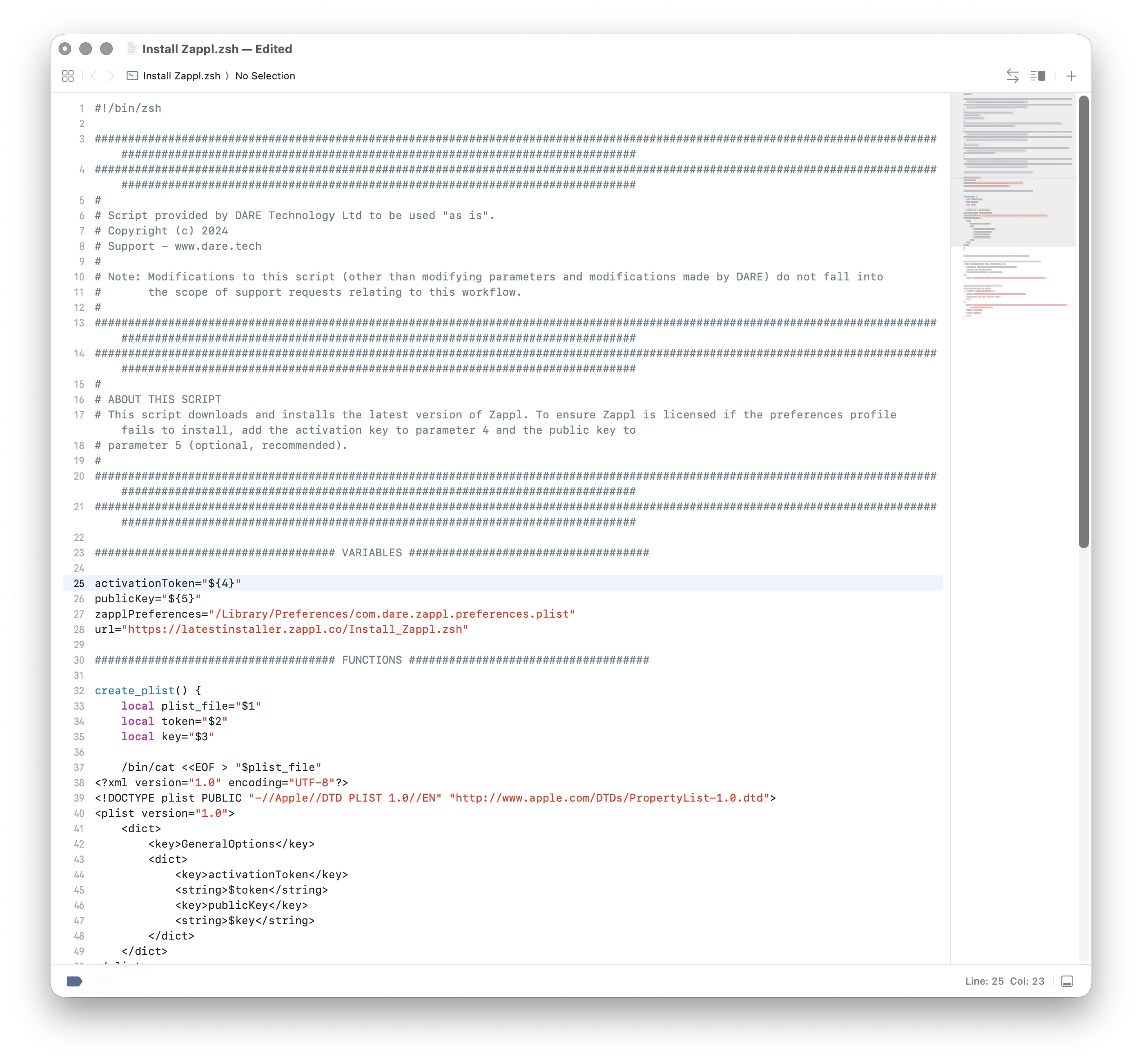
3
Add the script in Intune
In Intune, navigate to Manage Devices > Scripts and remediations, select the Platform scripts tab and Add a new macOS script. Provide a script name and description, and ensure you choose to not run the script as the logged-in user.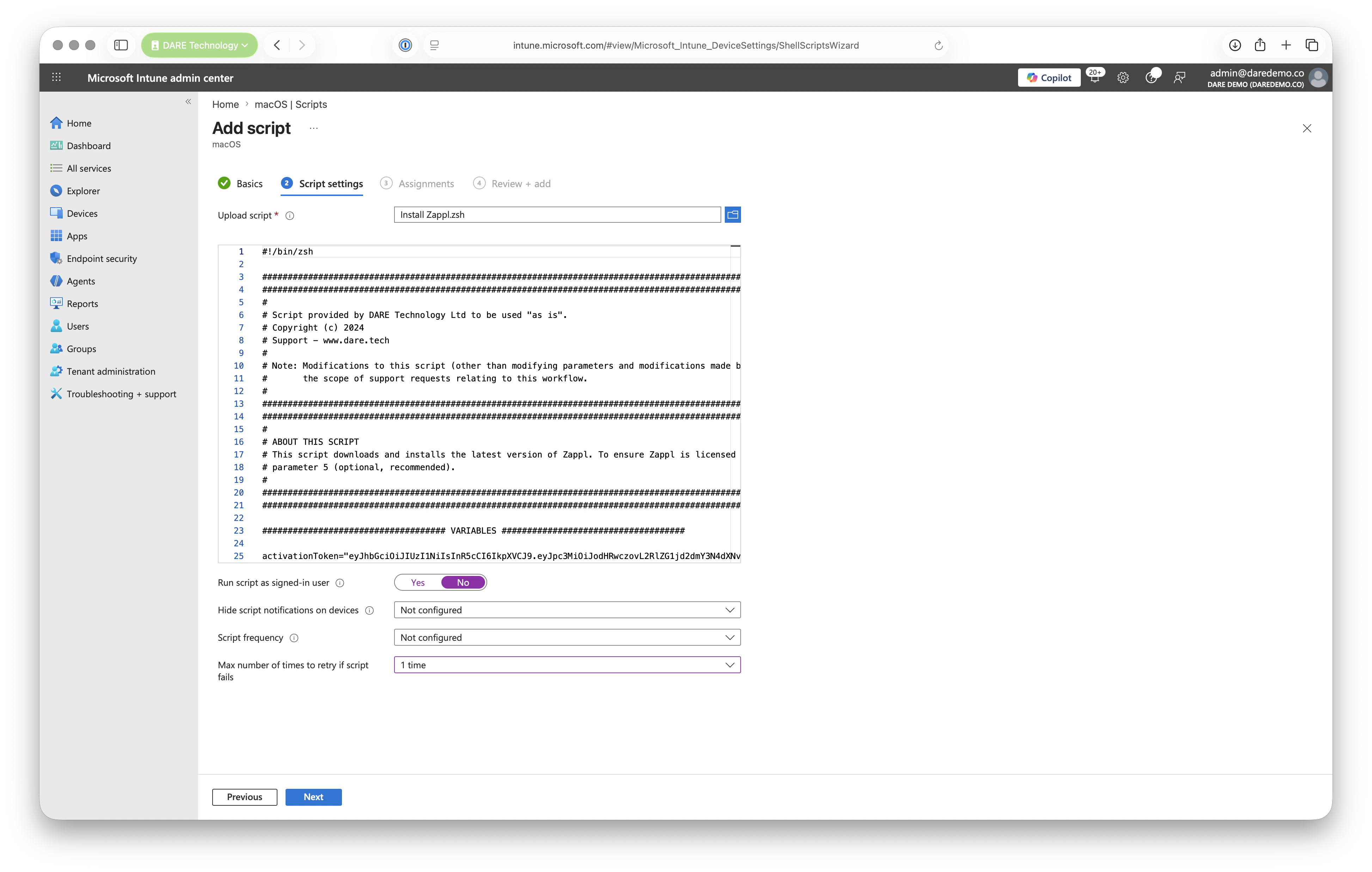
4
Assign and review
Assign to the relevant users/groups, then review and Add.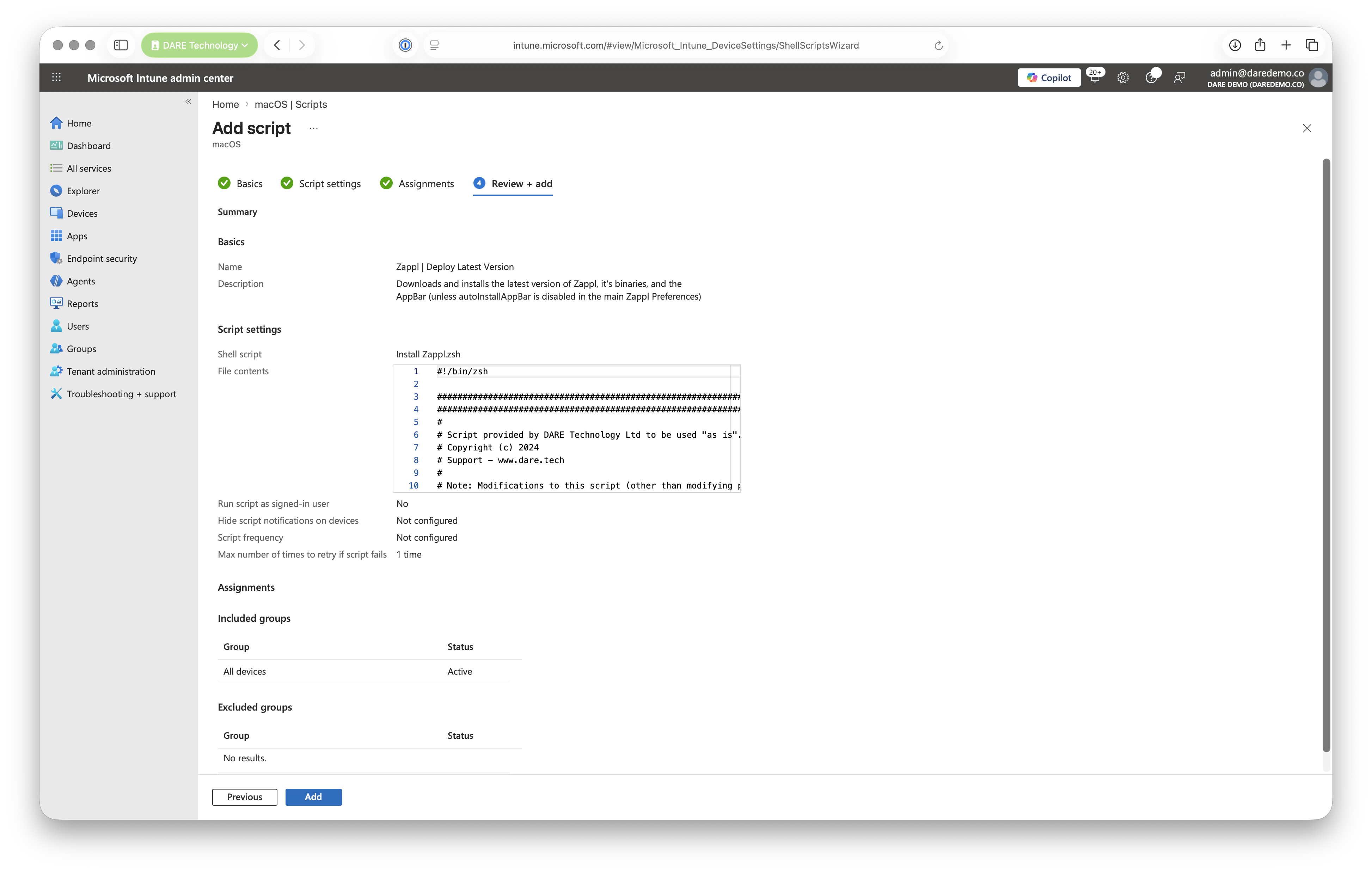
Congratulations!
You’re all set! With your configuration policies deployed and the Zappl installer pushed to your devices, Zappl is ready to manage and update apps across your Intune-managed fleet.