
com.zappl.AppBar.
Jamf Pro — JSON Schema
Download the JSON Schema to configure AppBar preferences directly within Jamf Pro.
Other MDMs — Sample Plist
Download a sample plist to use as a starting point for configuring AppBar preferences in your MDM of choice.
AppBar Preference Key Guide
Title
Title
Key: 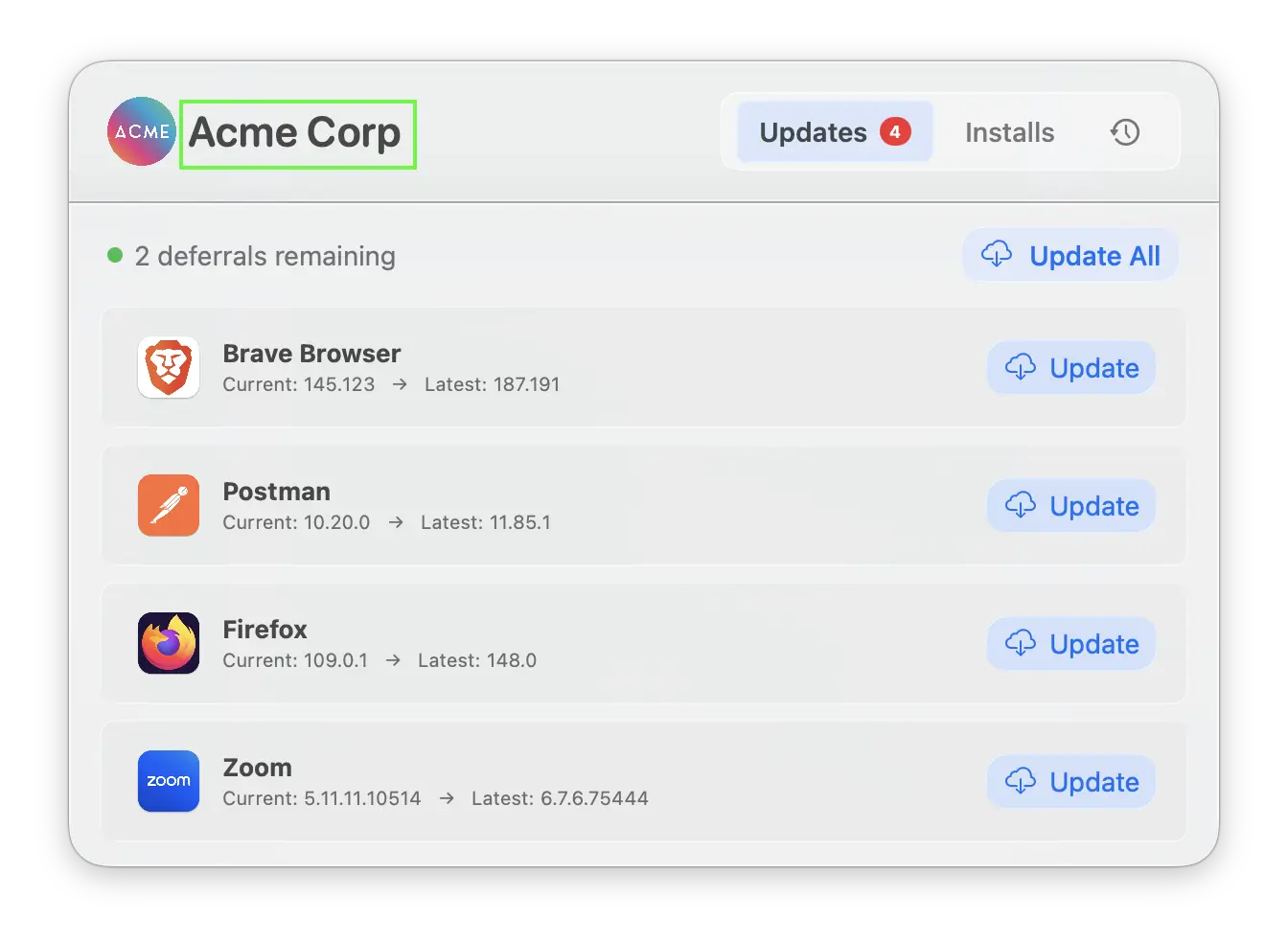
TitleThe title text displayed in the top left of the AppBar window.Default value:
AppBarTitle Font Size
Title Font Size
Key:
TitleFontSizeThe font size of the title text displayed in the top left of the AppBar window. Accepts numerical values between 16 and 32. Values outside of this range will fall back to the default value.Default value:
22Custom Logo
Custom Logo
Key: 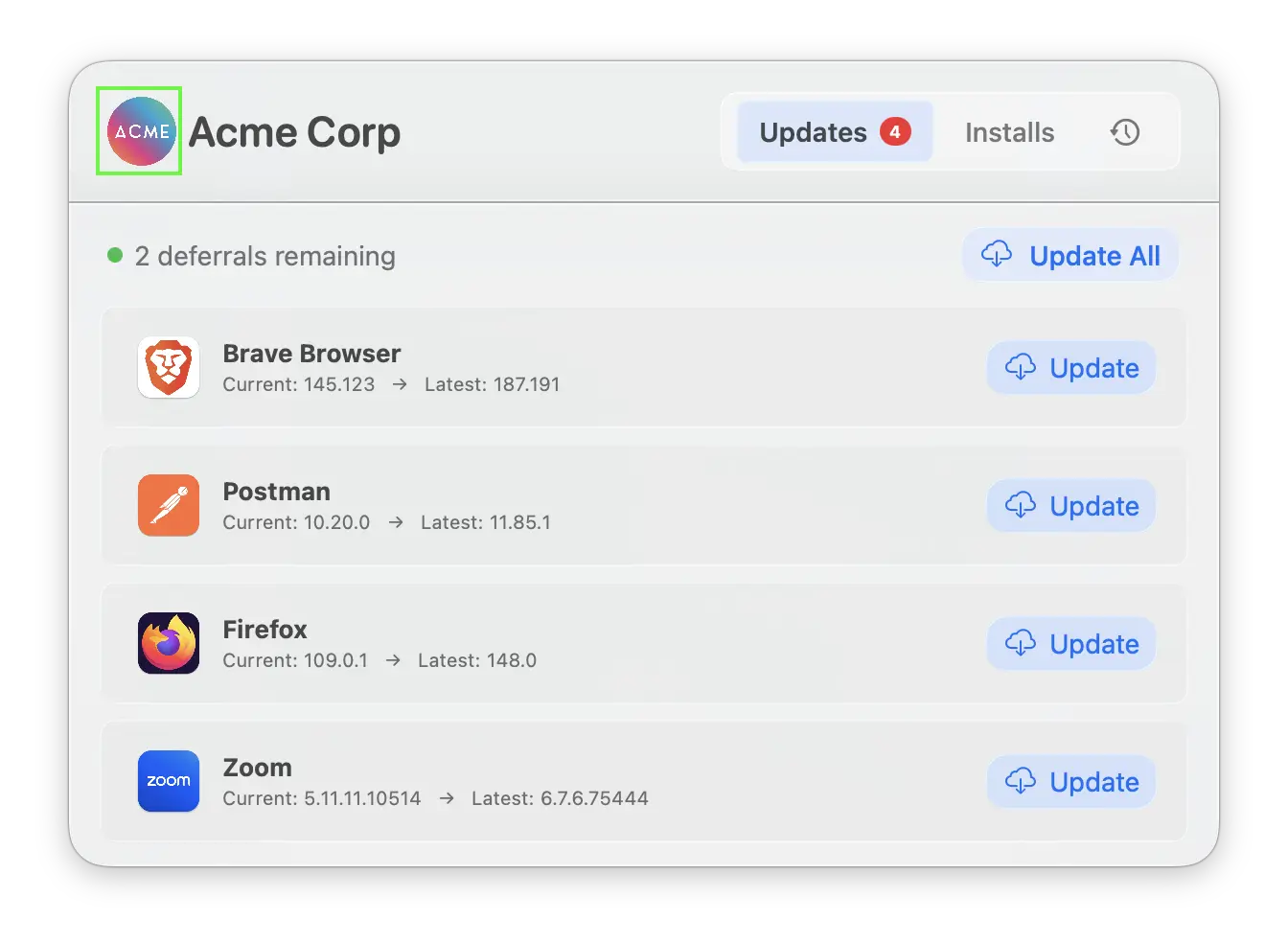
CustomLogoThe logo displayed to the left of the title text. This can be one of the following:- A file path to a local image on the device
- A URL pointing to a remote image
- An SF Symbol name (e.g.
app.badge.fill) - Jamf Pro customers can use selfService to use the Jamf Self Service icon
Default value:
app.badge.fill SF Symbol — or the value set in Custom Logo (Dark Mode) if specified.Custom Logo (Dark Mode)
Custom Logo (Dark Mode)
Key: 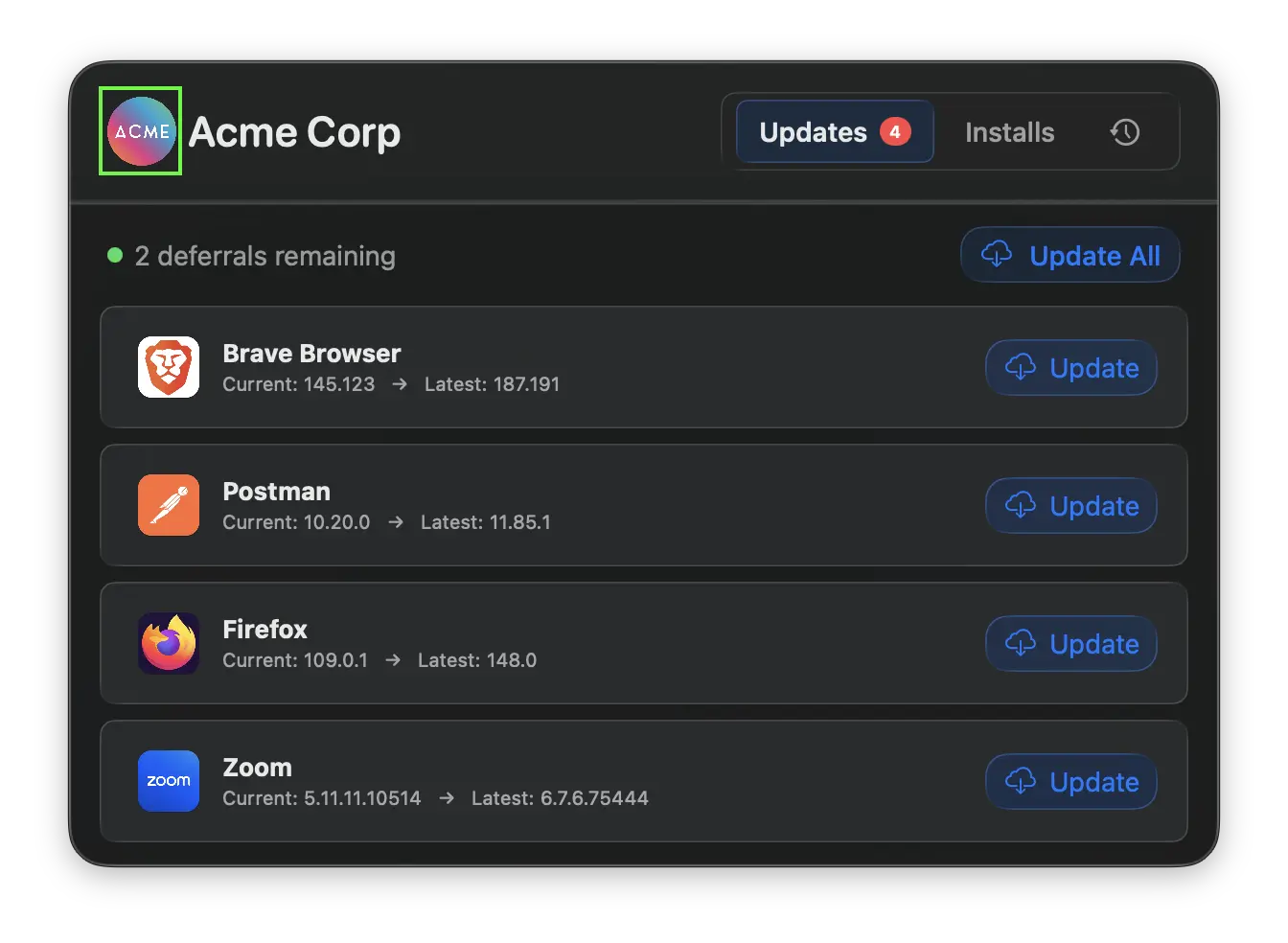
CustomLogoDarkAn alternative logo to display to the left of the title text when the user’s macOS appearance is set to Dark Mode. Accepts the same values as Custom Logo — a file path, URL, or SF Symbol name. Jamf Pro customers can use selfService to use the Jamf Self Service iconIf this preference is not set, AppBar will fall back to the value configured in Custom Logo. If neither is set, the default
app.badge.fill SF Symbol is used.Notification Logo
Notification Logo
Key: 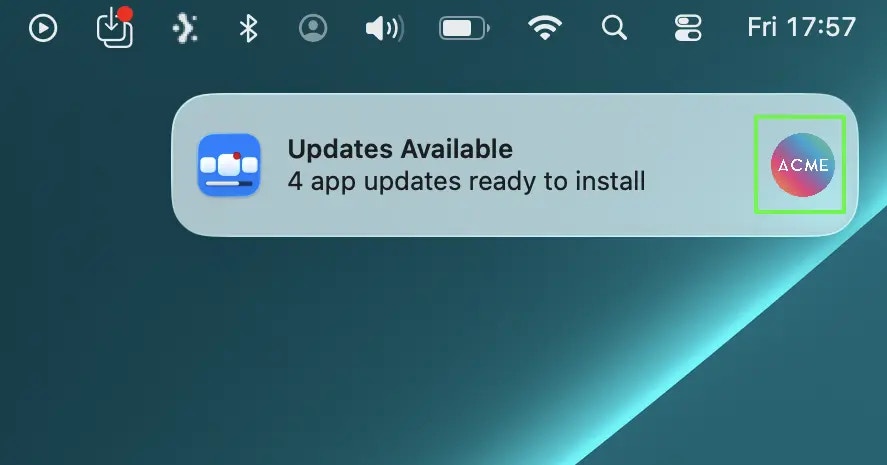
NotificationIconA path or URL to a custom branding image displayed to the right-hand side of macOS notifications sent by AppBar.This preference works in conjunction with the notification preferences below. A notifications configuration profile approving
com.zappl.AppBar must be deployed for notifications to be displayed.Key: 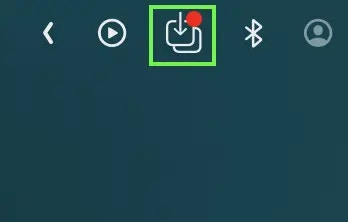
MenuBarIconThe icon displayed in the macOS menu bar for AppBar. Accepts either:- A path to a local icon file (must be
16x16points) - An SF Symbol name
Default value:
square.and.arrow.down.on.square SF SymbolAccent Colour
Accent Colour
Key:
AccentColorA custom colour applied to buttons and highlighted elements throughout the AppBar interface. Accepts hex colour codes, e.g. #0071E3.If not specified, AppBar uses the macOS system accent colour.
Custom Categories
Custom Categories
Key:
CustomCategoriesCustomise the category that apps are assigned to within the Installs tab. By default, apps use the category defined in the Zappl App Catalog. This preference allows you to override that on a per-app basis.To configure this, specify an array of objects each containing an identifier and a category label:-
App Identifier (
identifier) — The unique app identifier from the Zappl App Catalog -
Category Label (
category) — The custom category name to display for that app in the Installs tab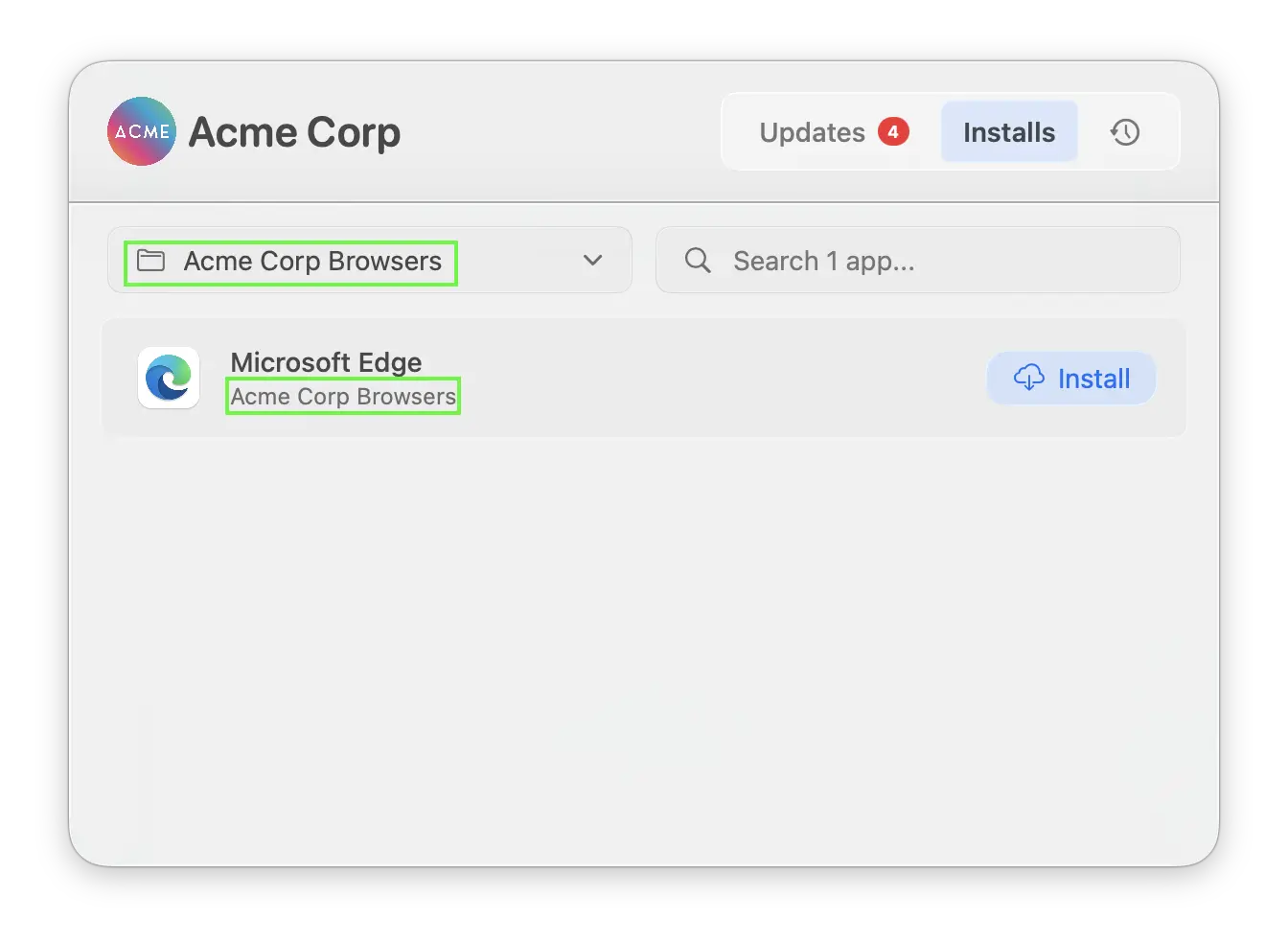
Custom Descriptions
Custom Descriptions
Key:
CustomDescriptionsCustomise the description shown for apps in the Installs tab. By default, apps display their description from the Zappl App Catalog. This preference allows you to provide your own description on a per-app basis.To configure this, specify an array of objects each containing an identifier and a description:-
App Identifier (
identifier) — The unique app identifier from the Zappl App Catalog -
Description Text (
description) — The custom description text to display for that app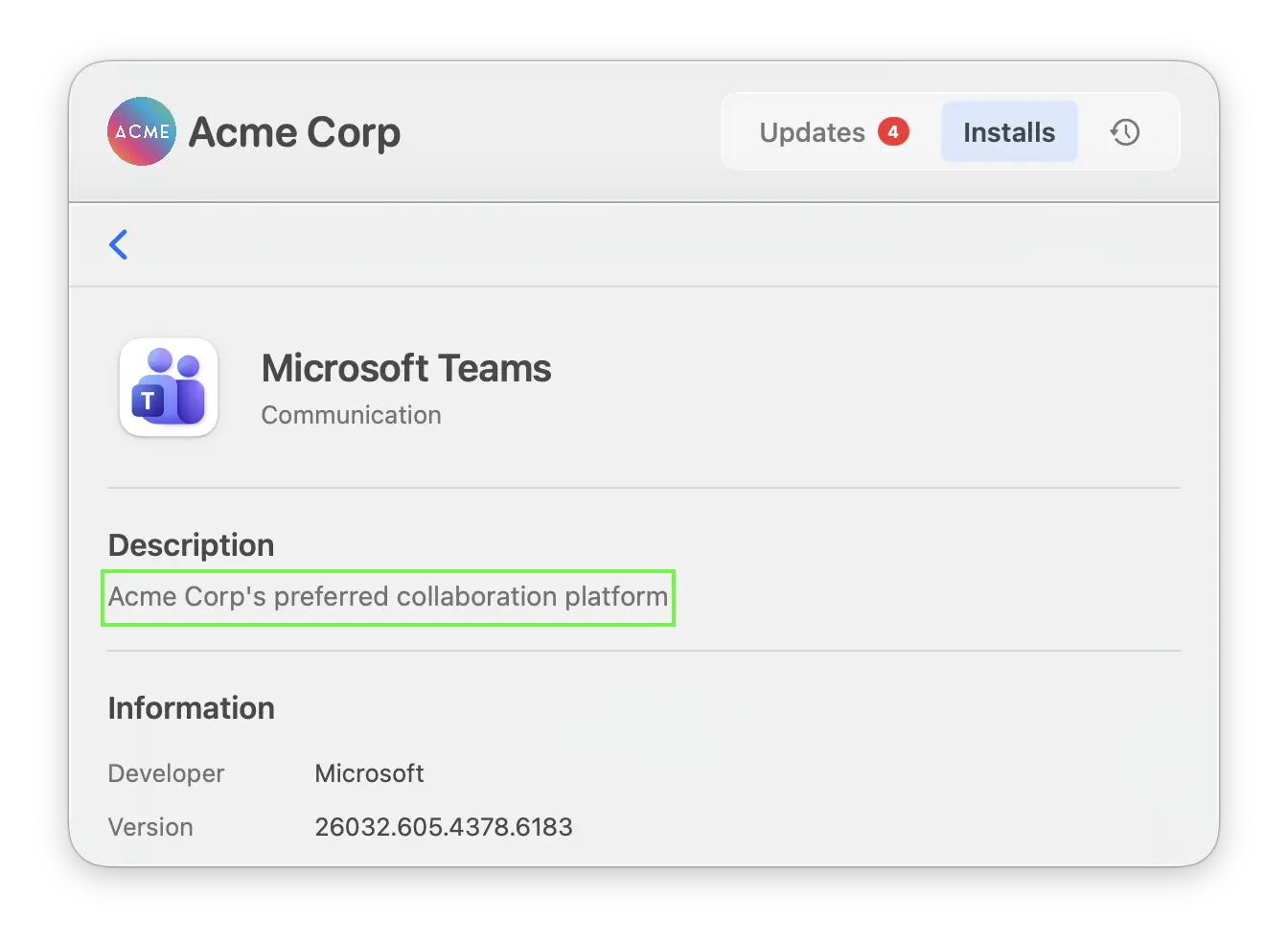
Installs Tab Enabled
Installs Tab Enabled
Key: 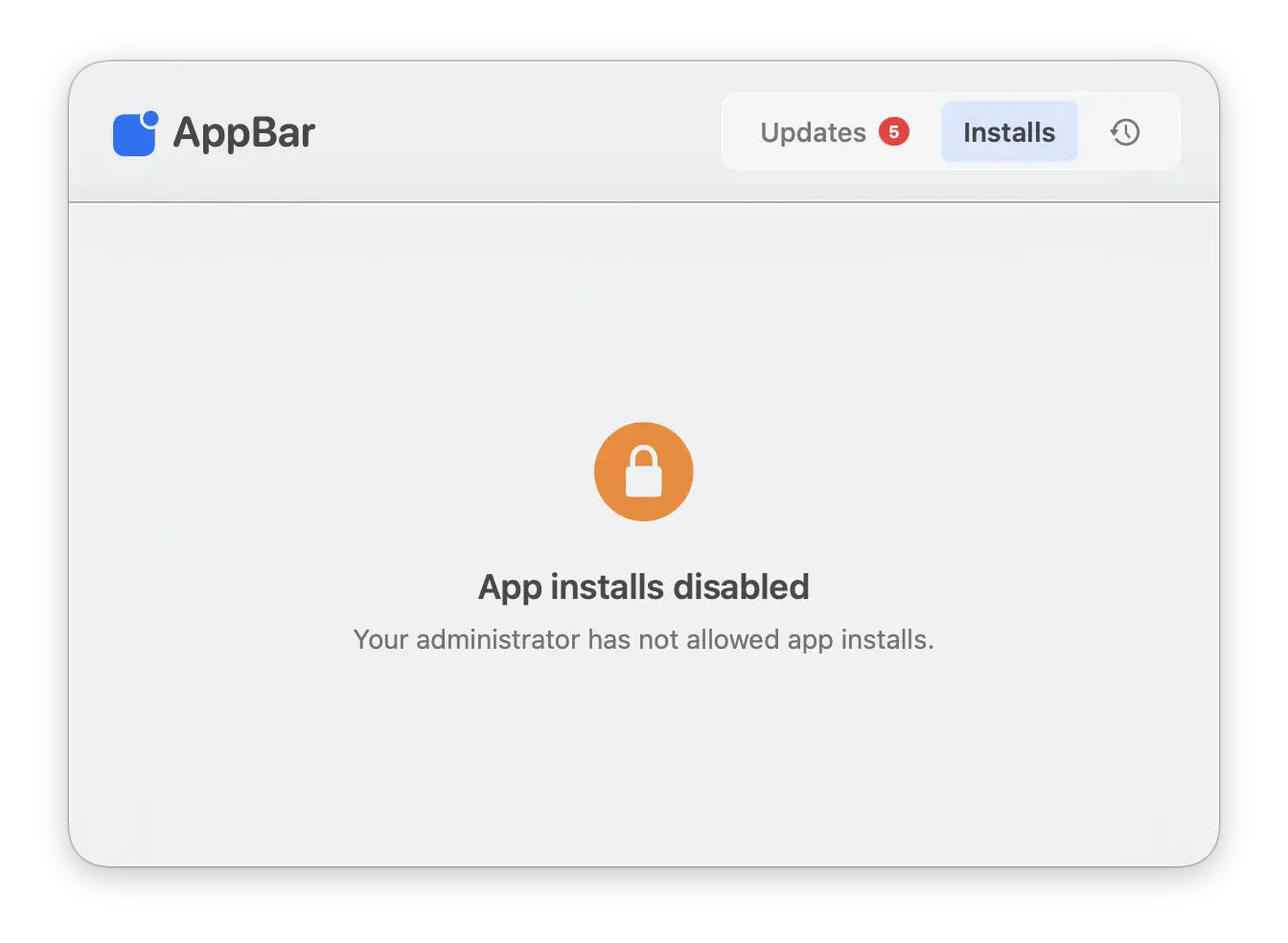
InstallsTabEnabledDetermines whether app installs are allowed in the Installs tab. This option is disabled by default to prevent users from installing unapproved apps from the full Zappl catalog.Default value:
falseOnce enabled, you can use the Allowed Installs or Excluded Installs options in your
com.dare.zappl.preferences configuration profile to control which apps are approved for installs.History Tab Enabled
History Tab Enabled
Key:
HistoryTabEnabledDetermines whether the History tab is visible within AppBar. The History tab shows users a log of recent updates, installs, and failures. Uncheck to hide this tab.Default value:
trueEnable Update Status Text
Enable Update Status Text
Key:
EnableUpdateStatusTextDetermines whether the update status text is shown at the top of the Updates tab. When deferrals are configured, this shows the number of deferrals remaining (e.g. 2 deferrals remaining); otherwise it shows the number of pending updates (e.g. 3 pending updates) or Up to date. Uncheck to hide this text.Default value:
trueLiquid Glass Enabled
Liquid Glass Enabled
Key:
LiquidGlassEnabledEnables the Liquid Glass visual effect introduced in macOS 26 (Tahoe). When enabled, AppBar adopts the Liquid Glass aesthetic consistent with macOS 26 system applications.Default value:
true — This preference has no effect on macOS versions prior to macOS 26.Allow Update Notifications
Allow Update Notifications
Key: 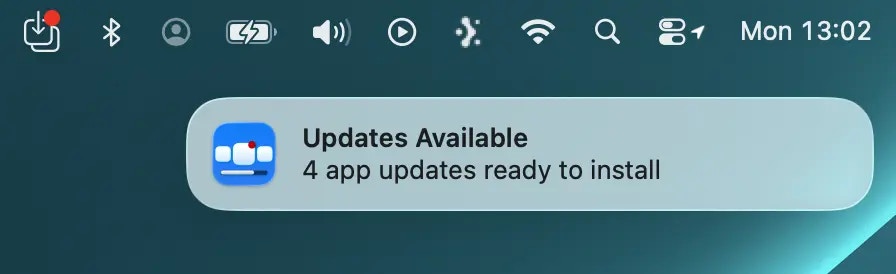
AllowUpdateNotificationsWhen enabled, AppBar displays a macOS notification when Zappl has cached new updates that are available to install via AppBar.Default value:
trueA notifications configuration profile approving
com.zappl.AppBar must be deployed for this to function.Allow Install Notifications
Allow Install Notifications
Key: 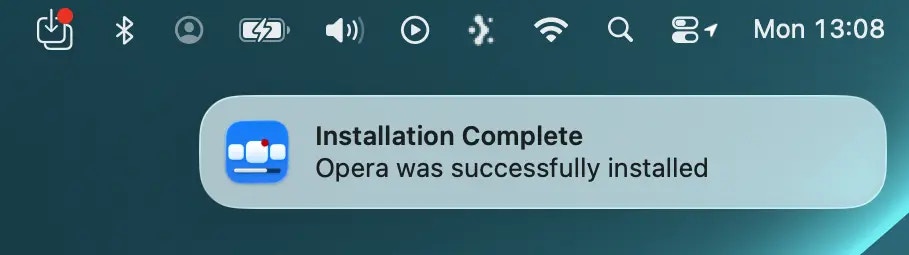
AllowInstallNotificationsWhen enabled, AppBar displays a macOS notification when an app install completes successfully.Default value:
trueA notifications configuration profile approving
com.zappl.AppBar must be deployed for this to function.Allow Failure Notifications
Allow Failure Notifications
Key: 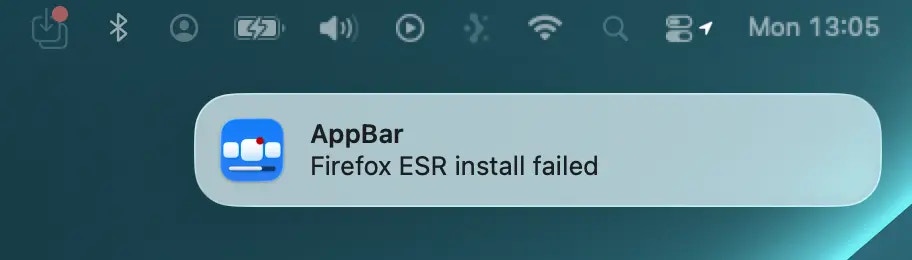
AllowFailureNotificationsWhen enabled, AppBar displays a macOS notification if an install or update fails.Default value:
trueA notifications configuration profile approving
com.zappl.AppBar must be deployed for this to function.