> ## Documentation Index
> Fetch the complete documentation index at: https://docs.zappl.co/llms.txt
> Use this file to discover all available pages before exploring further.
# Reports
> The Reports section allows you to schedule email reports or manually download detailed analyses of your compliance levels.
Reports are particularly useful for keeping other stakeholders, such as security personnel, up to date on compliance without requiring them to log into the portal manually.
There are two report types — **Compliance** and **Application**.
## Compliance Report
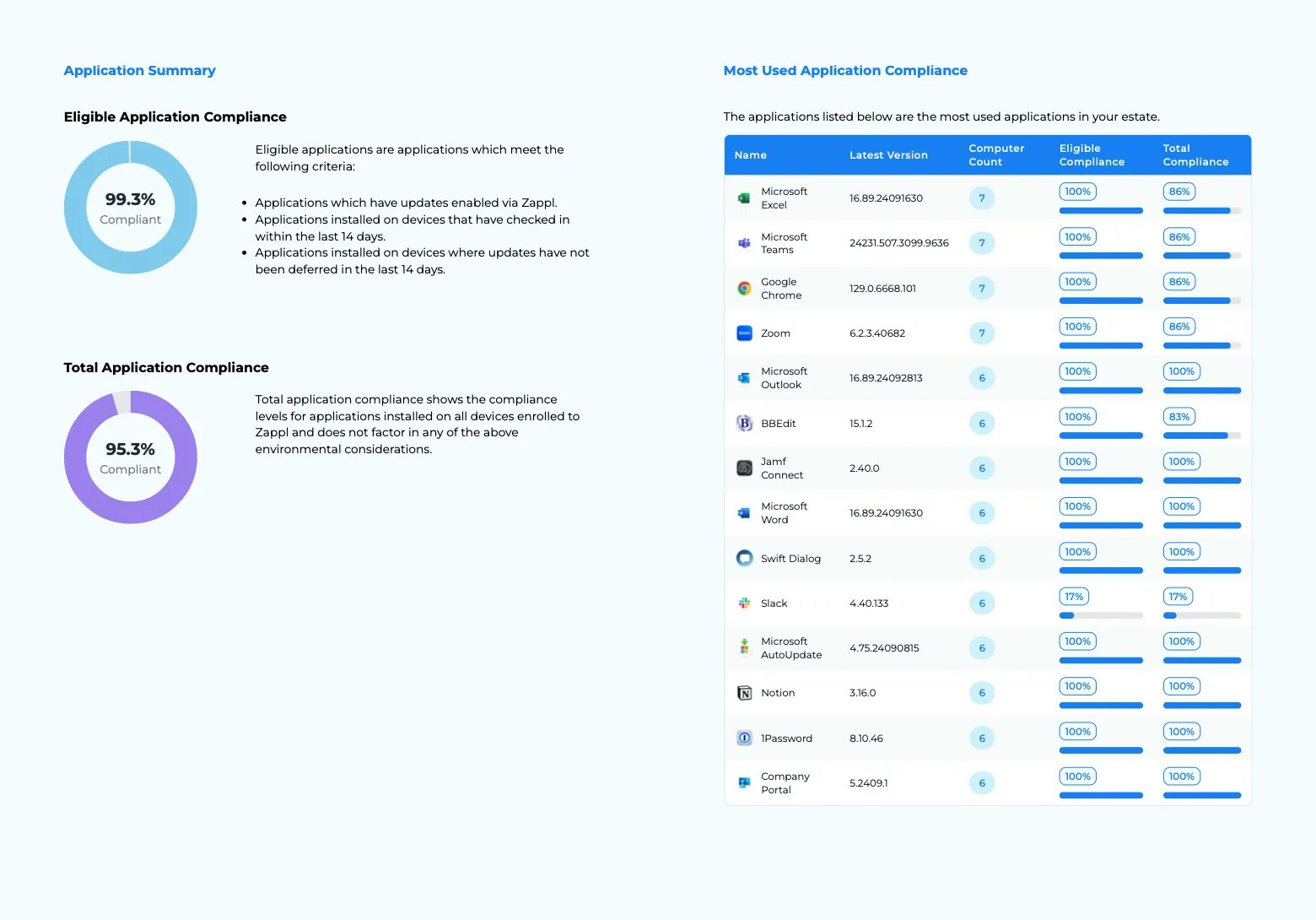
The compliance report provides a summary of all key information highlighted by the Zappl portal in PDF format.
The report consists of the following sections:
Displays eligible and total app compliance in your estate as shown on the [Dashboard](/portal/dashboard).
Lists the 25 most-used apps in your estate, showing their eligible and total app compliance. The list is sorted from most to least installations.
Lists the 10 least compliant apps in your estate, with the least compliant app appearing at the top of the list.
Displays eligible and total device compliance in your estate as shown on the [Dashboard](/portal/dashboard).
Displays the top 10 devices with the most apps installed in your estate and their compliance figures.
Displays the 10 least compliant devices in your estate, with the least compliant device at the top of the list.
Displays the same alert summary found on the [Dashboard](/portal/dashboard), plus information on devices with updates disabled, devices with zero remaining deferrals, and devices with Zappl self-updates disabled.
## Application Report
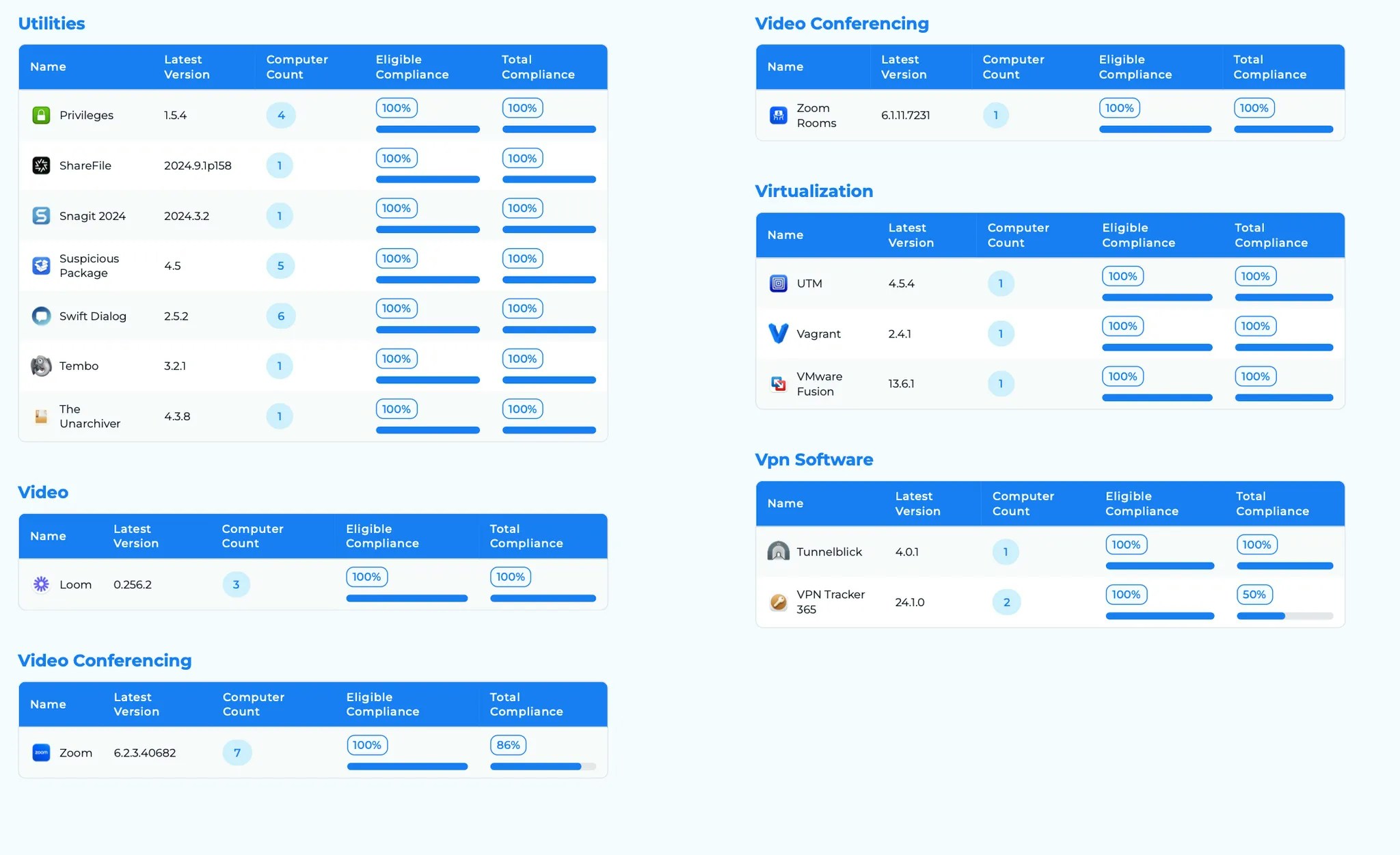
The Application report offers a comprehensive breakdown of eligible and total compliance for every application in your estate. This report is organised by software categories.
## Scheduling Email Reports
To set up a recurring scheduled email report for either of the above reports:
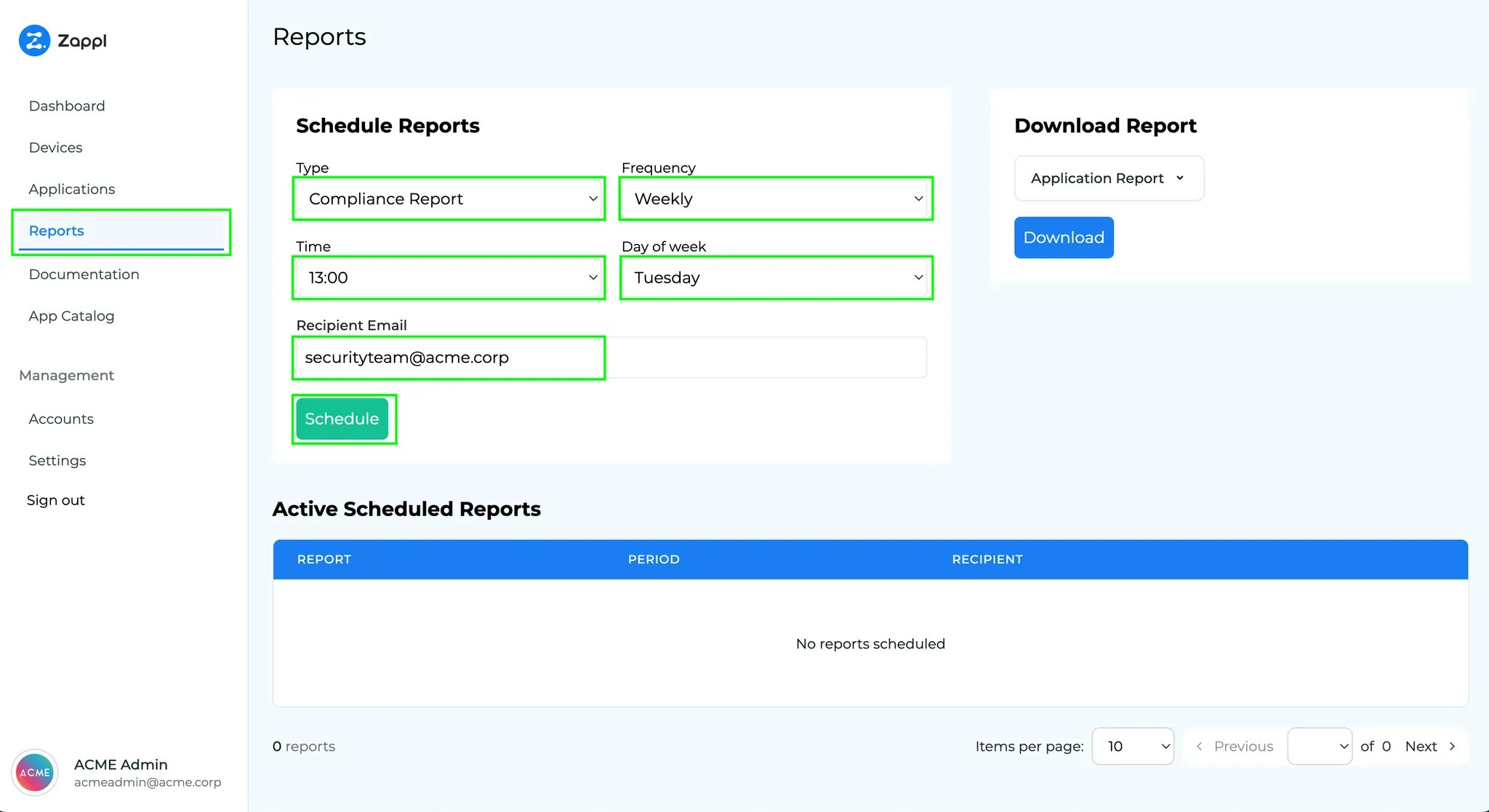
Navigate to **Reports**.
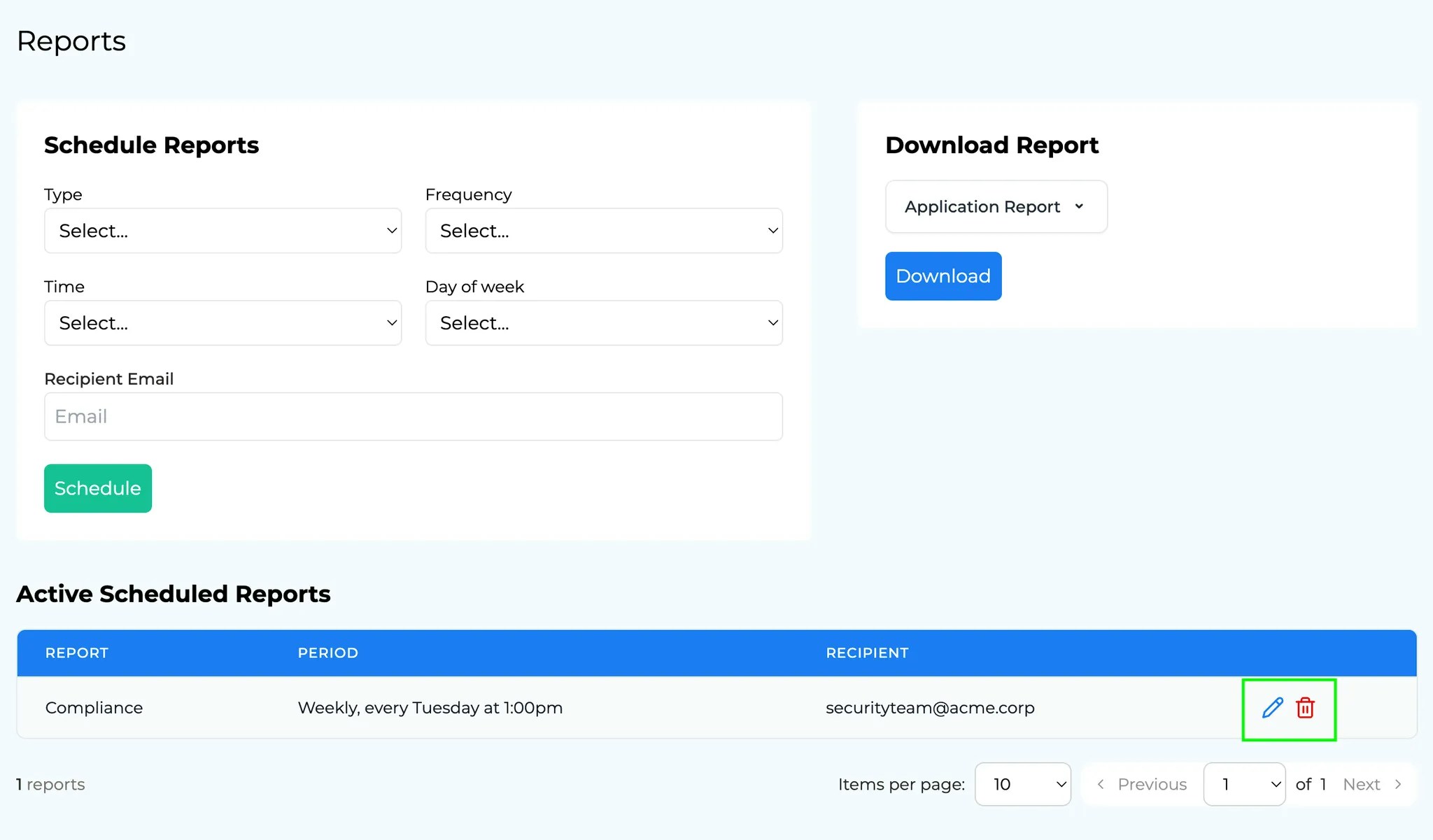
Under `Type`, select which report you want to schedule (e.g. `Compliance Report`).
Set a `Frequency` for the report (daily, weekly, or monthly).
Under `Time`, select when you want the report sent (e.g. 13:00).
Under `Day of week` specify the day of the week you want the report to be sent (e.g. Tuesday).
Under `Recipient Email`, input the recipient's email address.
Click **Schedule**.
A dialog will appear in the top right corner to confirm that the report has been scheduled.
 The report will then be listed under the `Active Scheduled Reports` section. To modify any aspect of the report, click the **pencil icon** to make amendments. Use the **bin icon** to delete the scheduled report.
 For security reasons, the recipient's email address must be registered with Zappl.
Use the [Accounts](/portal/accounts) section to ensure the email address you wish to send reports to has an active Zappl account before scheduling the report.
## Downloading Reports
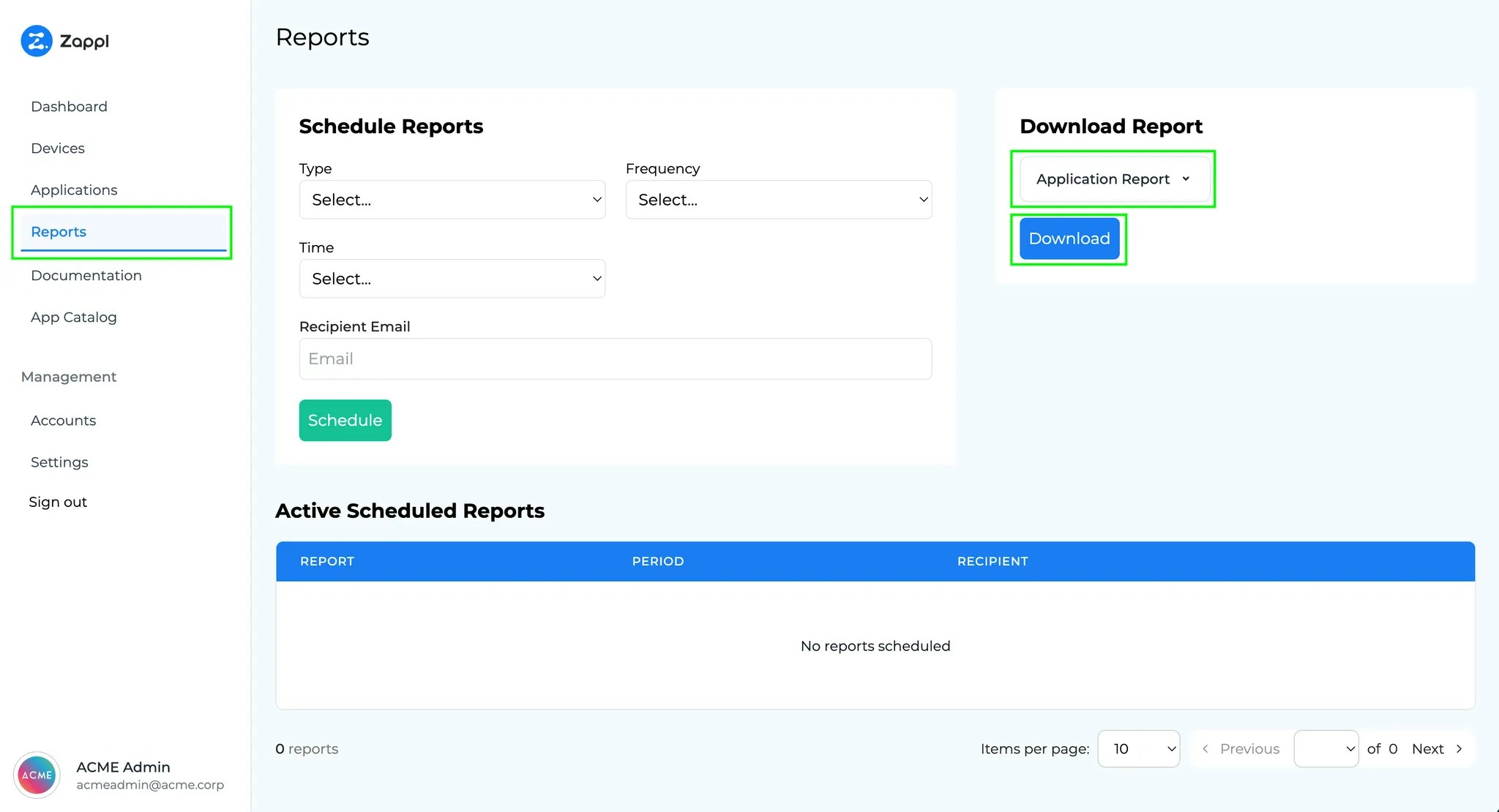
If you prefer to download a one-off report as opposed to scheduling an email report, simply navigate to `Reports`, then under `Download Report`, select the report type you wish to download and click **Download**.