> ## Documentation Index
> Fetch the complete documentation index at: https://docs.zappl.co/llms.txt
> Use this file to discover all available pages before exploring further.
# Logs and Errors
> The Zappl agent provides multiple options when it comes to retrieving logs and error information.
## Unified Logging
The Zappl agent sends log output to Apple’s Unified Log. This offers a simple way of collecting and filtering through logs with a set category or from a set timeframe.
The [AppBar](appbar/introduction) logs can also be viewed/collected using the unified log, using 'com.zappl.AppBar' as the subsytem label
#### Streaming Logs
To stream all current Zappl logs with Terminal, launch Terminal and input the following command, then press **enter**.
```bash theme={null}
log stream --predicate 'subsystem == "com.dare.zappl"' --info --debug
```
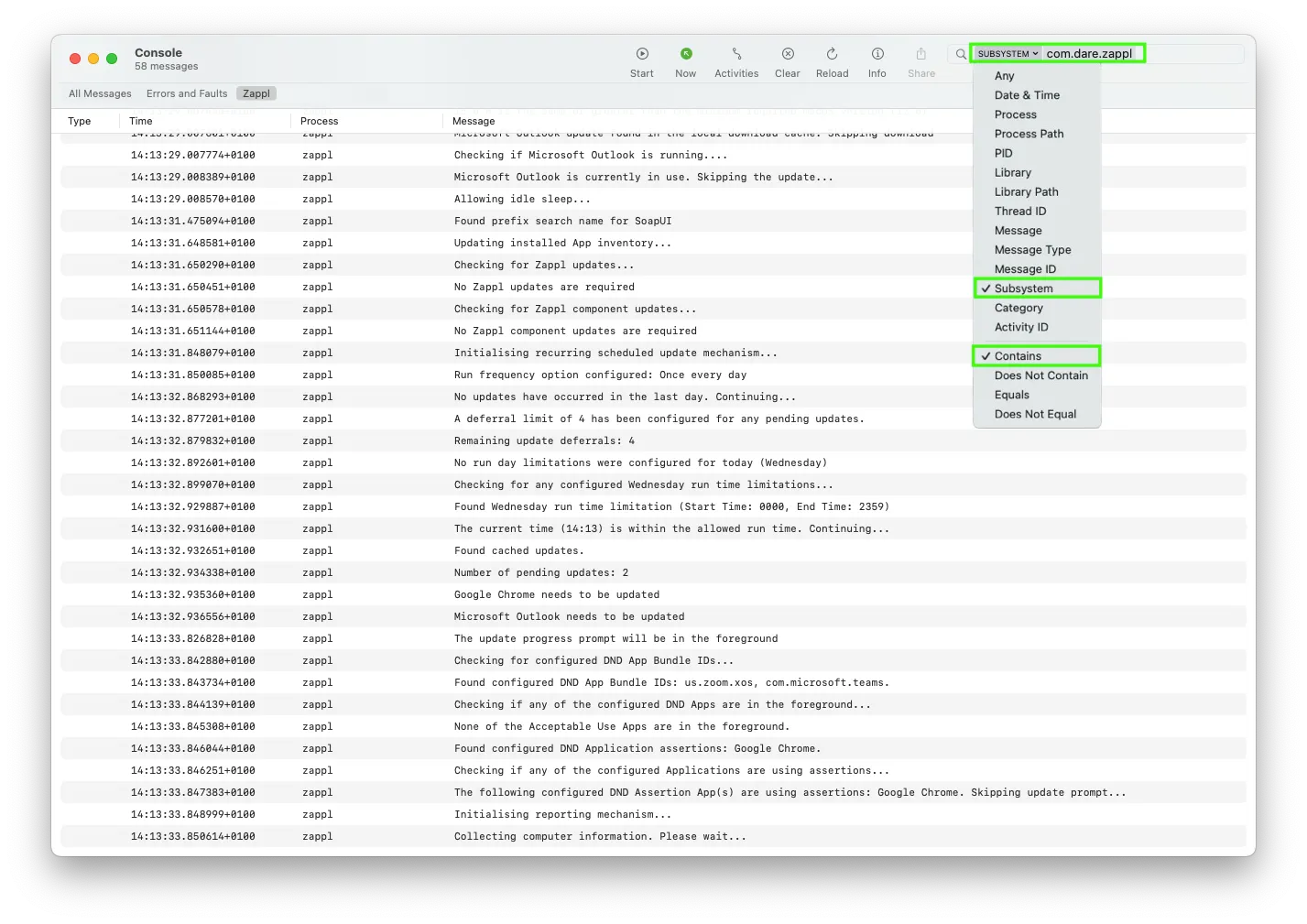
Alternatively, you can stream the current Zappl logs using the Console app. To do so, launch Console, then in the filter field select `SUBSYSTEM` and enter `com.dare.zappl` as the subsystem name.
 #### Historical Logs
You can use the Terminal app to run any of the below commands to gather historical Zappl logs using Apple’s unified logging.
To alter the timeframe, change the last value. We use `1h` in the below examples for the last hour, but you could also specify days. e.g. `1d` for 1 day.
**Display all Zappl logs from the last \$timeframe**
```bash theme={null}
log show --predicate 'subsystem == "com.dare.zappl"' --info --debug --last 1h
```
**Export all Zappl logs from the \$timeframe to a .log file on the desktop**
```bash theme={null}
log show --predicate 'subsystem == "com.dare.zappl"' --info --debug --last 1h > ~/Desktop/ZapplLastHour.log
```
**Display all available errors outputted by the Zappl agent**
```bash theme={null}
log show --predicate 'subsystem == "com.dare.zappl"' --info --debug --last 1h > ~/Desktop/ZapplLastHour.log
```
**Display only logs relating to the scheduled update category from the last \$timeframe** (see the table below for a full list of available categories)
```bash theme={null}
log show --predicate 'subsystem == "com.dare.zappl" AND category == "ScheduledUpdates"' --info --debug --last 1d
```
| Category Name | Description |
| --------------------- | ---------------------------------------------------------------------------------------------------------------------------------------------------------------------- |
| **Initialising** | Contains log information related to the Zappl agent's initialisation tasks such as the validation of license keys and connecting to the Zappl server. |
| **AppInstalls** | Contains log information about app installations. Please note this is not related to app updates. |
| **BackgroundUpdates** | Contains log information relating to silent updates which occur in the background for apps that are not in use. |
| **ForcedUpdates** | Contains log information relating to the forced update mechanism. |
| **Reporting** | Contains log information relating to the reporting mechanism responsible for collecting app and computer data and submitting data to the Zappl reporting portal. |
| **ScheduledUpdates** | Contains log information relating to the recurring scheduled updates mechanism responsible for prompting users to quit any apps which need to quit in order to update. |
#### Historical Logs
You can use the Terminal app to run any of the below commands to gather historical Zappl logs using Apple’s unified logging.
To alter the timeframe, change the last value. We use `1h` in the below examples for the last hour, but you could also specify days. e.g. `1d` for 1 day.
**Display all Zappl logs from the last \$timeframe**
```bash theme={null}
log show --predicate 'subsystem == "com.dare.zappl"' --info --debug --last 1h
```
**Export all Zappl logs from the \$timeframe to a .log file on the desktop**
```bash theme={null}
log show --predicate 'subsystem == "com.dare.zappl"' --info --debug --last 1h > ~/Desktop/ZapplLastHour.log
```
**Display all available errors outputted by the Zappl agent**
```bash theme={null}
log show --predicate 'subsystem == "com.dare.zappl"' --info --debug --last 1h > ~/Desktop/ZapplLastHour.log
```
**Display only logs relating to the scheduled update category from the last \$timeframe** (see the table below for a full list of available categories)
```bash theme={null}
log show --predicate 'subsystem == "com.dare.zappl" AND category == "ScheduledUpdates"' --info --debug --last 1d
```
| Category Name | Description |
| --------------------- | ---------------------------------------------------------------------------------------------------------------------------------------------------------------------- |
| **Initialising** | Contains log information related to the Zappl agent's initialisation tasks such as the validation of license keys and connecting to the Zappl server. |
| **AppInstalls** | Contains log information about app installations. Please note this is not related to app updates. |
| **BackgroundUpdates** | Contains log information relating to silent updates which occur in the background for apps that are not in use. |
| **ForcedUpdates** | Contains log information relating to the forced update mechanism. |
| **Reporting** | Contains log information relating to the reporting mechanism responsible for collecting app and computer data and submitting data to the Zappl reporting portal. |
| **ScheduledUpdates** | Contains log information relating to the recurring scheduled updates mechanism responsible for prompting users to quit any apps which need to quit in order to update. |
## Zappl Log File
```
/var/log/zappl.log
```
This log stores the previous 4 weeks of historical information outputted by Zappl, from informational output to any errors and warnings encountered.
Filtering through the log using Error: as the search term will display any historical errors outputted by Zappl.
The excerpt below demonstrates log output displayed during a typical app installation.
```Plain Text theme={null}
Thu Oct 03 16:02:20 XG17QVWYLX zappl[17950]: Initialising the Application install mechanism...
Thu Oct 03 16:02:20 XG17QVWYLX zappl[17950]: Show progress flag specified
Thu Oct 03 16:02:23 XG17QVWYLX zappl[17950]: The Zappl server is reachable
Thu Oct 03 16:02:23 XG17QVWYLX zappl[17950]: This installation of Zappl is licensed to Acme LTD
Thu Oct 03 16:02:30 XG17QVWYLX zappl[17950]: Firefox found in the Zappl App catalog.
Thu Oct 03 16:02:30 XG17QVWYLX zappl[17950]: Initialising Firefox install...
Thu Oct 03 16:02:30 XG17QVWYLX zappl[17950]: Preventing idle sleep...
Thu Oct 03 16:02:30 XG17QVWYLX zappl[17950]: Checking for sufficient disk space for the Firefox install...
Thu Oct 03 16:02:30 XG17QVWYLX zappl[17950]: Sufficient free disk space for the Firefox install
Thu Oct 03 16:02:30 XG17QVWYLX zappl[17950]: Checking macOS version requirements...
Thu Oct 03 16:02:30 XG17QVWYLX zappl[17950]: 15.0.0 is the same or greater than the minimum required macOS version (10.15)
Thu Oct 03 16:02:30 XG17QVWYLX zappl[17950]: Downloading universal Firefox installer...
Thu Oct 03 16:02:37 XG17QVWYLX zappl[17950]: Download complete
Thu Oct 03 16:02:37 XG17QVWYLX zappl[17950]: Mounting disk image...
Thu Oct 03 16:02:47 XG17QVWYLX zappl[17950]: Successfully mounted the Disk Image
Thu Oct 03 16:02:47 XG17QVWYLX zappl[17950]: Extracting Firefox-v131.0.dmg...
Thu Oct 03 16:02:47 XG17QVWYLX zappl[17950]: Downloaded installer hash: cd243b44746f56ee2042572cccab2736c0c6d419f85f90ad163a4ba04979ccb2
Thu Oct 03 16:02:47 XG17QVWYLX zappl[17950]: The installer hash matches the expected sha256 hash. Continuing...
Thu Oct 03 16:02:47 XG17QVWYLX zappl[17950]: Verifying signing information...
Thu Oct 03 16:02:48 XG17QVWYLX zappl[17950]: Found signature: Mozilla Corporation (43AQ936H96)
Thu Oct 03 16:02:48 XG17QVWYLX zappl[17950]: Signing verification complete. The App matches the expected code signing. Continuing...
Thu Oct 03 16:02:48 XG17QVWYLX zappl[17950]: Writing Firefox.app to /Applications/Firefox.app...
Thu Oct 03 16:02:57 XG17QVWYLX zappl[17950]: Setting permissions - Mode: 755, Owner: root, Group: admin
Thu Oct 03 16:02:57 XG17QVWYLX zappl[17950]: Detaching disk image...
Thu Oct 03 16:02:57 XG17QVWYLX zappl[17950]: "disk18" ejected.
Thu Oct 03 16:02:57 XG17QVWYLX zappl[17950]: Removing downloads...
Thu Oct 03 16:02:57 XG17QVWYLX zappl[17950]: Allowing idle sleep...
Thu Oct 03 16:02:57 XG17QVWYLX zappl[17950]: Running post install tasks...
Thu Oct 03 16:02:58 XG17QVWYLX zappl[17950]: Firefox found at path: /Applications/Firefox.app
Thu Oct 03 16:02:58 XG17QVWYLX zappl[17950]: The Firefox install was successful.
Thu Oct 03 16:03:00 XG17QVWYLX zappl[17950]: Displaying install success message to the user. Asking if Firefox should be launched...
Thu Oct 03 16:03:07 XG17QVWYLX zappl[17950]: User clicked Yes. Launching Firefox...
Thu Oct 03 16:03:08 XG17QVWYLX zappl[17950]: Exiting...
```
## Zappl Portal Logs
The Zappl agent sends any errors or warnings it generates to the device records in the [Online Portal](/portal/general) . These records are stored for 30 days, providing an easy way to view issues without sifting through the main Zappl logs. For more information, see [Logs](/portal/device-records#logs).
## Capturing Logs via MDM
Using an MDM tool like Jamf Pro (which will be used as an example below), we can capture Zappl logs remotely from a Mac, and upload to the relevant Inventory Record for download and further investigation.
#### Script
The script used for Log Collection can be found [here](https://latestinstaller.zappl.co/Resources/Scripts/Zappl%20-%20Collect%20Logs.zsh).
#### API Client
In Jamf Pro, navigate to *Settings > System > API Roles and Clients > API Roles*
Create a new **API Role**, giving it a relevant name.
The only privileges needed for this workflow are `Read Computers` and `Create Computers`. 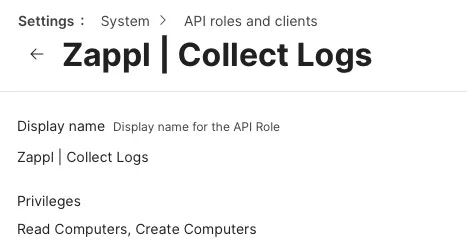 We can then create an **API Client** which utilises this role.
Navigate to *Settings > System > API Roles and Clients > API Clients.*
Create a new **API Client**, giving it a relevant name.
Choose the API Role you created in the prior step.
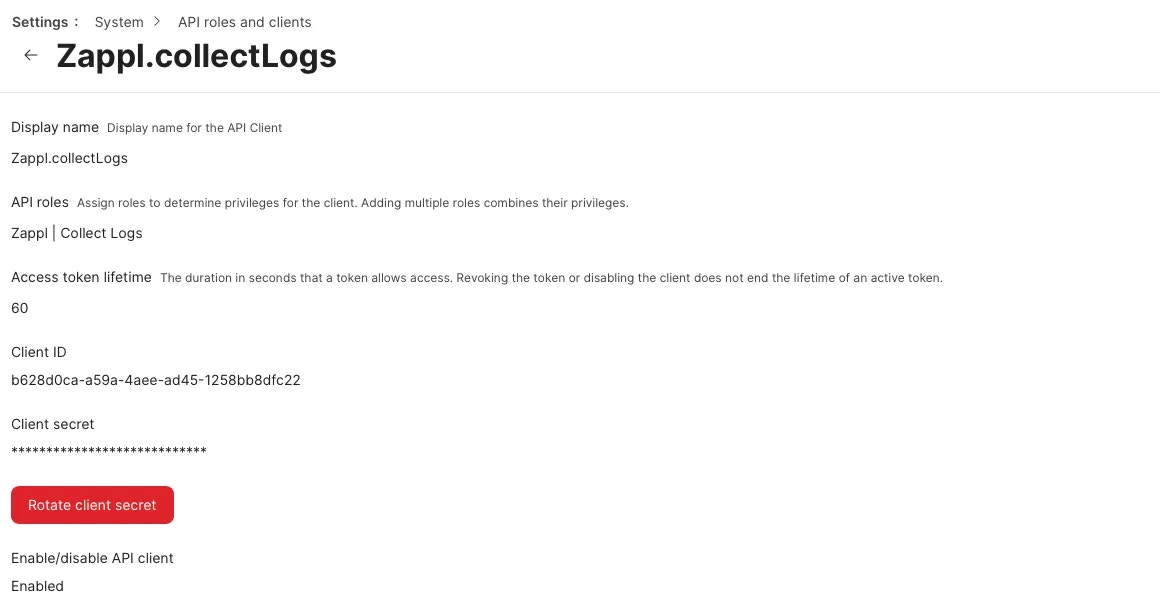
Under the *Enable/disable API Client* option, click on **Enable API Client**. Upon clicking **Save**, this provides you with an option to Generate a Client Secret.
Clicking on this option presents a popup. Click on **Create Secret** and you will be provided with a `Client ID` and `Client Secret`.
**Be sure to copy these details to your clipboard, as the Secret cannot be viewed again without rotating it.** We will be using these details with our Collect Logs script in the next steps.
We can then create an **API Client** which utilises this role.
Navigate to *Settings > System > API Roles and Clients > API Clients.*
Create a new **API Client**, giving it a relevant name.
Choose the API Role you created in the prior step.
Under the *Enable/disable API Client* option, click on **Enable API Client**. Upon clicking **Save**, this provides you with an option to Generate a Client Secret.
Clicking on this option presents a popup. Click on **Create Secret** and you will be provided with a `Client ID` and `Client Secret`.
**Be sure to copy these details to your clipboard, as the Secret cannot be viewed again without rotating it.** We will be using these details with our Collect Logs script in the next steps.
 We're now ready to utilise this API Client in a Jamf Pro Policy.
#### Policy
In Jamf Pro, navigate to *Computers > Policies*, and click on **Create New**.
Give your Policy a relevant name, and choose how you want the Policy to trigger.
We’d generally recommend a trigger of `Recurring Check-In`, with a frequency of `Once Per Computer`. This allows the script to trigger silently when the Mac next checks in with Jamf Pro, and requires no user-input.
Click on the **Scripts** payload and select the `Collect Logs` script you should have uploaded earlier.
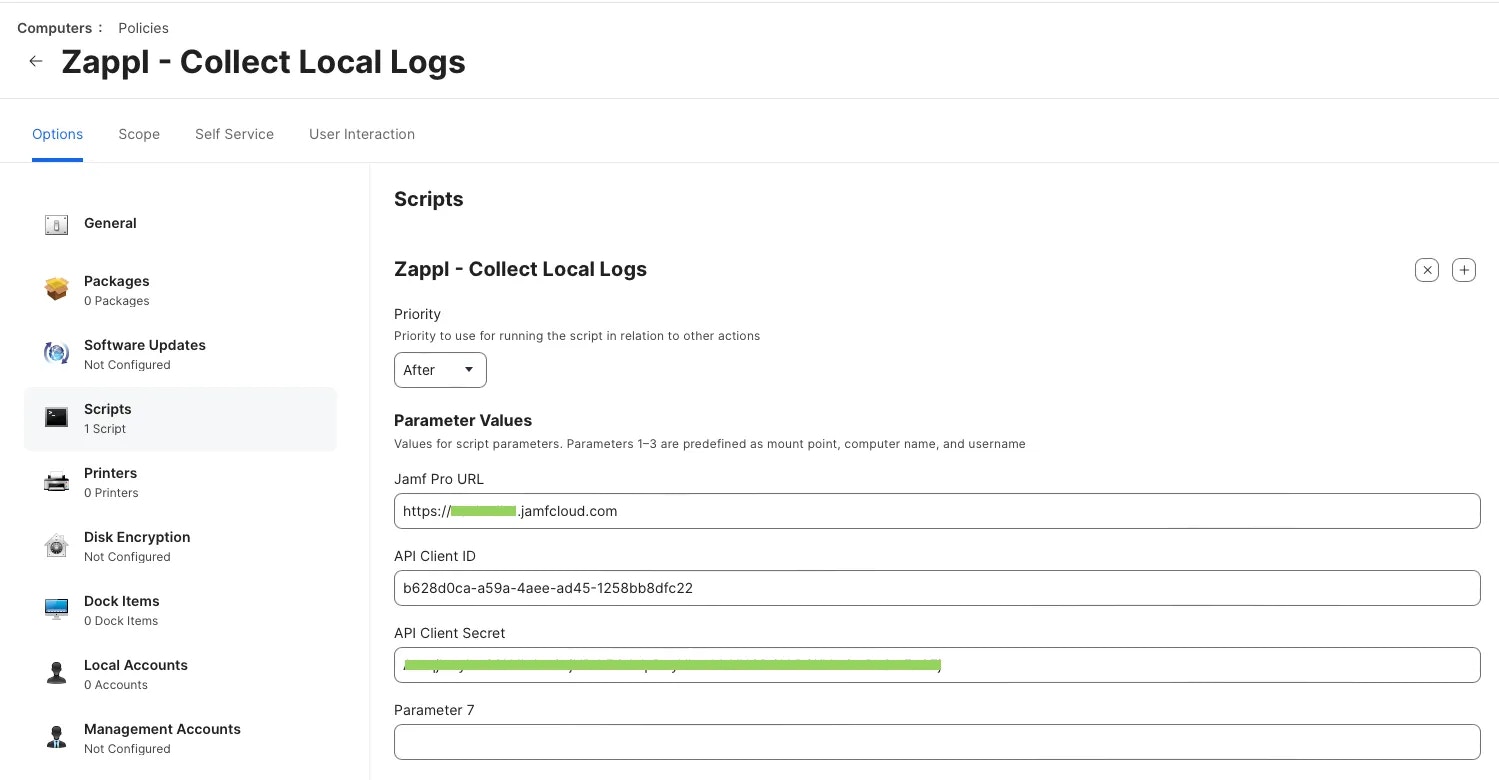
Enter the necessary parameter details as follows;
[https://acme.jamfcloud.com](https://acme.jamfcloud.com)
*Copied from the earlier API Client steps.*
*Copied from the earlier API Client steps.*
We're now ready to utilise this API Client in a Jamf Pro Policy.
#### Policy
In Jamf Pro, navigate to *Computers > Policies*, and click on **Create New**.
Give your Policy a relevant name, and choose how you want the Policy to trigger.
We’d generally recommend a trigger of `Recurring Check-In`, with a frequency of `Once Per Computer`. This allows the script to trigger silently when the Mac next checks in with Jamf Pro, and requires no user-input.
Click on the **Scripts** payload and select the `Collect Logs` script you should have uploaded earlier.
Enter the necessary parameter details as follows;
[https://acme.jamfcloud.com](https://acme.jamfcloud.com)
*Copied from the earlier API Client steps.*
*Copied from the earlier API Client steps.*
 Set the Scope of the Policy to your preference, and **Save** the Policy.
Once the policy has executed on the target Computer(s), you can proceed.
Navigate to the relevant Inventory Record(s).
From here, in the `Inventory` tab select the **Attachments** option, and you should see a `Zappl Log` uploaded.
Set the Scope of the Policy to your preference, and **Save** the Policy.
Once the policy has executed on the target Computer(s), you can proceed.
Navigate to the relevant Inventory Record(s).
From here, in the `Inventory` tab select the **Attachments** option, and you should see a `Zappl Log` uploaded. 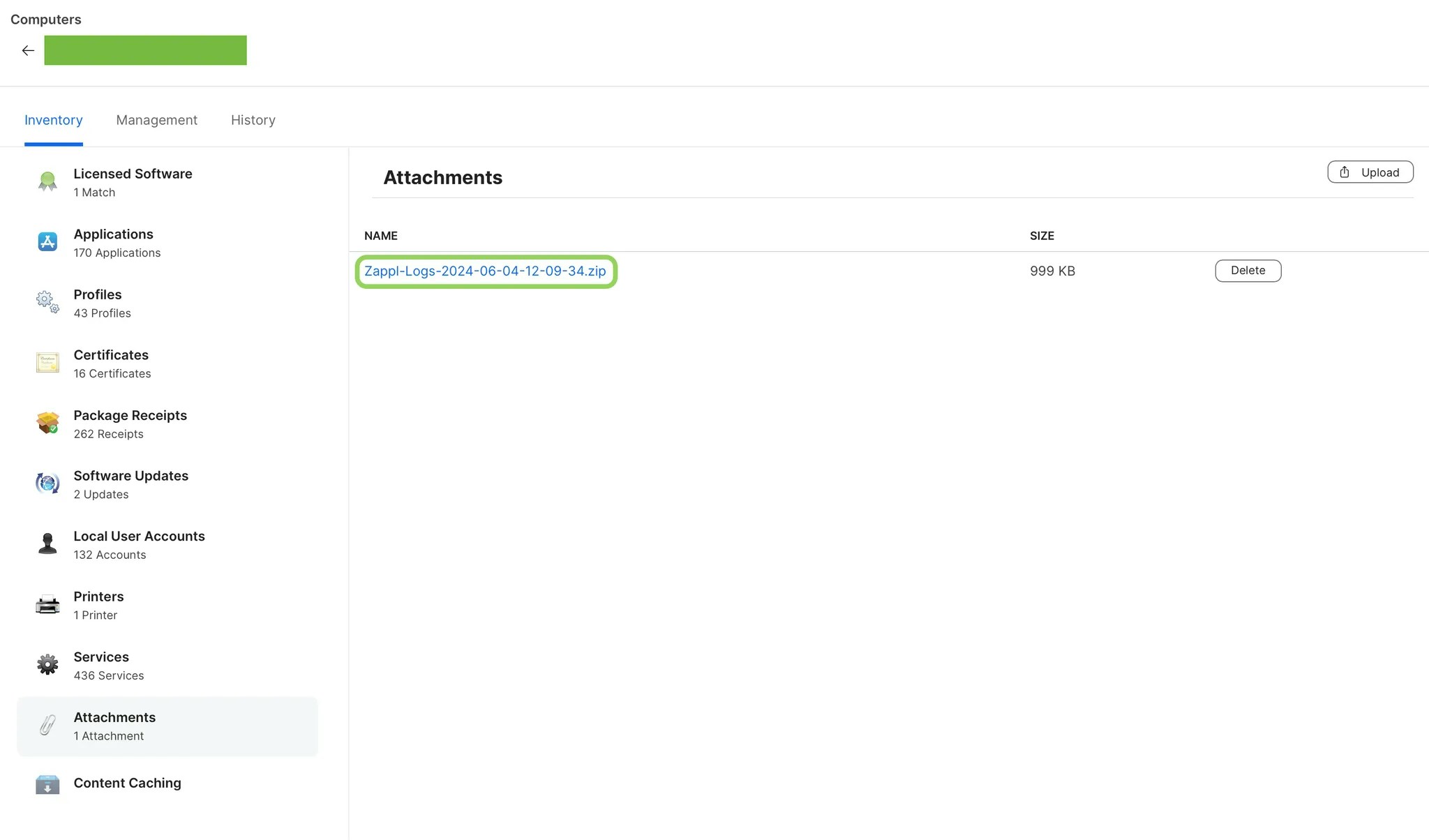 You are then able to download this log to your own computer for further troubleshooting.