> ## Documentation Index
> Fetch the complete documentation index at: https://docs.zappl.co/llms.txt
> Use this file to discover all available pages before exploring further.
# Preferences
> If you are looking to customise the JSON Schema in Jamf Pro or iMazing for other MDMs, you can use this guide to understand the purpose of each preference key.
The screenshots in this guide show the UI when using the custom preference schema for Jamf Pro, but each preference's underlying key name has also been included so non-Jamf Pro customers can still identify and configure the correct preference. If you're not using Jamf Pro, we'd recommend using [iMazing Profile Editor](https://imazing.com/profile-editor) to configure your preferences, or using our [sample plist](https://latestinstaller.zappl.co/Resources/Minimal%20Plist/Zappl%20Preferences%20Sample.plist?v=3.0.0) as a starting point.
#### Preference Structure
The configuration profile is comprised of three main preference dictionaries; the **General Options**, the **Scheduled Update Prompt Options** and the **Forced Update Prompt Options**.
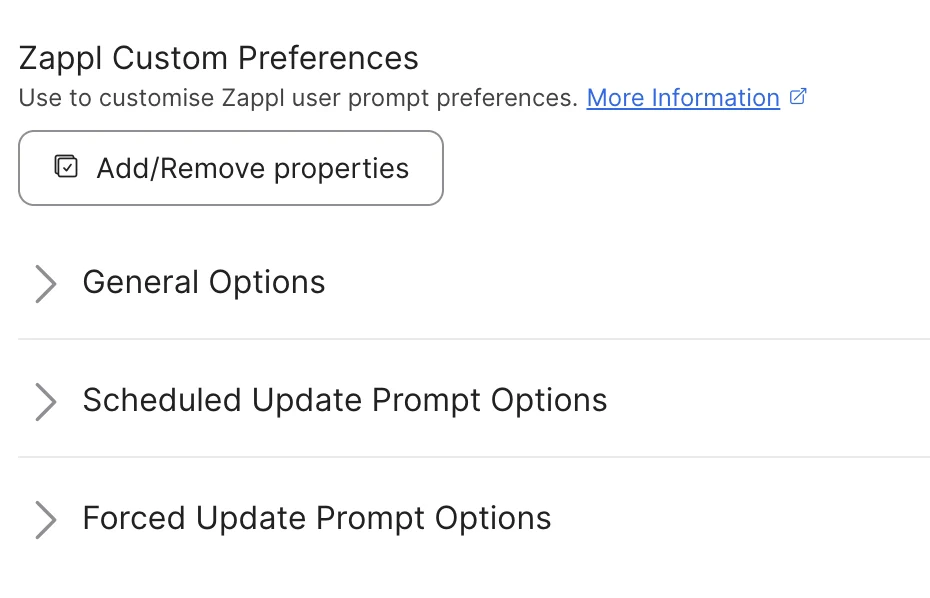 The scheduled and forced update prompt options share identical preference keys that serve the same purpose for their respective prompt mechanisms, although the forced update prompt options require fewer preferences.
This is because deferrals and grace periods for forced update prompts are configured on a per-app basis when marking apps for forced updates, and because the forced update prompt feature requires slightly less functionality overall.
To customise AppBar preferences, refer to the [AppBar Preferences](/appbar/appbar-preferences) guide.
## Schema Preference Key Guide
#### General Options
**Key:** `activationToken`
**This key is required to activate and use Zappl.**
Enter your unique customer activation token. If you do not know this, please [contact our Support team](mailto:helpdesk@dare.tech).
**Key:** `publicKey`
**This key is required to activate and use Zappl.**
Enter your unique customer public key. If you do not know this, please [contact our Support team](mailto:helpdesk@dare.tech).
**Key:** `enableReporting`
**This key is set to `true` by default.**
By default, Zappl submits daily compliance reports to the [Zappl Portal](https://portal.zappl.co). To prevent Zappl from submitting compliance reports, uncheck this option.
**This option requires at least v2.1.0**
During your Zappl trial, it may be useful to put Zappl into "Report-Only" mode before allowing updates. This lets you see your compliance status before and after Zappl updates apps. To enable this, ensure this option is checked and that **Allow Background Updates** and **Allow Scheduled Update Prompts** are both unchecked. Once Zappl has collected compliance stats, simply enable these two options to allow Zappl to update apps and report your updated compliance status.
**Key:** `backgroundUpdates`
**This key is set to `true` by default.**
When enabled, Zappl attempts to silently update apps in the background on a recurring interval. If an app is not in use when an update is available, it will be updated without any prompts being shown to the user. Leaving this enabled is recommended to ensure updates are applied as quickly as possible with minimal user disruption.
If you wish to disable all updates, this is the first of two settings that need to be unchecked, the second being the [Allow Scheduled Update Prompts](/customise/preferences#allow-scheduled-update-prompts) option.
**Key:** `updatePrompts`
**This key is set to `true` by default.**
By default, Zappl prompts users to quit Apps that need to update on a regular recurring interval which can be configured in the **Scheduled Update Prompt Options**.
If you wish to disable the *recurring scheduled update prompts* and only attempt to install updates silently when Apps are not in use, uncheck this option and check the [Allow Background Updates](/customise/preferences#allow-background-updates) option only.
If you wish to disable *all updates*, this is the second of two settings that need to be unchecked along with the [Allow Background Updates](/customise/preferences#allow-background-updates) option.
**Key:** `downloadStaggerWindow`
**This key is set to `60` by default.**
Sets a stagger window in minutes that spreads update downloads across your devices. Each device will randomly pick a time within this window to check for and download new updates after they are released. Increasing this value is recommended for large sites to reduce network load. The default and minimum value is 60 minutes and the maximum is 360 minutes (6 hours).
Longer stagger windows (e.g., 6 hours) may directly impact compliance figures in the portal, as devices could take up to the configured window duration to download new updates after release.
**Key:** `autoUpdate`
**This key is set to `true` by default.**
By default, Zappl will update itself when new major and point releases are available.
If you wish to disable this and either stay on a specific Zappl version, or push out updates for Zappl manually, **uncheck** this option.
**Key:** `autoInstallAppBar`
**This key is set to `true` by default.**
When enabled, Zappl automatically installs the [AppBar](/appbar/introduction) menu bar application.
Uncheck this option if you do not wish to use AppBar in your environment, or if you prefer to deploy AppBar manually.
To customise AppBar preferences, refer to the [AppBar Preferences](/appbar/appbar-preferences) guide.
**Key:** `enableLiquidGlass`
**This key is set to `true` by default.**
When enabled, Zappl update prompts use the macOS Liquid Glass visual style introduced in macOS 26 Tahoe. Uncheck to use the standard flat appearance on all supported macOS versions.
This option has no effect on macOS versions prior to macOS 26 Tahoe.
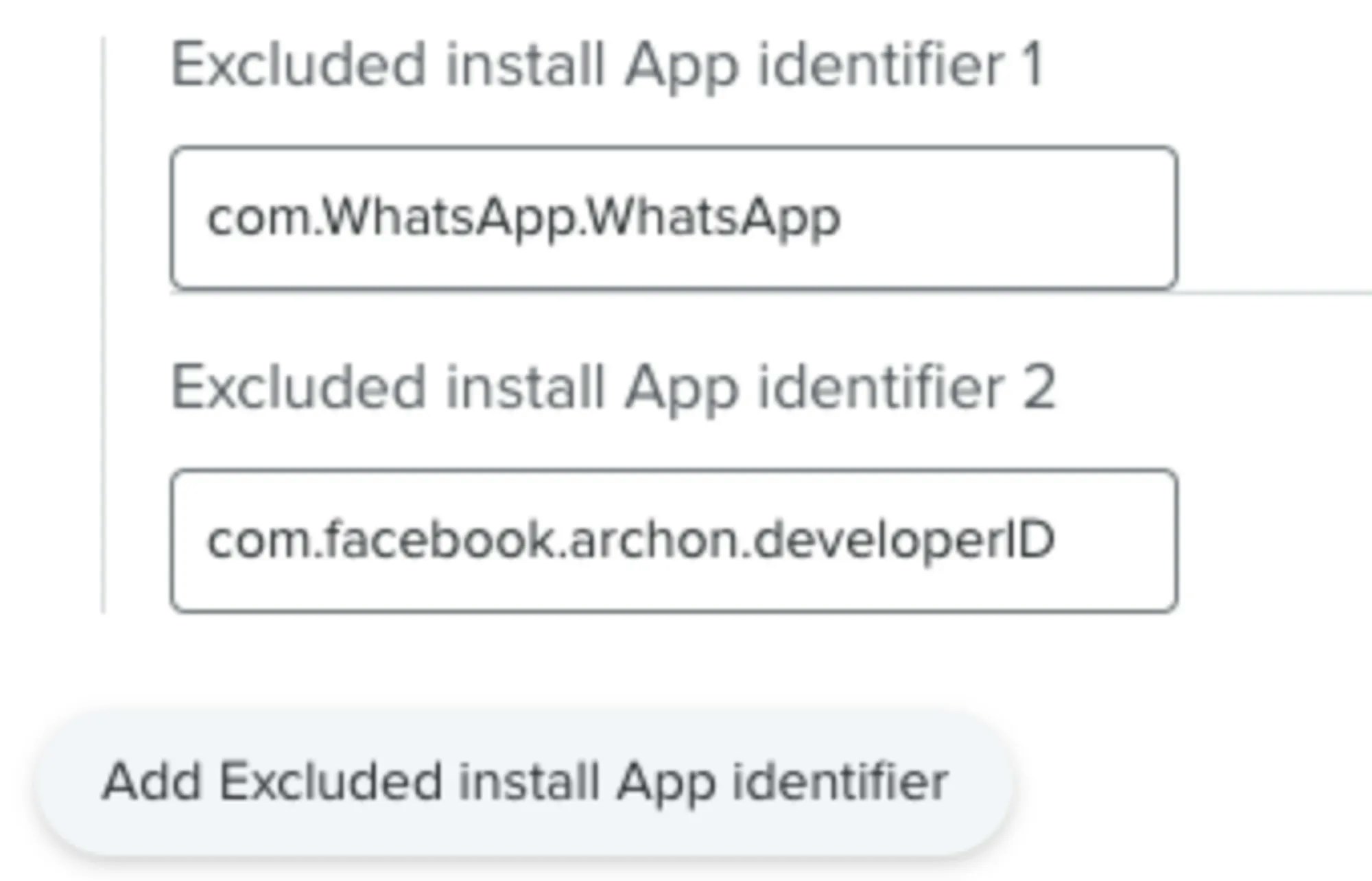
**Key:** `allowedAppInstalls`
By default, all Apps within the Zappl [App Catalog](https://zappl.co/app-catalog/) are available for installs. If you prefer to limit which Apps can be installed by Zappl, specify the Apps you wish to allow in this array.
You can specify as many unique identifiers as you wish, using the [App Catalog](https://zappl.co/app-catalog/) unique identifiers for each App.
If you wish to allow installs for all Apps within the catalog with the exception of a select few Apps, skip configuring this setting and use the [Excluded Installs](/customise/preferences#excluded-installs) setting. If you specify an App in this list which is also in the [Excluded Installs](/customise/preferences#excluded-installs) list, the exclusion will override this setting.
The scheduled and forced update prompt options share identical preference keys that serve the same purpose for their respective prompt mechanisms, although the forced update prompt options require fewer preferences.
This is because deferrals and grace periods for forced update prompts are configured on a per-app basis when marking apps for forced updates, and because the forced update prompt feature requires slightly less functionality overall.
To customise AppBar preferences, refer to the [AppBar Preferences](/appbar/appbar-preferences) guide.
## Schema Preference Key Guide
#### General Options
**Key:** `activationToken`
**This key is required to activate and use Zappl.**
Enter your unique customer activation token. If you do not know this, please [contact our Support team](mailto:helpdesk@dare.tech).
**Key:** `publicKey`
**This key is required to activate and use Zappl.**
Enter your unique customer public key. If you do not know this, please [contact our Support team](mailto:helpdesk@dare.tech).
**Key:** `enableReporting`
**This key is set to `true` by default.**
By default, Zappl submits daily compliance reports to the [Zappl Portal](https://portal.zappl.co). To prevent Zappl from submitting compliance reports, uncheck this option.
**This option requires at least v2.1.0**
During your Zappl trial, it may be useful to put Zappl into "Report-Only" mode before allowing updates. This lets you see your compliance status before and after Zappl updates apps. To enable this, ensure this option is checked and that **Allow Background Updates** and **Allow Scheduled Update Prompts** are both unchecked. Once Zappl has collected compliance stats, simply enable these two options to allow Zappl to update apps and report your updated compliance status.
**Key:** `backgroundUpdates`
**This key is set to `true` by default.**
When enabled, Zappl attempts to silently update apps in the background on a recurring interval. If an app is not in use when an update is available, it will be updated without any prompts being shown to the user. Leaving this enabled is recommended to ensure updates are applied as quickly as possible with minimal user disruption.
If you wish to disable all updates, this is the first of two settings that need to be unchecked, the second being the [Allow Scheduled Update Prompts](/customise/preferences#allow-scheduled-update-prompts) option.
**Key:** `updatePrompts`
**This key is set to `true` by default.**
By default, Zappl prompts users to quit Apps that need to update on a regular recurring interval which can be configured in the **Scheduled Update Prompt Options**.
If you wish to disable the *recurring scheduled update prompts* and only attempt to install updates silently when Apps are not in use, uncheck this option and check the [Allow Background Updates](/customise/preferences#allow-background-updates) option only.
If you wish to disable *all updates*, this is the second of two settings that need to be unchecked along with the [Allow Background Updates](/customise/preferences#allow-background-updates) option.
**Key:** `downloadStaggerWindow`
**This key is set to `60` by default.**
Sets a stagger window in minutes that spreads update downloads across your devices. Each device will randomly pick a time within this window to check for and download new updates after they are released. Increasing this value is recommended for large sites to reduce network load. The default and minimum value is 60 minutes and the maximum is 360 minutes (6 hours).
Longer stagger windows (e.g., 6 hours) may directly impact compliance figures in the portal, as devices could take up to the configured window duration to download new updates after release.
**Key:** `autoUpdate`
**This key is set to `true` by default.**
By default, Zappl will update itself when new major and point releases are available.
If you wish to disable this and either stay on a specific Zappl version, or push out updates for Zappl manually, **uncheck** this option.
**Key:** `autoInstallAppBar`
**This key is set to `true` by default.**
When enabled, Zappl automatically installs the [AppBar](/appbar/introduction) menu bar application.
Uncheck this option if you do not wish to use AppBar in your environment, or if you prefer to deploy AppBar manually.
To customise AppBar preferences, refer to the [AppBar Preferences](/appbar/appbar-preferences) guide.
**Key:** `enableLiquidGlass`
**This key is set to `true` by default.**
When enabled, Zappl update prompts use the macOS Liquid Glass visual style introduced in macOS 26 Tahoe. Uncheck to use the standard flat appearance on all supported macOS versions.
This option has no effect on macOS versions prior to macOS 26 Tahoe.
**Key:** `allowedAppInstalls`
By default, all Apps within the Zappl [App Catalog](https://zappl.co/app-catalog/) are available for installs. If you prefer to limit which Apps can be installed by Zappl, specify the Apps you wish to allow in this array.
You can specify as many unique identifiers as you wish, using the [App Catalog](https://zappl.co/app-catalog/) unique identifiers for each App.
If you wish to allow installs for all Apps within the catalog with the exception of a select few Apps, skip configuring this setting and use the [Excluded Installs](/customise/preferences#excluded-installs) setting. If you specify an App in this list which is also in the [Excluded Installs](/customise/preferences#excluded-installs) list, the exclusion will override this setting.
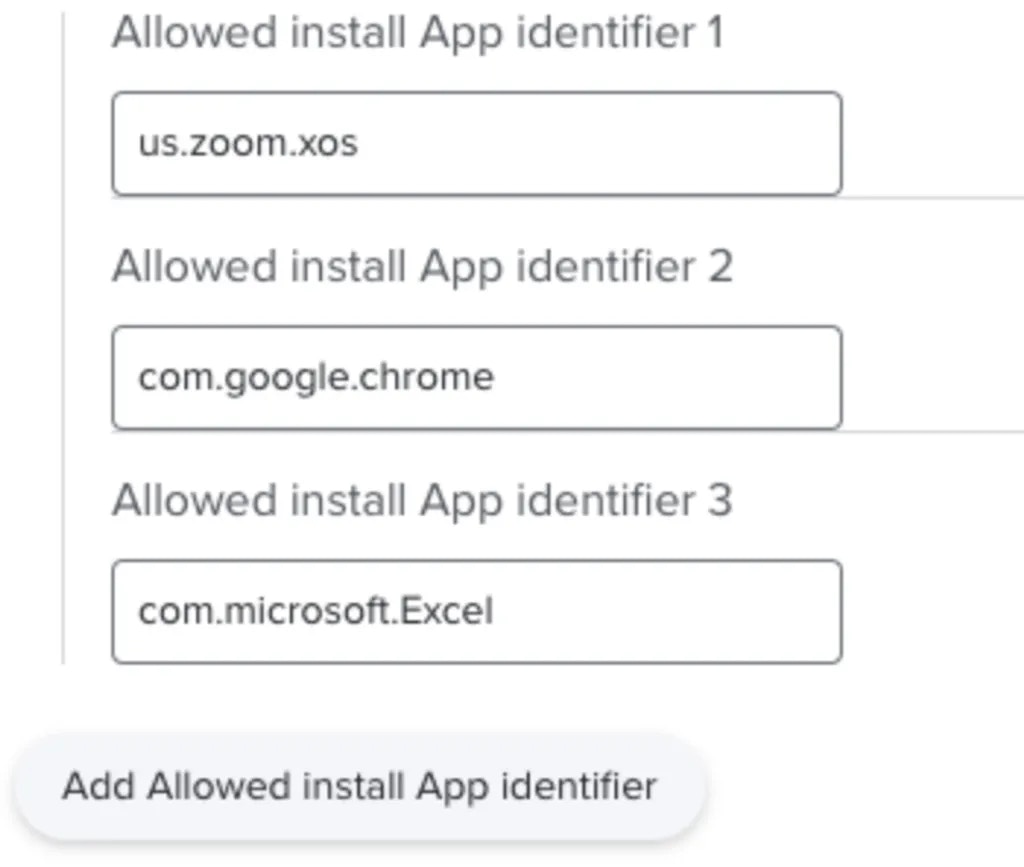 **Key:** `excludedAppInstalls`
By default, all Apps within the Zappl [App Catalog](https://zappl.co/app-catalog/) are available for installs. If you wish to allow installs for all Apps in the catalog with the exception of only a few Apps, specify the Apps you wish to exclude in this array.
You can specify as many unique App identifiers as you wish, using the [App Catalog](https://zappl.co/app-catalog/) unique identifiers for each App.
If you wish to only allow installs for some specific Apps within our catalog, skip this setting and instead use the [Allowed Installs](/customise/preferences#allowed-installs) setting to create your allowed installations list. If you specify an App exclusion which is also in the [Allowed Installs](/customise/preferences#allowed-installs) list, only the exclusion will be respected.
**Key:** `excludedAppInstalls`
By default, all Apps within the Zappl [App Catalog](https://zappl.co/app-catalog/) are available for installs. If you wish to allow installs for all Apps in the catalog with the exception of only a few Apps, specify the Apps you wish to exclude in this array.
You can specify as many unique App identifiers as you wish, using the [App Catalog](https://zappl.co/app-catalog/) unique identifiers for each App.
If you wish to only allow installs for some specific Apps within our catalog, skip this setting and instead use the [Allowed Installs](/customise/preferences#allowed-installs) setting to create your allowed installations list. If you specify an App exclusion which is also in the [Allowed Installs](/customise/preferences#allowed-installs) list, only the exclusion will be respected.
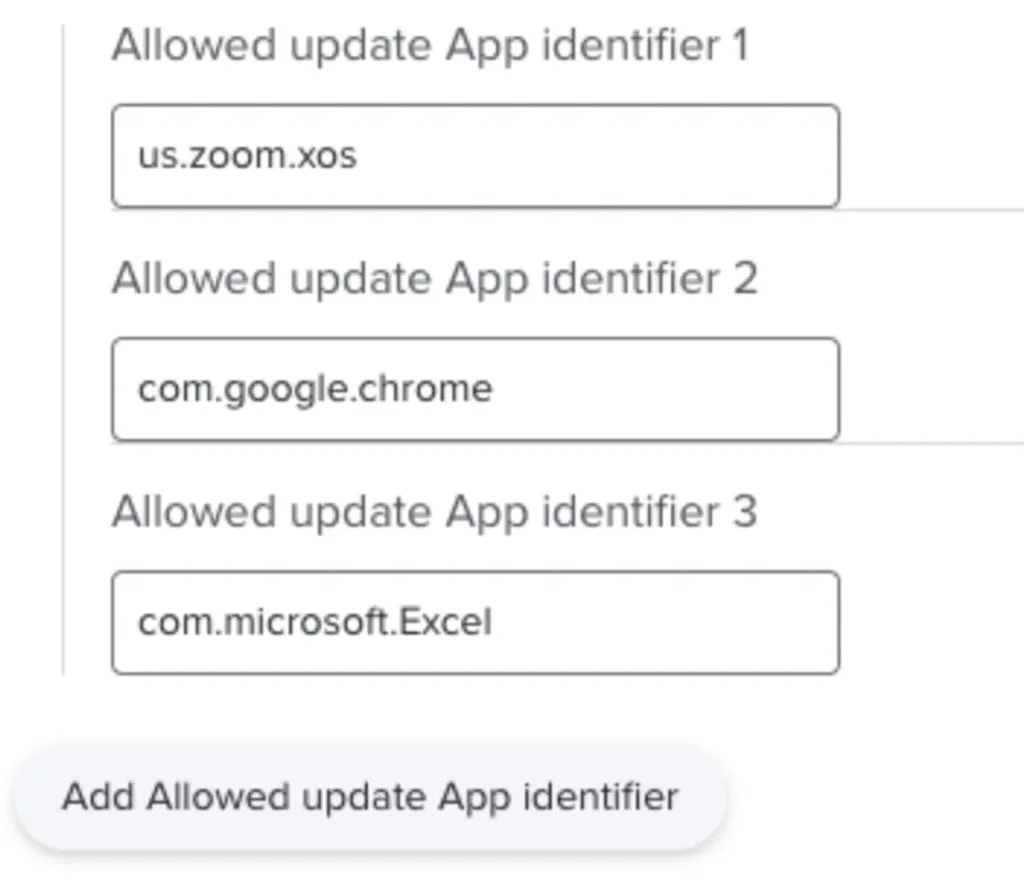
 **Key:** `allowedAppUpdates`
By default, all Apps within the Zappl [App Catalog](https://zappl.co/app-catalog/) will be updated if installed. If you prefer to limit which Apps can be updated by Zappl, specify the Apps you wish to allow in this array.
You can specify as many unique identifiers as you wish, using the [App Catalog](https://zappl.co/app-catalog/) unique identifiers for each App.
If you wish to allow updates for all Apps within the catalog with the exception of a select few Apps, skip configuring this setting and use the [Excluded Updates](/customise/preferences#excluded-updates) setting. If you specify an App in this list which is also in the \[Excluded Updates]\(/customise/preferences#excluded-updates] list, the exclusion will override this setting.
**Key:** `allowedAppUpdates`
By default, all Apps within the Zappl [App Catalog](https://zappl.co/app-catalog/) will be updated if installed. If you prefer to limit which Apps can be updated by Zappl, specify the Apps you wish to allow in this array.
You can specify as many unique identifiers as you wish, using the [App Catalog](https://zappl.co/app-catalog/) unique identifiers for each App.
If you wish to allow updates for all Apps within the catalog with the exception of a select few Apps, skip configuring this setting and use the [Excluded Updates](/customise/preferences#excluded-updates) setting. If you specify an App in this list which is also in the \[Excluded Updates]\(/customise/preferences#excluded-updates] list, the exclusion will override this setting.
 **Key:** `excludedAppUpdates`
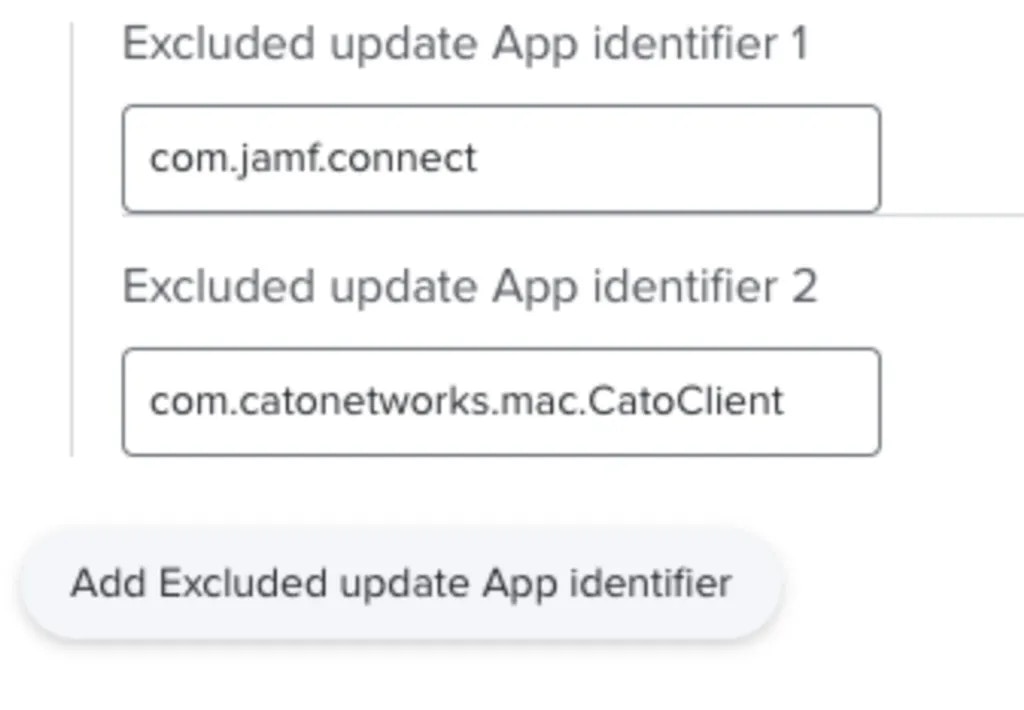
By default, all Apps within the Zappl [App Catalog](https://zappl.co/app-catalog/) will be updated if installed. If you wish to allow updates for all Apps in the catalog with the exception of only a few Apps, specify the Apps you wish to allow in this array.
You can specify as many unique App identifiers as you wish, using the [App Catalog](https://zappl.co/app-catalog/) unique identifiers for each App.
If you wish to only allow updates for some specific Apps within our catalog, skip this setting and instead use the [Allowed Updates](/customise/preferences#allowed-updates) setting to create your allowed update list. If you specify an exclusion App which is also in the [Allowed Updates](/customise/preferences#allowed-updates) list, only the exclusion will be respected.
**Key:** `excludedAppUpdates`
By default, all Apps within the Zappl [App Catalog](https://zappl.co/app-catalog/) will be updated if installed. If you wish to allow updates for all Apps in the catalog with the exception of only a few Apps, specify the Apps you wish to allow in this array.
You can specify as many unique App identifiers as you wish, using the [App Catalog](https://zappl.co/app-catalog/) unique identifiers for each App.
If you wish to only allow updates for some specific Apps within our catalog, skip this setting and instead use the [Allowed Updates](/customise/preferences#allowed-updates) setting to create your allowed update list. If you specify an exclusion App which is also in the [Allowed Updates](/customise/preferences#allowed-updates) list, only the exclusion will be respected.
#### ONLY Scheduled Update Prompt Options
**Key:** `runFrequency.runType`
Although the scheduled cached update check is run on a frequent basis every day, the preferences in the Run Frequency Options dictionary ensure that users are only prompted to install updates on a specified frequency, e.g. once every week.
First, use the **Run Frequency Option** dropdown to define a method of frequently prompting users to update.
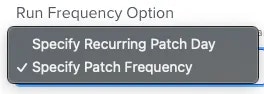 [`Specify Patch Frequency`](/customise/preferences#specify-patch-frequency-preferences)
Select this option if you prefer not to tie the updates to a specified weekday and instead run updates on a recurring frequency, *e.g. once every day, once every week etc*.
[`Specify Patch Frequency`](/customise/preferences#specify-patch-frequency-preferences)
Select this option if you prefer not to tie the updates to a specified weekday and instead run updates on a recurring frequency, *e.g. once every day, once every week etc*.
[`Specify Recurring Patch Day`](/customise/preferences#specific-patch-day-preferences)
Select this option if you want to specify a day of each week to prompt users if they have pending updates, *e.g. every Tuesday*.
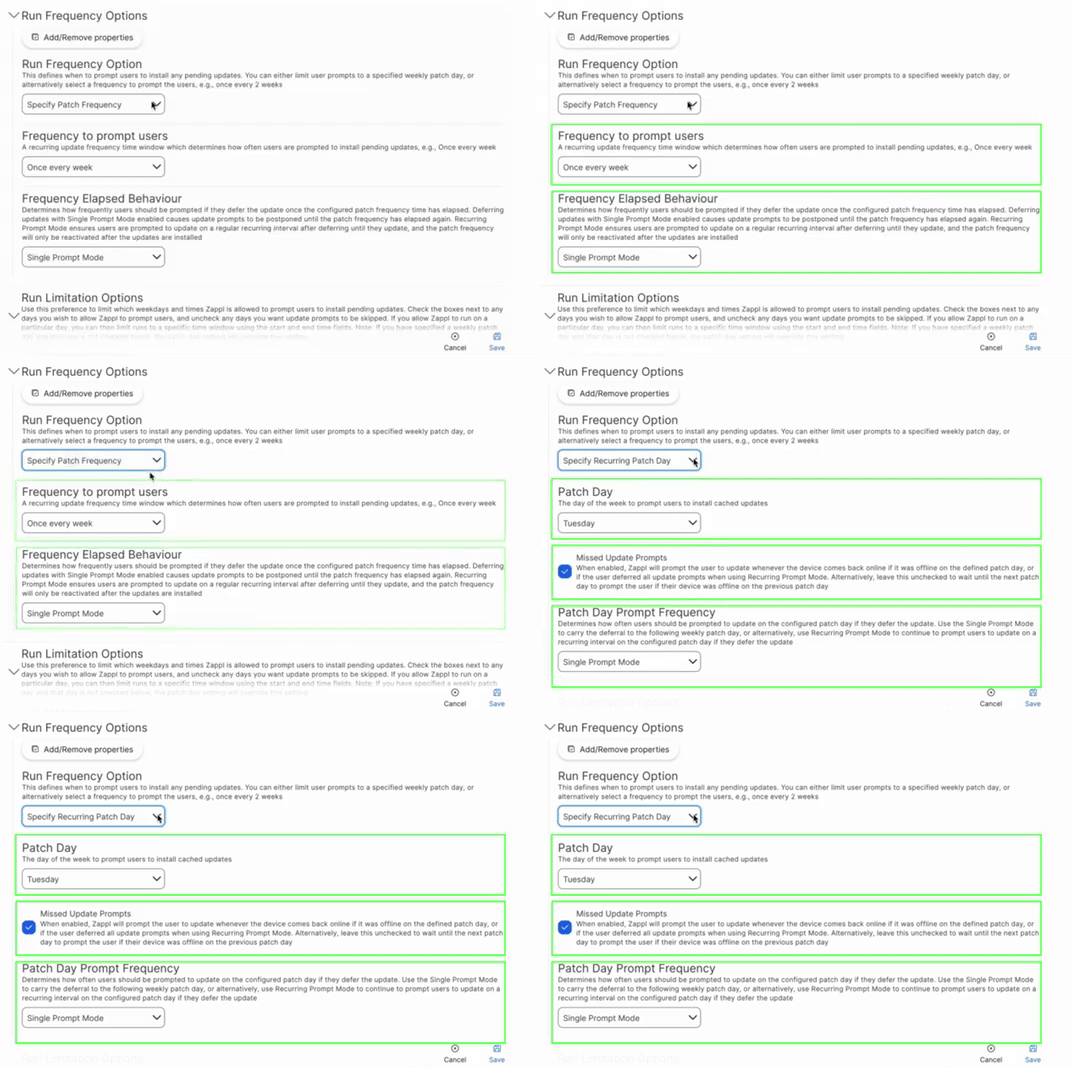
When you select one of these two options, preferences that relate to each option automatically populate.
 #### Frequency to Prompt Users
**Key:** `runFrequency.frequencyOption`
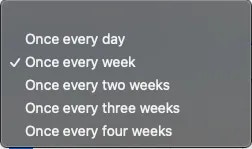
Use this dropdown to select how often you want to prompt users to update.
#### Frequency to Prompt Users
**Key:** `runFrequency.frequencyOption`
Use this dropdown to select how often you want to prompt users to update.
 #### Frequency Elapsed Behaviour
**Key:** `runFrequency.frequencyElapsedMode`
This dropdown determines how Zappl should behave if the user defers the update. Selecting the `Single Prompt Mode` option will ensure that if the user defers the update, they will not get prompted to update again until the configured frequency has elapsed again, e.g. one week later.
#### Frequency Elapsed Behaviour
**Key:** `runFrequency.frequencyElapsedMode`
This dropdown determines how Zappl should behave if the user defers the update. Selecting the `Single Prompt Mode` option will ensure that if the user defers the update, they will not get prompted to update again until the configured frequency has elapsed again, e.g. one week later.
Alternatively, select `Recurring Prompt Mode` if you prefer to prompt the user on a recurring basis after deferring until the update is installed.
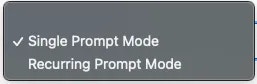 When selecting `Recurring Prompt Mode`, the 'Recurring Prompt Mode Deferral Window - Patch Frequency' field (**Key:** `runFrequency.deferralWindow`) appears and allows you to define a minimum deferral period in minutes.
  #### Patch Day
**Key:** `runFrequency.patchDay`
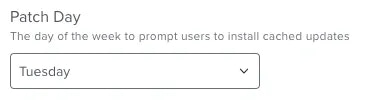
Use this dropdown to select a day of the week to prompt users to update when updates are pending.
#### Patch Day
**Key:** `runFrequency.patchDay`
Use this dropdown to select a day of the week to prompt users to update when updates are pending.
 #### Missed Update Prompts
**Key:** `runFrequency.missedUpdatePrompt`
Selecting this option ensures that if a computer is offline on the defined weekly patch day, the user can be prompted to update at the next available opportunity as opposed to waiting until the next patch day. Leave this **unchecked** if you prefer to ensure that prompts are only ever displayed on the configured patch day.
#### Missed Update Prompts
**Key:** `runFrequency.missedUpdatePrompt`
Selecting this option ensures that if a computer is offline on the defined weekly patch day, the user can be prompted to update at the next available opportunity as opposed to waiting until the next patch day. Leave this **unchecked** if you prefer to ensure that prompts are only ever displayed on the configured patch day.
 #### Patch Day Prompt Frequency
**Key:** `runFrequency.patchDayFrequency`
This dropdown helps you determine how frequently users are prompted to update on the configured patch day when they defer an update.
#### Patch Day Prompt Frequency
**Key:** `runFrequency.patchDayFrequency`
This dropdown helps you determine how frequently users are prompted to update on the configured patch day when they defer an update.
Selecting the `Single Prompt Mode` option ensures that when a user defers the update, they won't get prompted to update until the following week on the configured patch day.
If you prefer to prompt the user to update on a recurring basis on the configured patch day, select the `Recurring Prompt Mode` option. 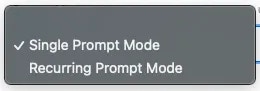 When selecting `Recurring Prompt Mode`, the `Recurring Prompt Mode Deferral Window (Patch Day)` field (**Key:** `runFrequency.patchDayDeferralWindow`) appears and allows you to define a minimum deferral period in minutes.
 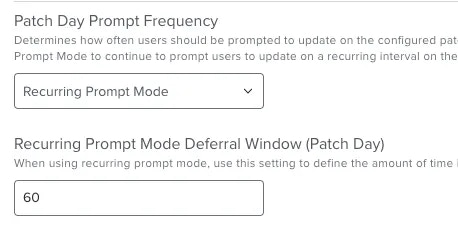 If Zappl finds no preferences configuration profile, the default behaviour is to prompt users to update **once every week** with **single prompt mode** enabled.
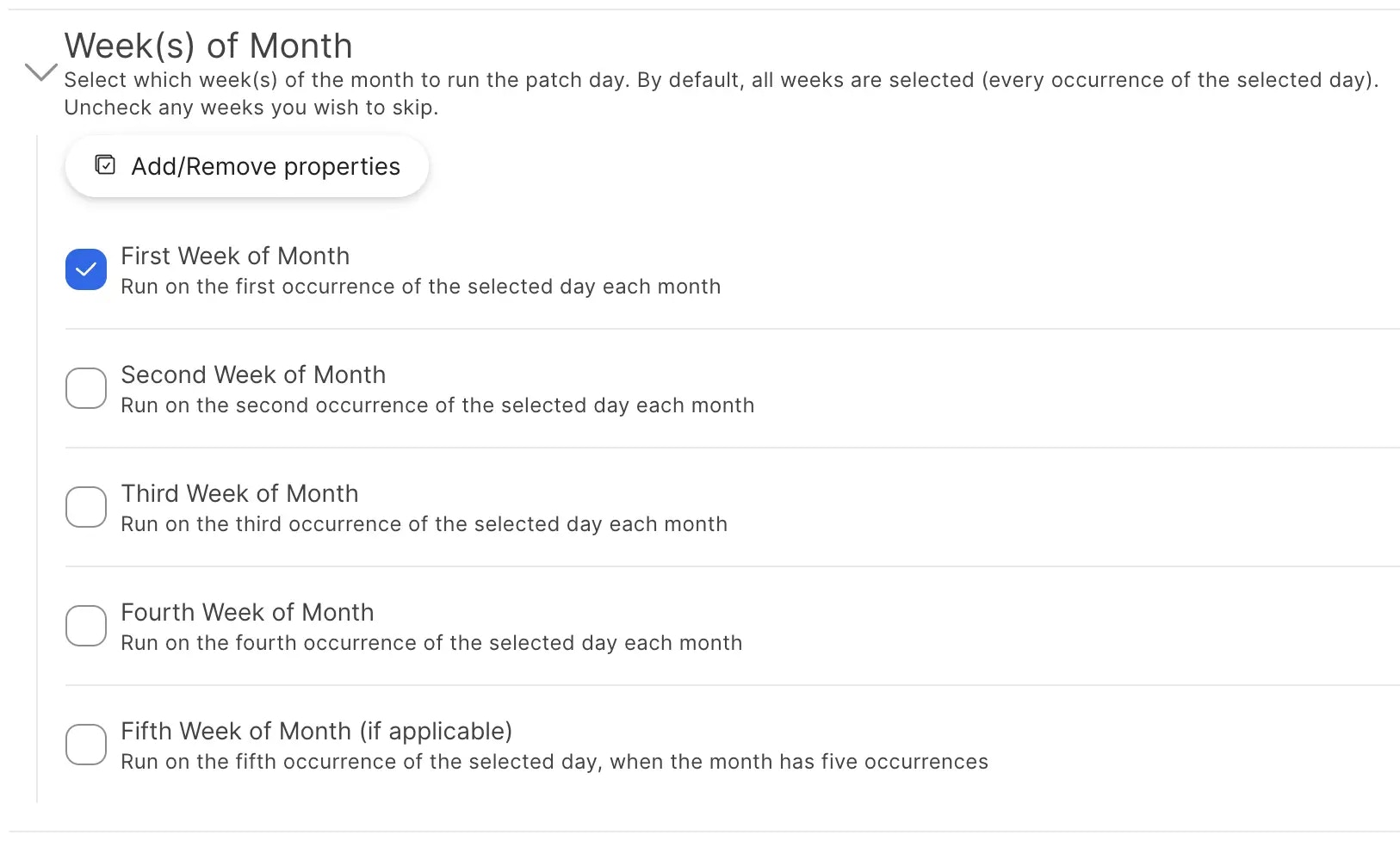
#### Week(s) of Month
**Key:** `runFrequency.patchDayWeeks`
Allows you to select specific weeks of the month to prompt users on your configured patch day. By default, all weeks are enabled. If you prefer to prompt users less frequently, e.g., only on the first monthly occurence of your desired patch day, uncheck all other weeks.
This option requires at least version 2.0.0 of Zappl.
If Zappl finds no preferences configuration profile, the default behaviour is to prompt users to update **once every week** with **single prompt mode** enabled.
#### Week(s) of Month
**Key:** `runFrequency.patchDayWeeks`
Allows you to select specific weeks of the month to prompt users on your configured patch day. By default, all weeks are enabled. If you prefer to prompt users less frequently, e.g., only on the first monthly occurence of your desired patch day, uncheck all other weeks.
This option requires at least version 2.0.0 of Zappl.
 **Key:** `deferralConfiguration.deferralOption`
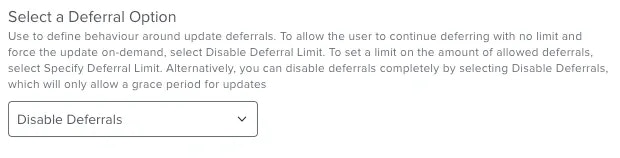
Use this preference dictionary to configure your desired deferral behaviour.
This preference is unique to the **Scheduled Update Prompt Options** dictionary. Deferral options for Forced Updates are configured when marking Apps for [Forced Updates](/apps/updates#forced-updates).
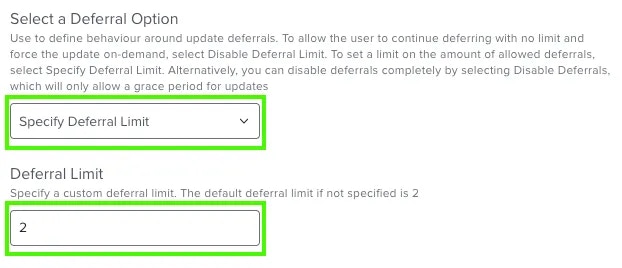
#### Specify Deferral Limit
**Key:** `deferralConfiguration.specifyLimit` (selected via `deferralConfiguration.deferralOption: specifyDeferralLimit`)
Configuring a deferral limit for updates ensures that users cannot defer the update indefinitely. The deferral limit you configure here is how many times the user will be allowed to defer the update before being forced to install the update. Use the **Deferral Limit** field to specify your desired deferral limit.
**Key:** `deferralConfiguration.deferralOption`
Use this preference dictionary to configure your desired deferral behaviour.
This preference is unique to the **Scheduled Update Prompt Options** dictionary. Deferral options for Forced Updates are configured when marking Apps for [Forced Updates](/apps/updates#forced-updates).
#### Specify Deferral Limit
**Key:** `deferralConfiguration.specifyLimit` (selected via `deferralConfiguration.deferralOption: specifyDeferralLimit`)
Configuring a deferral limit for updates ensures that users cannot defer the update indefinitely. The deferral limit you configure here is how many times the user will be allowed to defer the update before being forced to install the update. Use the **Deferral Limit** field to specify your desired deferral limit.
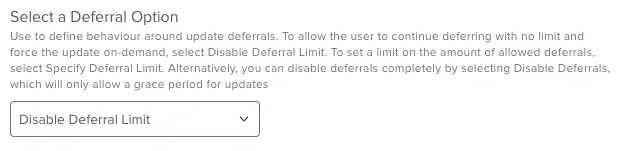
 #### Disable Deferral Limit
**Key:** `deferralConfiguration.deferralOption: disableDeferralLimit`
Selecting this option will allow users to defer the update indefinitely. We recommend only using this option if you plan to create a workflow which utilises forcing the update on demand.
#### Disable Deferral Limit
**Key:** `deferralConfiguration.deferralOption: disableDeferralLimit`
Selecting this option will allow users to defer the update indefinitely. We recommend only using this option if you plan to create a workflow which utilises forcing the update on demand.
 #### Disable Deferrals
**Key:** `deferralConfiguration.deferralOption: disableDeferrals`
Selecting this option will mean that users will not be given any opportunity to defer and will instead be given a [Grace Period](/customise/preferences#grace-period) to save any work before the updates are automatically installed.
#### Disable Deferrals
**Key:** `deferralConfiguration.deferralOption: disableDeferrals`
Selecting this option will mean that users will not be given any opportunity to defer and will instead be given a [Grace Period](/customise/preferences#grace-period) to save any work before the updates are automatically installed.
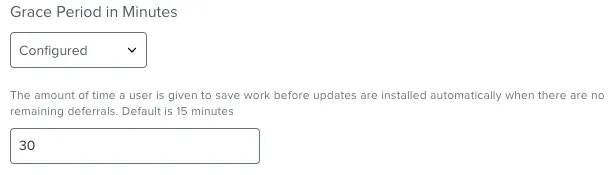
 **Key:** `gracePeriodMinutes`
This preference is unique to the **Scheduled Update Prompt Options** dictionary. Deferral options for Forced Updates are configured when marking Apps for [Forced Updates](/apps/updates#forced-updates).
This is the amount of time in **minutes** a user is given to save work before updates install automatically when deferrals are either not available or not configured.
**Key:** `gracePeriodMinutes`
This preference is unique to the **Scheduled Update Prompt Options** dictionary. Deferral options for Forced Updates are configured when marking Apps for [Forced Updates](/apps/updates#forced-updates).
This is the amount of time in **minutes** a user is given to save work before updates install automatically when deferrals are either not available or not configured.
By default this value is `15` minutes, therefore you only need to configure this preference if you wish to decrease or increase the default grace period.
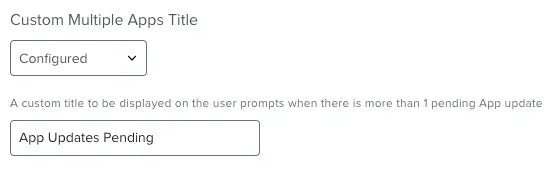
 **Key:** `multipleAppsTitle`
This preference is only present in the **Scheduled Update Prompt Options** dictionary. This is because Forced Updates are always performed on a per-App basis, therefore all forced update prompts relate to a single App.
Use this preference to customise the default title shown on any update prompt when more than one App updates are pending.
**Key:** `multipleAppsTitle`
This preference is only present in the **Scheduled Update Prompt Options** dictionary. This is because Forced Updates are always performed on a per-App basis, therefore all forced update prompts relate to a single App.
Use this preference to customise the default title shown on any update prompt when more than one App updates are pending.
 **Key:** `appListType`
This preference is only present in the **Scheduled Update Prompt Options** dictionary. This is because Forced Updates are performed on a per-App basis and therefore do not contain App lists.
This preference determines how to list Apps that have pending updates on the update prompts displayed to the user.
**Key:** `appListType`
This preference is only present in the **Scheduled Update Prompt Options** dictionary. This is because Forced Updates are performed on a per-App basis and therefore do not contain App lists.
This preference determines how to list Apps that have pending updates on the update prompts displayed to the user.
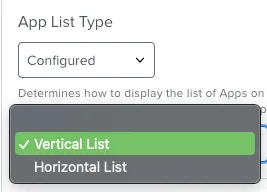 #### Vertical List
**Key:** `appListType: vertical`
This is the default setting.
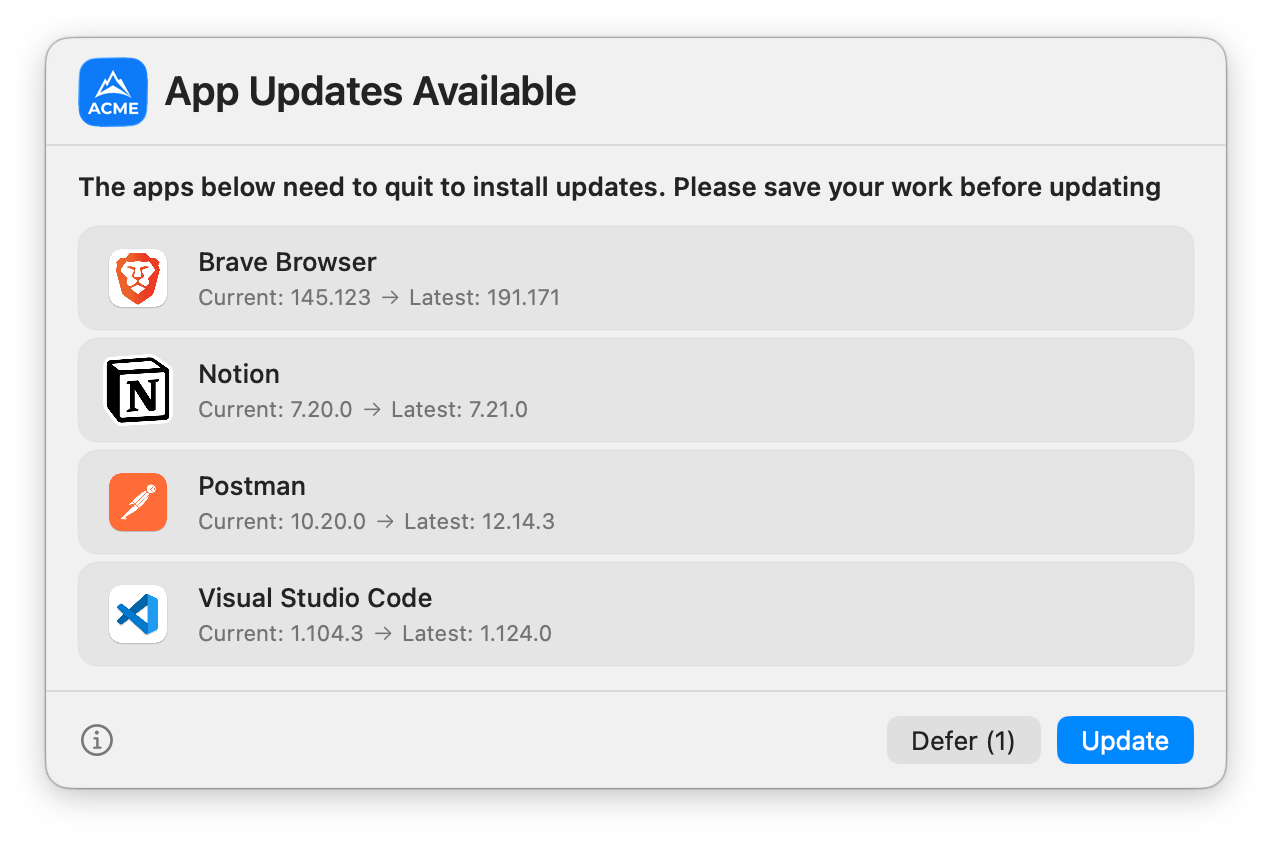
When configured, Apps will be displayed at the bottom of the prompt in a vertical scrollable list along with their icon and the pending version that will be installed by the update.
#### Vertical List
**Key:** `appListType: vertical`
This is the default setting.
When configured, Apps will be displayed at the bottom of the prompt in a vertical scrollable list along with their icon and the pending version that will be installed by the update.
 #### Horizontal List
**Key:** `appListType: horizontal`
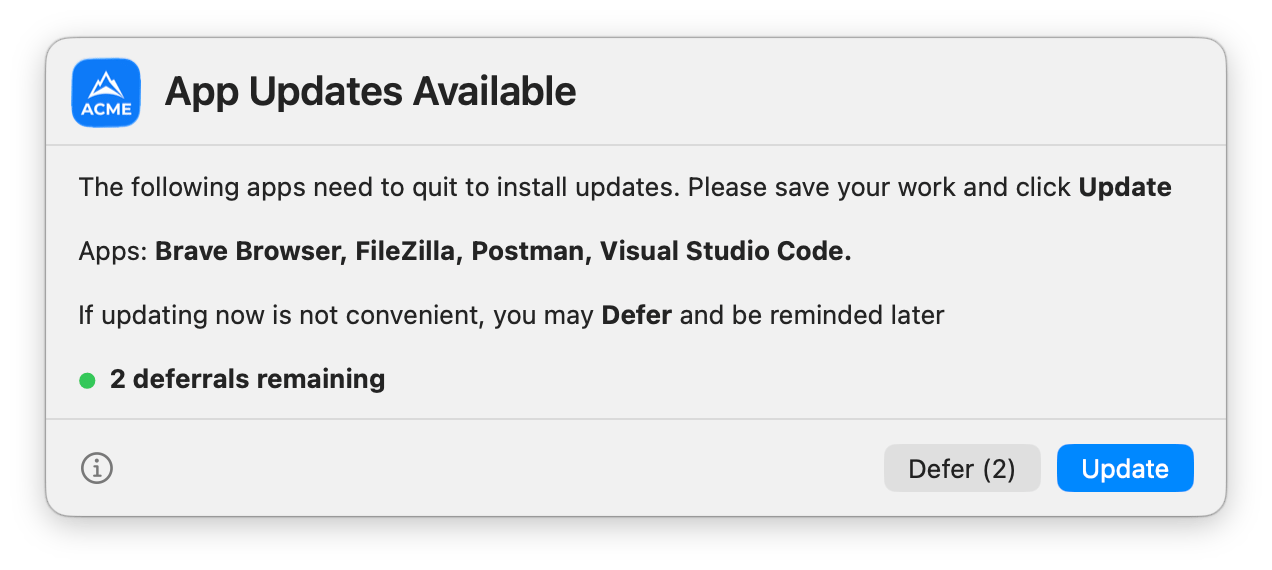
Select this option if you prefer to display Apps in a basic comma separated list.
#### Horizontal List
**Key:** `appListType: horizontal`
Select this option if you prefer to display Apps in a basic comma separated list.
#### Scheduled **AND** Forced Update Prompt Options
**Key:** `runLimitations`
You can use the Run Limitation Options dictionary to apply exclusions to the frequency options you previously configured for **Scheduled Updates**. The same options are also available in the **Forced Updates** dictionary to allow you to limit when Zappl is permitted to prompt users to update any Apps that have been marked for forced updates.
A checkbox is available and by default ticked for each day of the week. If there is a particular day of the week you want to ensure update prompts are never displayed to the user, simply **uncheck** the box next to the day. This is useful when using the [Specify Patch Frequency](/customise/preferences#specific-patch-frequency-preferences) option, or when specifying a patch day with the [Missed Update Prompts](/customise/preferences#specific-patch-day-preferences) option checked.
 If you have specified a weekly patch day, and that patch day is then *unchecked* in the run limitation options, the run limitation for that day will be ignored and the user will still be prompted to update on the configured patch day.
Each day also offers the option to define an allowed update time window. Selecting an allowed time window means that whenever Zappl runs outside of that window, update prompts will be skipped and Zappl will exit with no further action.
If you have specified a weekly patch day, and that patch day is then *unchecked* in the run limitation options, the run limitation for that day will be ignored and the user will still be prompted to update on the configured patch day.
Each day also offers the option to define an allowed update time window. Selecting an allowed time window means that whenever Zappl runs outside of that window, update prompts will be skipped and Zappl will exit with no further action.
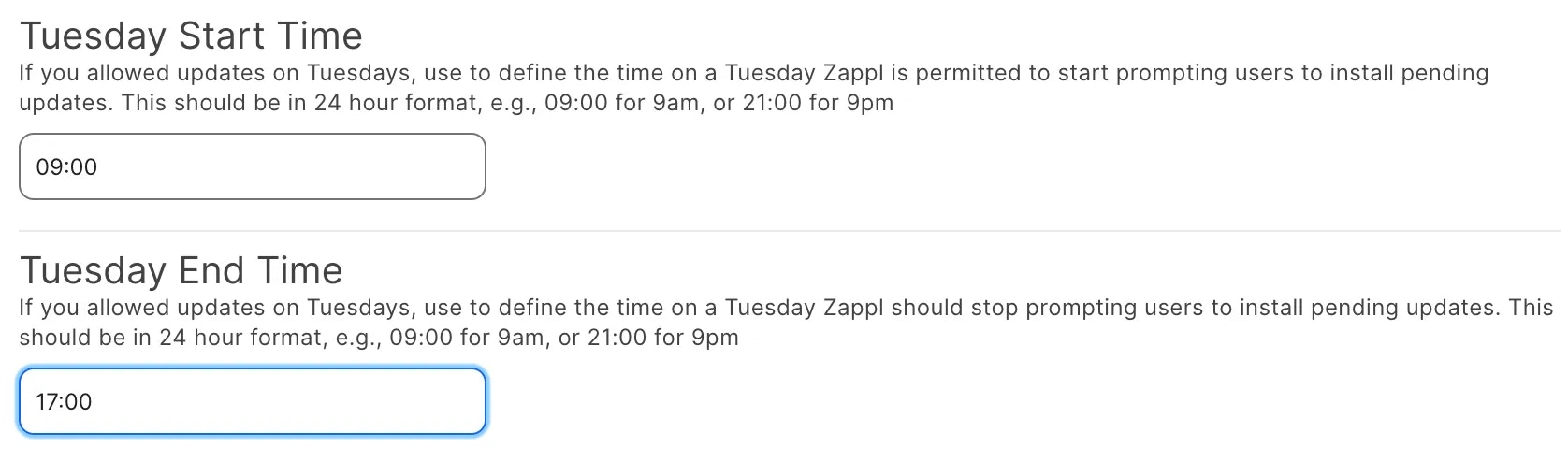
By default, the start time is `12.00am` and the end time is `11.59pm`, but you can easily change this on a per-day basis by modifying the values in the fields.
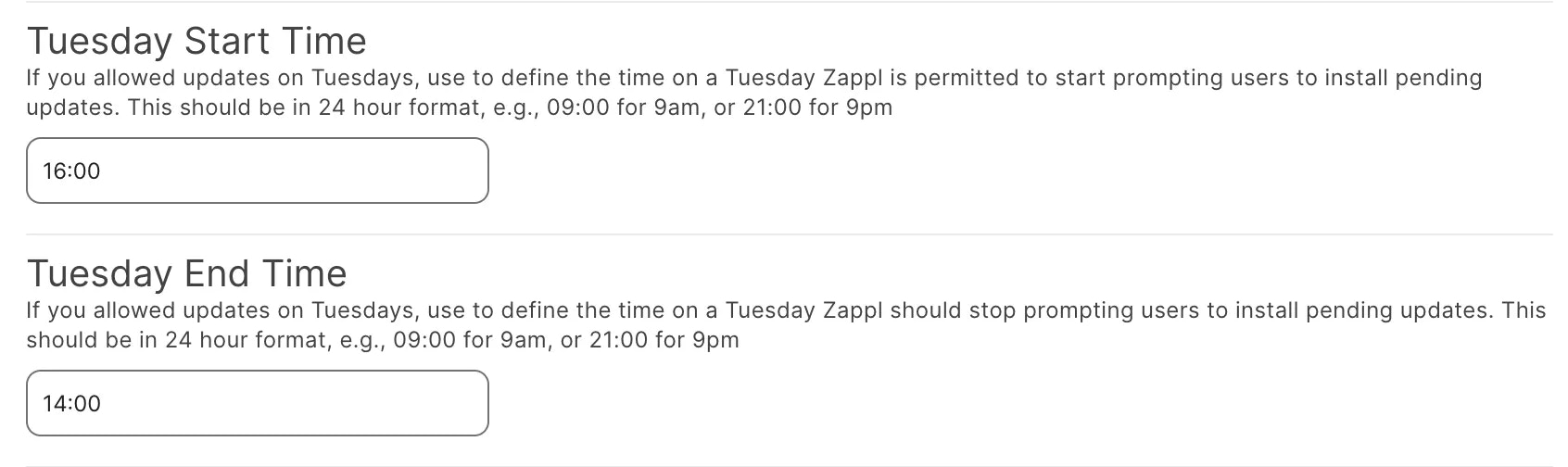
 If you want to define an exclusion time window, e.g. do not prompt between `2pm` and `4pm` but allow prompts for the rest of the day, simply reverse the timestamps as shown below.
 **Key:** `customIcon`
By default, the icon displayed on the left hand side of the update prompts is your **Jamf Self Service icon** for *scheduled updates*, and the **App icon** for *forced updates*.
**Key:** `customIcon`
By default, the icon displayed on the left hand side of the update prompts is your **Jamf Self Service icon** for *scheduled updates*, and the **App icon** for *forced updates*.
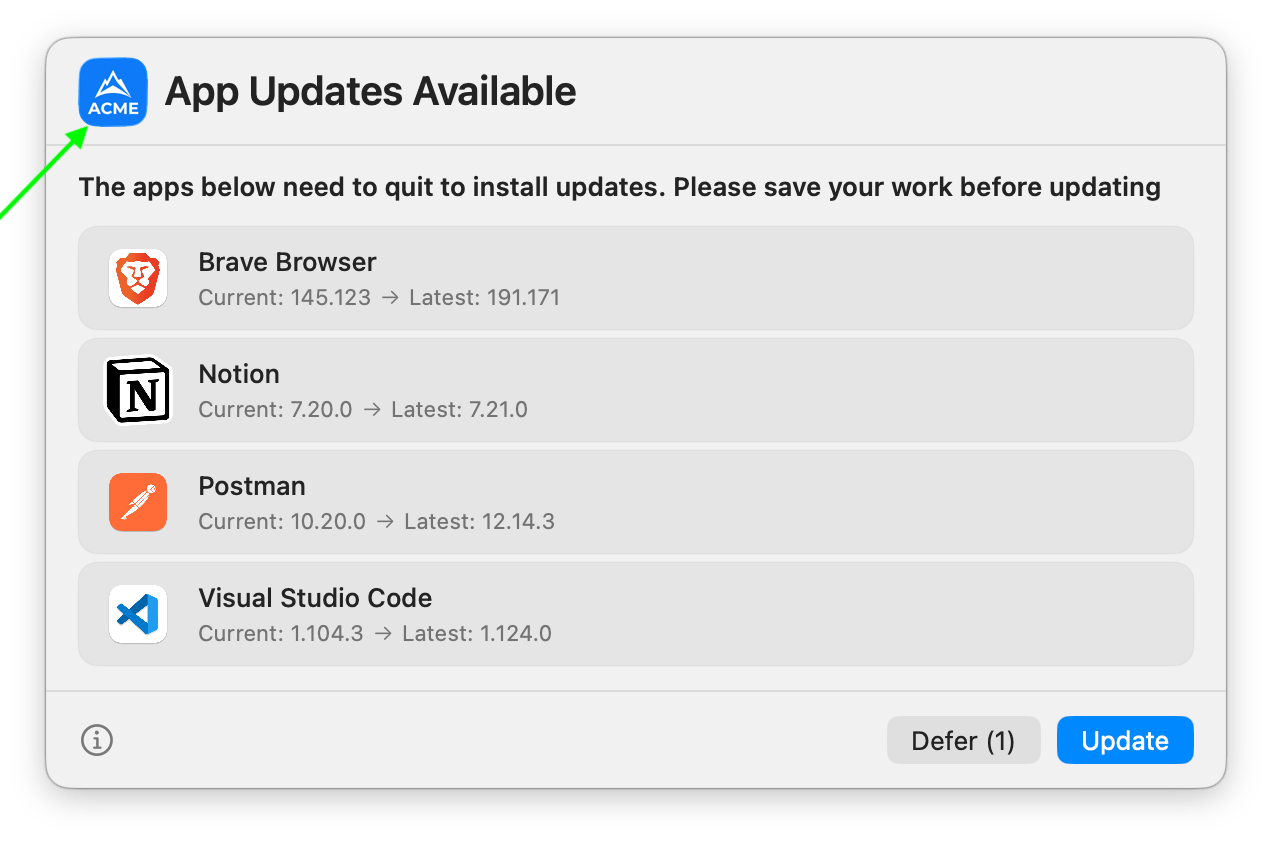 If you wish to change this to a different image, specify the path of an image to use in this field.
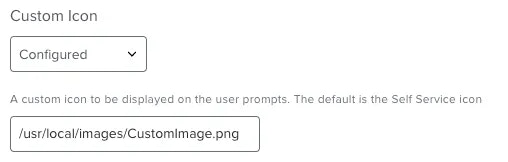 **Key:** `initialPromptOverlayIcon`
Configuring this option allows you to overlay a second icon on the bottom right corner of the main icon.
By default, no icon overlay is configured, but you can specify a valid `.png`, .`jpg` or `.icns` file here to add one. To use the Jamf Self Service icon as the overlayed icon, type in `selfService`.
**Key:** `initialPromptOverlayIcon`
Configuring this option allows you to overlay a second icon on the bottom right corner of the main icon.
By default, no icon overlay is configured, but you can specify a valid `.png`, .`jpg` or `.icns` file here to add one. To use the Jamf Self Service icon as the overlayed icon, type in `selfService`.
 **Key:** `singleAppTitle`
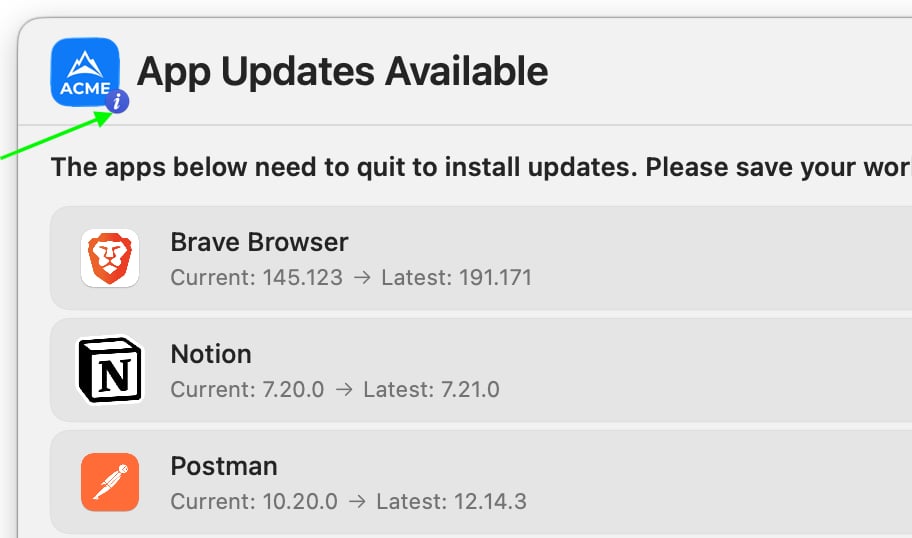
Use this preference to customise the default title shown on any update prompt when there is 1 pending App update. You can define the name of the App using the `appName` variable.
**Key:** `singleAppTitle`
Use this preference to customise the default title shown on any update prompt when there is 1 pending App update. You can define the name of the App using the `appName` variable.
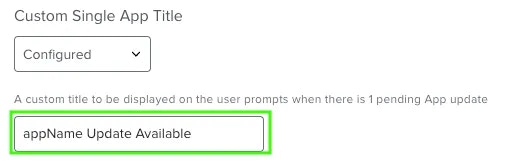 In the **Forced Update** options dictionary, this preference uses the key `customTitle` and is labelled `Title`. This is because forced updates are always performed on a per-App basis, so all forced update prompts relate to a single App.
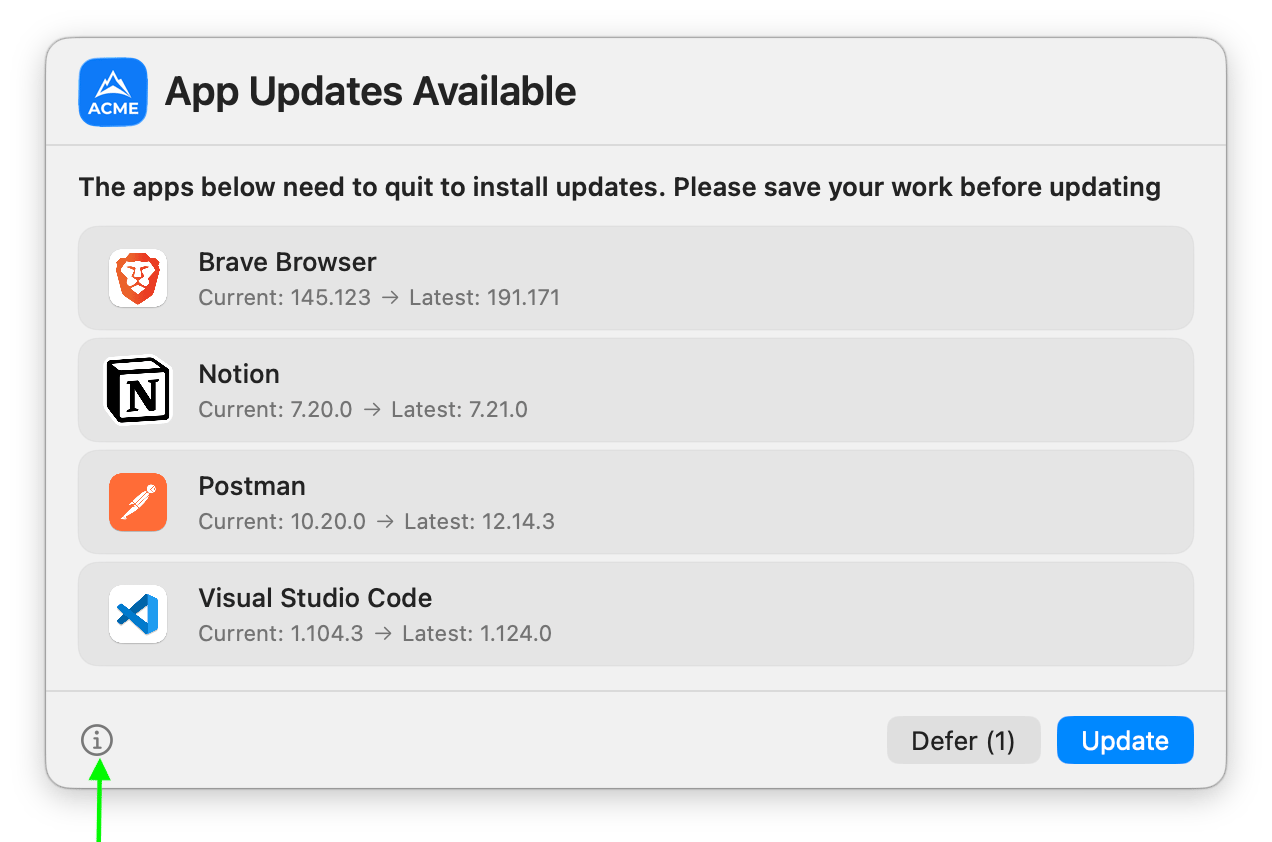
**Key:** `showInfoButton`
**This key is set to `true` by default.**
When enabled, an info button is displayed on update prompts. Clicking this button opens a popover containing additional context about the update, such as what the update process involves and how deferrals work.
Set this to `false` to hide the info button from all prompts.
In the **Forced Update** options dictionary, this preference uses the key `customTitle` and is labelled `Title`. This is because forced updates are always performed on a per-App basis, so all forced update prompts relate to a single App.
**Key:** `showInfoButton`
**This key is set to `true` by default.**
When enabled, an info button is displayed on update prompts. Clicking this button opens a popover containing additional context about the update, such as what the update process involves and how deferrals work.
Set this to `false` to hide the info button from all prompts.
 **Key:** `initialPromptInfoPopover`
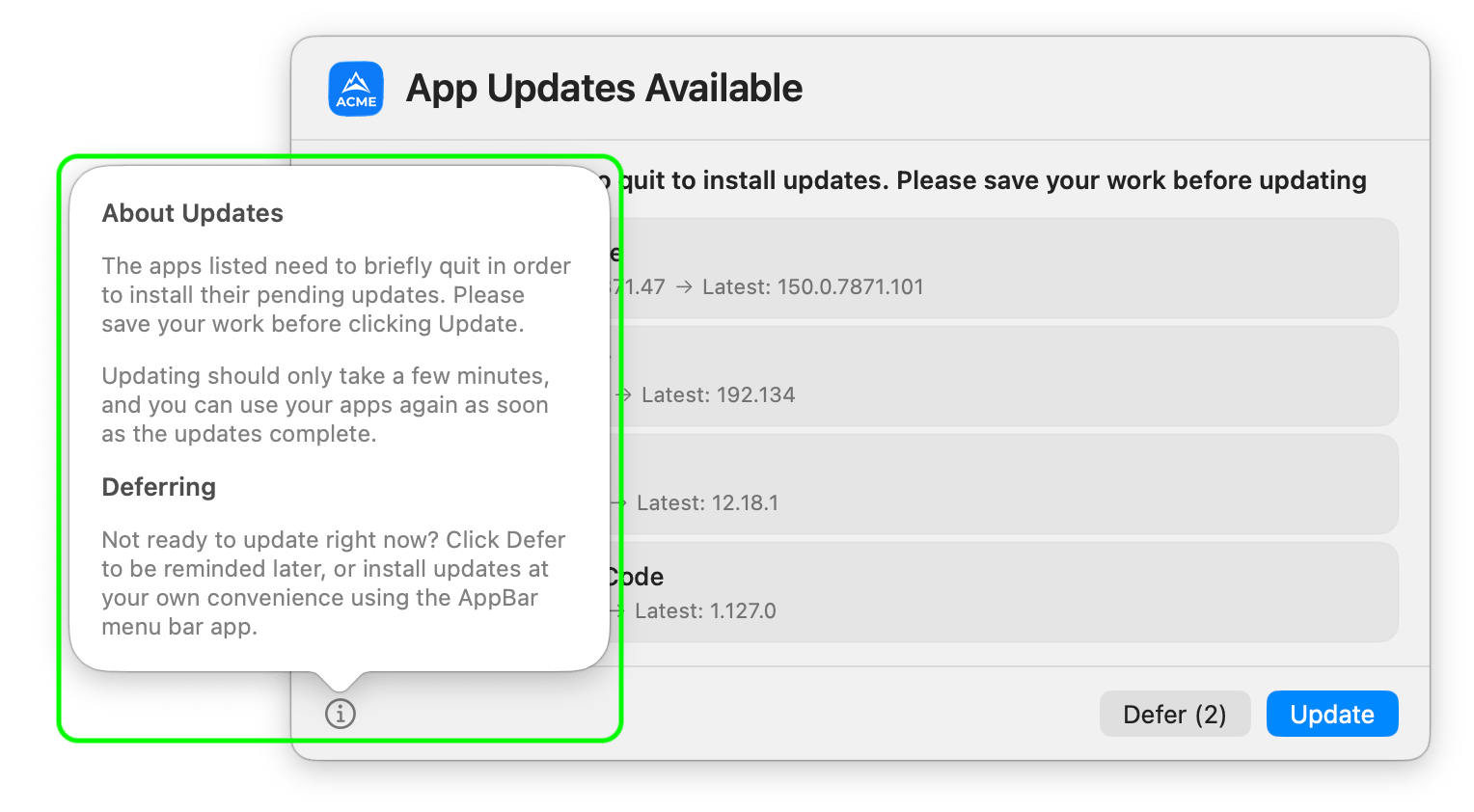
Use this preference to customise the text displayed in the info popover on the **initial update prompt** — the prompt shown when deferrals are available.
If not configured, a default message is displayed that explains the update process and deferral behaviour.
When writing your custom message, you can use formatting and variables to personalise the content. For all available options, see [Message Variables](/customise/message-variables).
**Key:** `initialPromptInfoPopover`
Use this preference to customise the text displayed in the info popover on the **initial update prompt** — the prompt shown when deferrals are available.
If not configured, a default message is displayed that explains the update process and deferral behaviour.
When writing your custom message, you can use formatting and variables to personalise the content. For all available options, see [Message Variables](/customise/message-variables).
 This preference is available in both the **Scheduled** and **Forced Update** options dictionaries.
**Key:** `gracePeriodPromptInfoPopover`
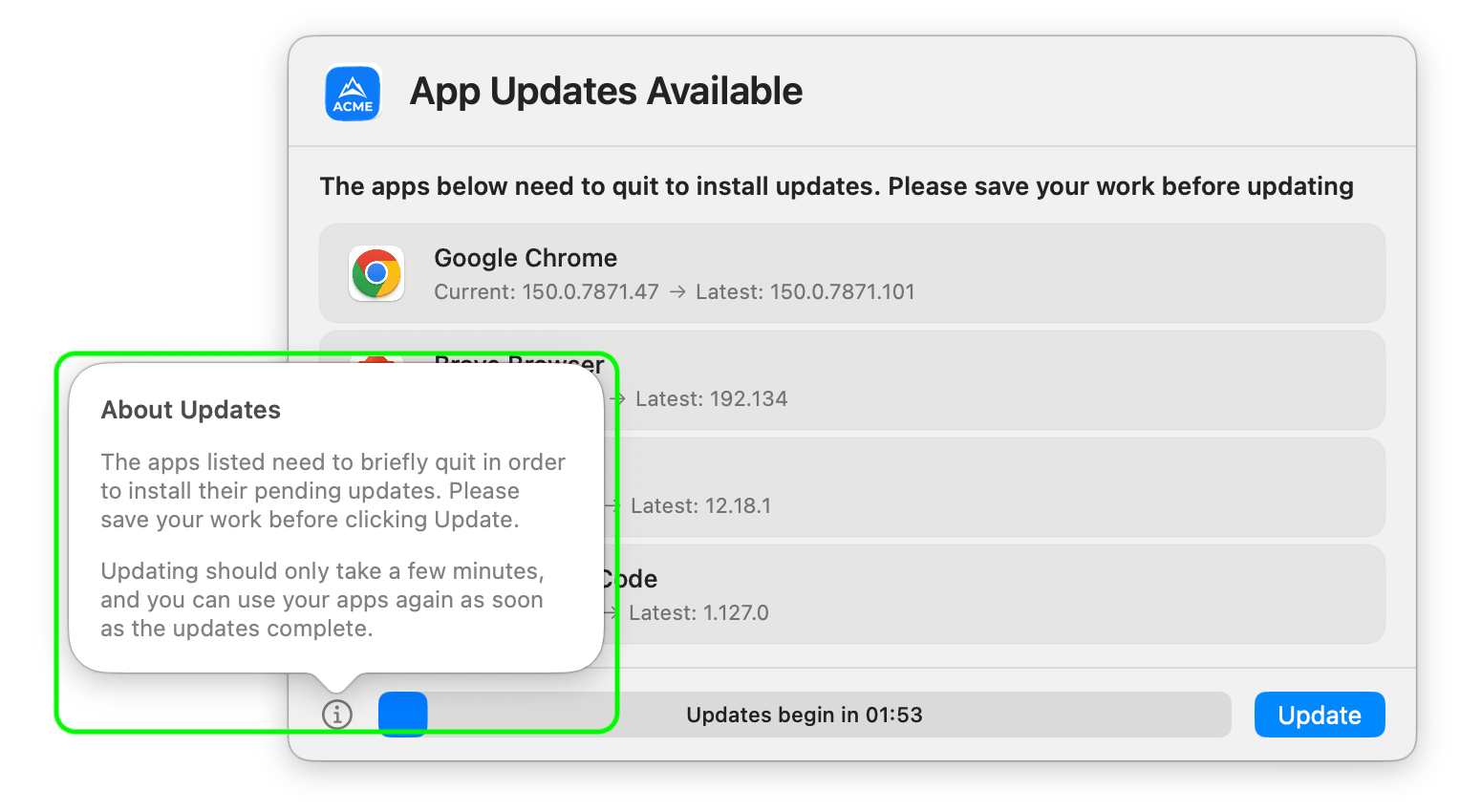
Use this preference to customise the text displayed in the info popover on the **grace period prompt** — the prompt shown when no deferrals are available and the countdown timer is active.
If not configured, a default message is displayed that explains the update process.
When writing your custom message, you can use formatting and variables to personalise the content. The `gracePeriod` variable is particularly useful here as it dynamically displays the configured grace period duration. For all available options, see [Message Variables](/customise/message-variables).
This preference is available in both the **Scheduled** and **Forced Update** options dictionaries.
**Key:** `gracePeriodPromptInfoPopover`
Use this preference to customise the text displayed in the info popover on the **grace period prompt** — the prompt shown when no deferrals are available and the countdown timer is active.
If not configured, a default message is displayed that explains the update process.
When writing your custom message, you can use formatting and variables to personalise the content. The `gracePeriod` variable is particularly useful here as it dynamically displays the configured grace period duration. For all available options, see [Message Variables](/customise/message-variables).
 This preference is available in both the **Scheduled** and **Forced Update** options dictionaries.
**Key:** `customDeferButton`
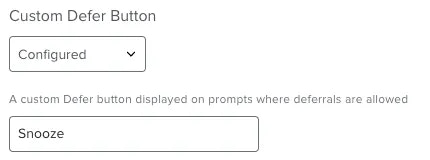
Use this preference to change the label on the button used to defer updates.
This preference is available in both the **Scheduled** and **Forced Update** options dictionaries.
**Key:** `customDeferButton`
Use this preference to change the label on the button used to defer updates.
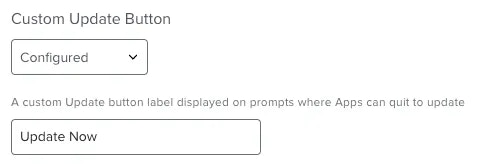
 **Key:** `customUpdateButton`
Use this preference to change the label on the button used to run updates.
**Key:** `customUpdateButton`
Use this preference to change the label on the button used to run updates.
 **Key:** `refreshInterval`
This is the length of time in seconds that the update prompts pull focus. Without the prompts regularly pulling focus, it is easy for the user to swipe away and ignore the update prompt without choosing to either defer or update.
The default value is `60` seconds. If you find this too aggressive, you can change the value to suit your needs. The minimum allowed value is `30` seconds.
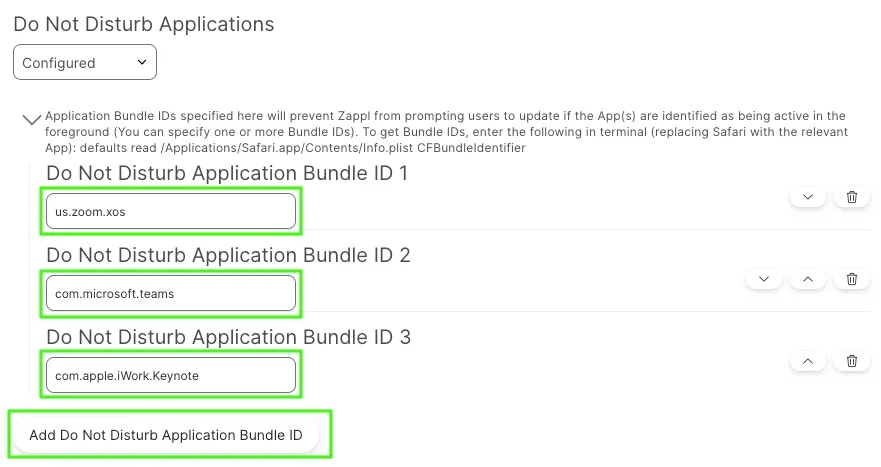
**Key:** `acceptableAppBundleIDs`
Use this preference to define any Apps which if detected as being in the foreground will cause the update prompt to skip.
**Key:** `refreshInterval`
This is the length of time in seconds that the update prompts pull focus. Without the prompts regularly pulling focus, it is easy for the user to swipe away and ignore the update prompt without choosing to either defer or update.
The default value is `60` seconds. If you find this too aggressive, you can change the value to suit your needs. The minimum allowed value is `30` seconds.
**Key:** `acceptableAppBundleIDs`
Use this preference to define any Apps which if detected as being in the foreground will cause the update prompt to skip.
It is recommended that you configure this preference and add any video conferencing or presentation software used across your estate. This will ensure that users don't get prompted to update whilst on a conference call or when presenting.
To define an App, you must first get the bundle identifier of the App. To do so, paste the below command into Terminal on a macOS computer that has the App installed (replacing `zoom.us.app` with the name of the App you want to define).
```bash theme={null}
defaults read /Applications/zoom.us.app/Contents/Info.plist CFBundleIdentifier
```
Copy the resulting bundle identifier to your clipboard and paste it into the `Do Not Disturb Application Bundle ID` preference. You can add as many App bundle identifiers as you require by clicking the **Add Do Not Disturb Application Bundle ID** button.
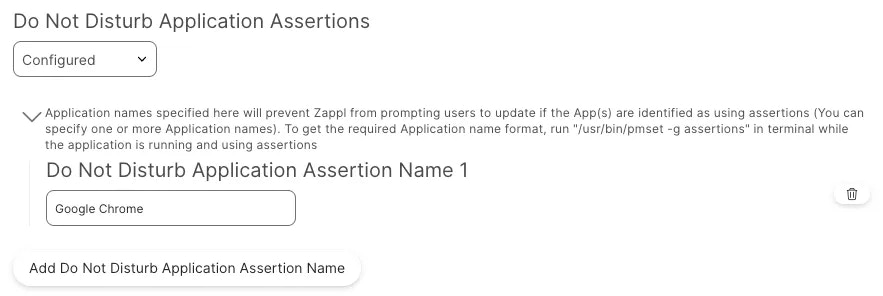
 **Key:** `acceptableAppAssertions`
An **application assertion** is when an app actively declares that it needs to use a specific system resource, like the microphone, camera, or location services.
Use this preference to ensure that updates are skipped if an application is using assertions. If an application is using the system microphone or playing audio, it should be marked as using assertions.
**Key:** `acceptableAppAssertions`
An **application assertion** is when an app actively declares that it needs to use a specific system resource, like the microphone, camera, or location services.
Use this preference to ensure that updates are skipped if an application is using assertions. If an application is using the system microphone or playing audio, it should be marked as using assertions.
This is useful in scenarios where a user may be in a meeting using a web-based client like Google Meets without a camera on, as the assertion used by the web browser would prevent the update from interrupting the meeting.
You can add as many assertion apps as you wish, ensuring to use the correct assertion name format. To get the required assertion name format, run `/usr/bin/pmset -g assertions` in Terminal while the application is running and using assertions.
 **Key:** `acceptableDNDMode`
**This key is set to `true` by default.**
Use this preference to ensure that if macOS Do Not Disturb mode is enabled, update prompts are skipped.
**Key:** `acceptableDNDMode`
**This key is set to `true` by default.**
Use this preference to ensure that if macOS Do Not Disturb mode is enabled, update prompts are skipped.
Setting this as `true` will skip the update prompts, setting as `false` will prompt users while Do Not Disturb mode is detected.
**Key:** `acceptableCameraUsage`
**This key is set to `true` by default.**
Use this preference to ensure that if the camera is detected as being actively in use, the update will be skipped.
We recommend setting this as `true` to ensure that users are not interrupted whilst on conference calls.
**Key:** `acceptableScreenSharing`
**This key is set to `true` by default.**
Use this preference to ensure that if screen sharing is detected as being actively in use, the update will be skipped.
**Key:** `updateProgressPrompt`
**This key is set to `true` by default.**
When enabled, a small progress prompt is displayed in the corner of the screen while updates are being installed. Disable to run updates silently without any progress indicator.
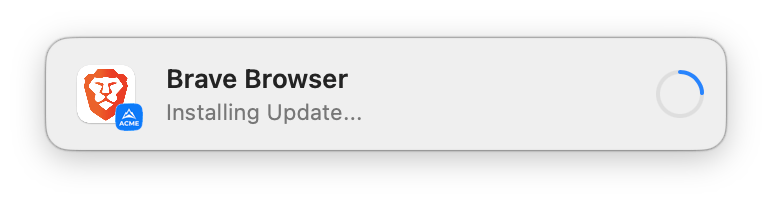 **Key:** `updateProgressPosition`
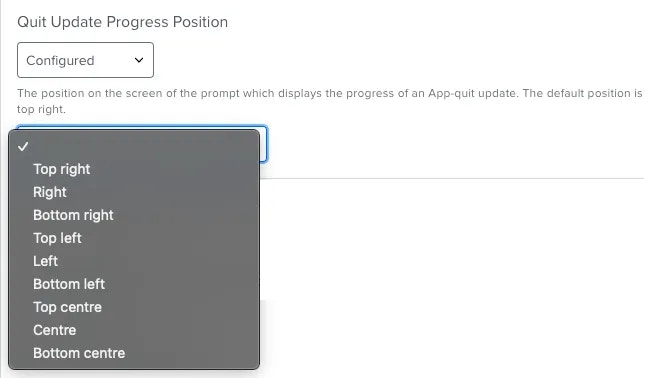
The update progress prompt is the small prompt that contains an update progress bar and information around the update whilst the update is running.
The default position of this prompt is the `top right` corner of the screen. This position can be modified using the dropdown within this preference.
**Key:** `updateProgressPosition`
The update progress prompt is the small prompt that contains an update progress bar and information around the update whilst the update is running.
The default position of this prompt is the `top right` corner of the screen. This position can be modified using the dropdown within this preference.
 **Key:** `updateProgressOverlayIcon`
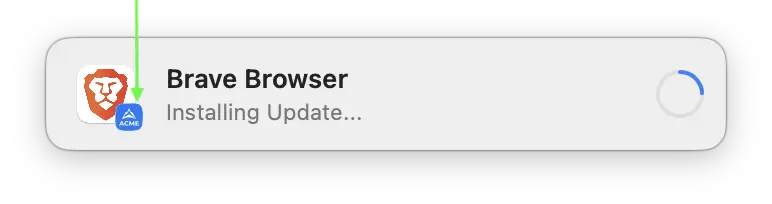
Use this preference to add an overlay icon to the update progress prompts. When updates are running, the main icon displayed is the icon for the App currently being updated. The overlay icon will be displayed on the bottom right corner of the App icon.
**Key:** `updateProgressOverlayIcon`
Use this preference to add an overlay icon to the update progress prompts. When updates are running, the main icon displayed is the icon for the App currently being updated. The overlay icon will be displayed on the bottom right corner of the App icon.
You can specify either a path to a valid `.png`, `.jpg` or `.icns` file, or use the `selfService` variable for the Jamf Self Service icon.
 **Key:** `autoRelaunchApps`
**This key is set to `true` by default.**
With this set as `true`, Zappl silently relaunches the app as soon as the update completes providing that the app was in use prior to the update.
**Key:** `autoRelaunchApps`
**This key is set to `true` by default.**
With this set as `true`, Zappl silently relaunches the app as soon as the update completes providing that the app was in use prior to the update.
Set this as `false` to skip relaunching apps.
**Key:** `displayCompletePrompt`
**This key is set to `true` by default.**
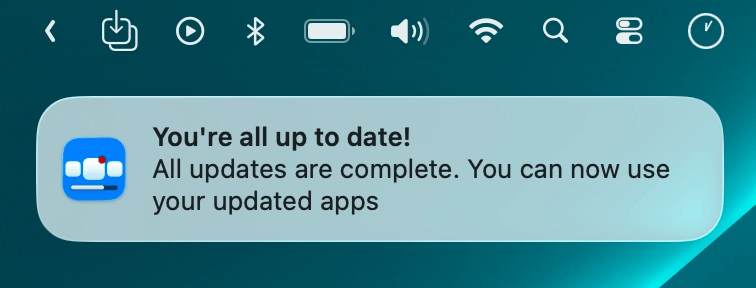
When enabled, a macOS notification is sent to the user once all updates are complete. Disable to suppress the completion notification.