> ## Documentation Index
> Fetch the complete documentation index at: https://docs.zappl.co/llms.txt
> Use this file to discover all available pages before exploring further.
# Updates
> Customise and configure how Zappl handles app updates.
## Background Updates
By default, the Zappl agent regularly compares installed software versions on client machines to the latest available versions from vendors. When new updates are available, they are securely downloaded and cached locally. The Zappl agent's background update mechanism will then attempt to silently update the software without any user interaction.
Most apps in our catalog can only be updated safely when they're not running.
> If the apps are closed, the Zappl agent will update the software in the background without interrupting the user.
> If an app is in use, the update remains cached locally, and the Zappl agent continues to attempt silent installation every time it runs.
For apps that users rarely close, Zappl employs two strategies: automatic [Scheduled Update Prompts](/apps/updates#scheduled-updates) and manual [Forced Updates](/apps/updates#forced-updates).
## Scheduled Update Prompts
Most apps in our catalog must be closed whilst updating in order to ensure the update installs safely. This feature supplements the hourly silent update attempts and ensures apps that are always running are updated regularly.
Generally speaking, apps such as web browsers, email clients and conferencing apps are rarely closed by users. The Zappl agent is called upon to give your users a nudge towards temporarily quitting the apps that need to update on a recurring interval. The user experience for this is highly customisable and easy to configure via the Zappl custom preferences configuration profile.
On a regular interval, the Zappl agent runs a scheduled update check in the background. As part of this check, it reads the `com.dare.zappl.preferences` configuration profile settings and determines whether to prompt the user based on the configured run limitations. The run limitation option ensures users are only prompted on your desired recurring interval, e.g., once every day, once every week etc. Additionally, the agent checks for any configured do not disturb settings before prompting users to ensure it only does so when convenient.
For more information on configuring the preferences configuration profile, see Configuring Custom Preferences.
#### User Experience
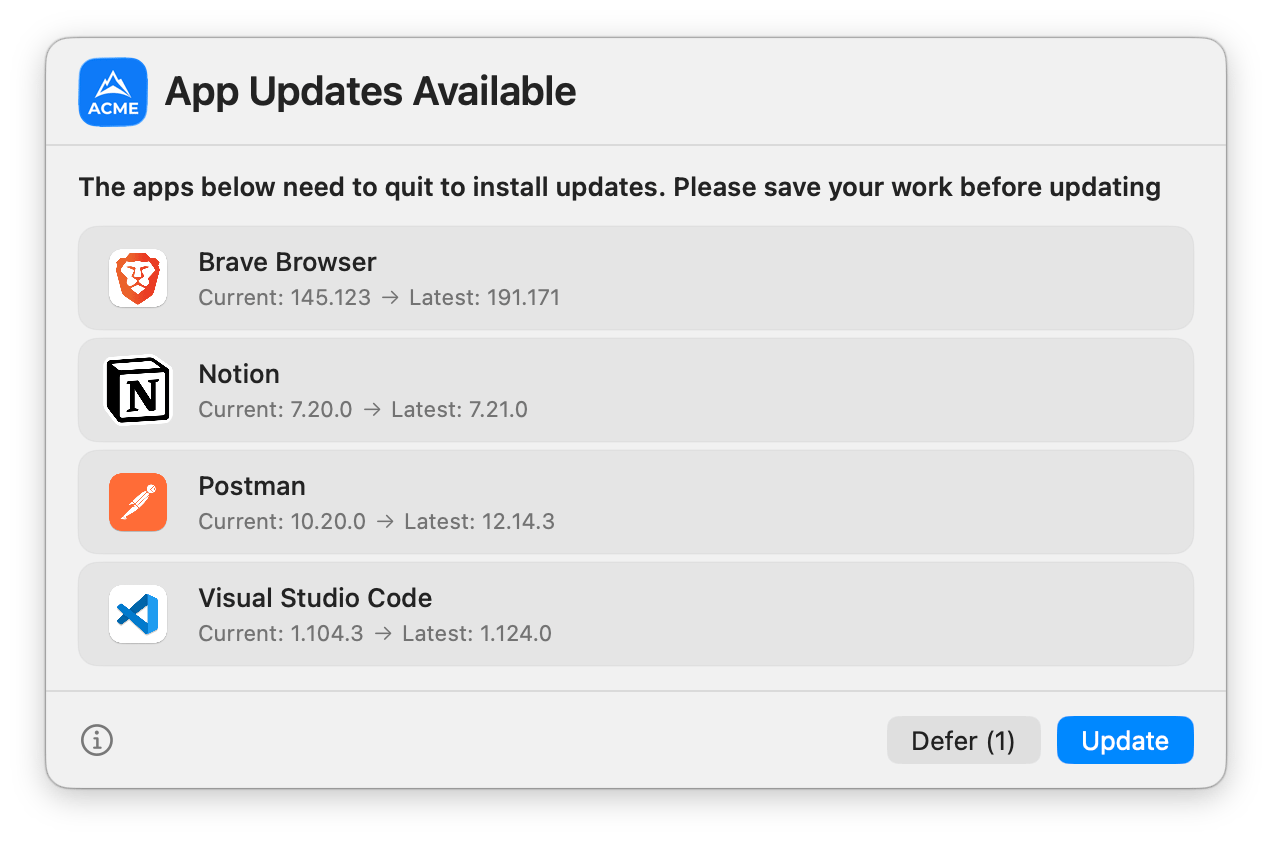
The image below shows a typical custom-branded scheduled update prompt displayed to users when deferrals are enabled and available.
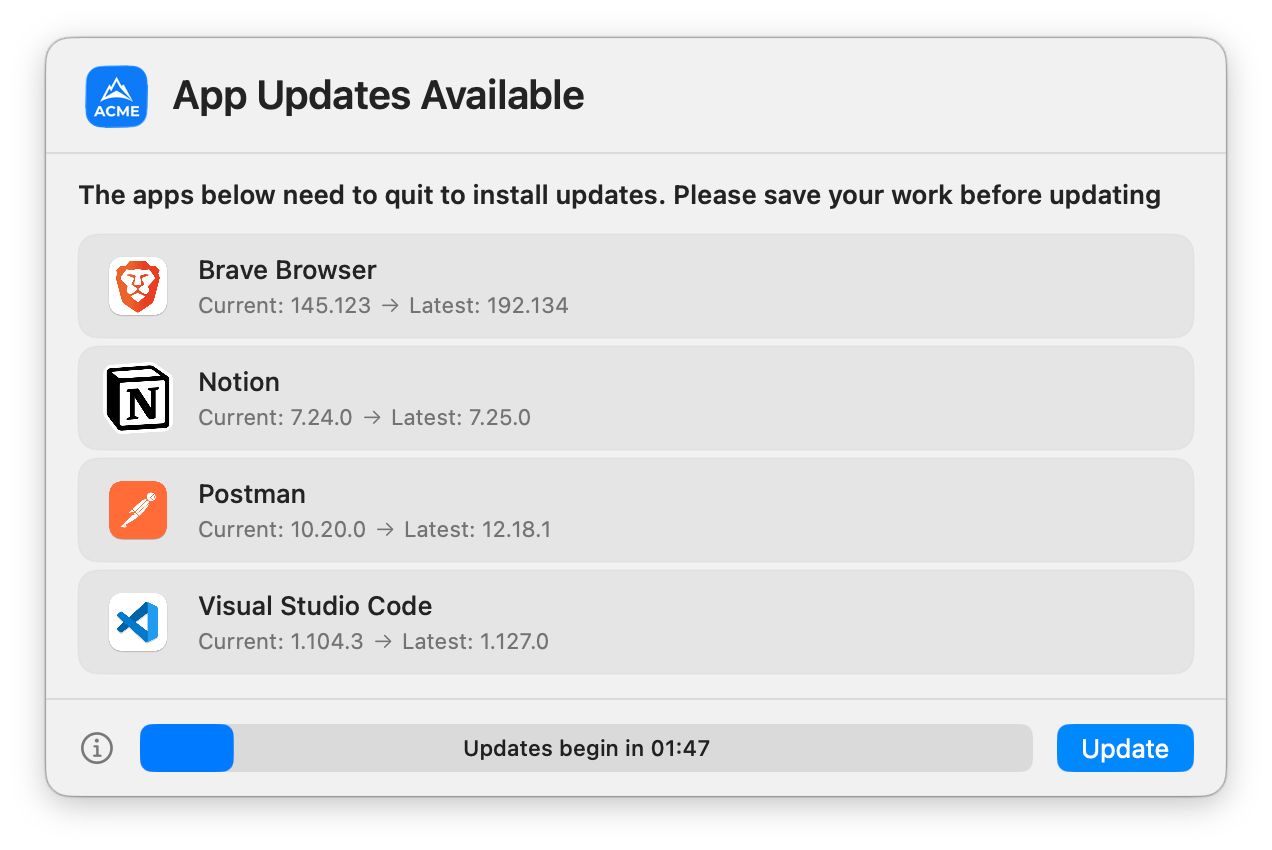
 The below prompt is the grace period prompt shown when deferrals are not available.
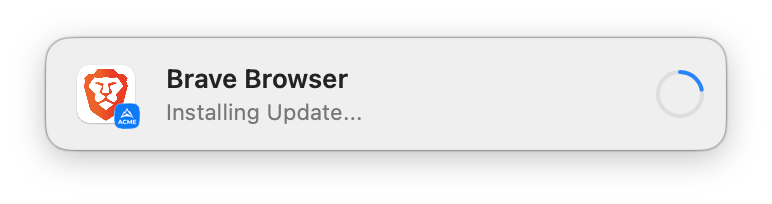
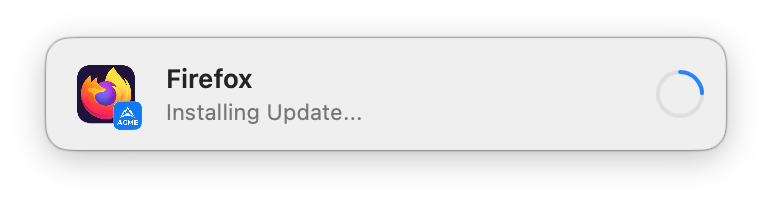
 If configured, the below prompt is shown by default in the top right corner during updates.
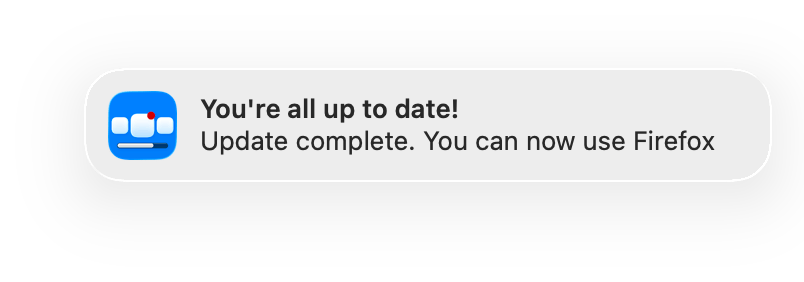
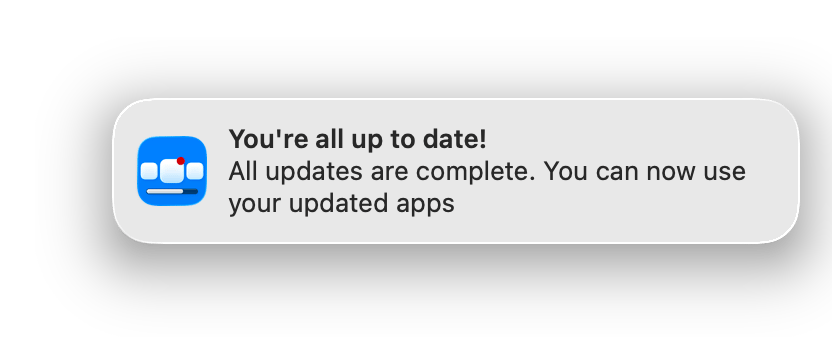
 If configured, the below macOS notification is shown in the top right corner once all apps have successfully updated.
## Forced Updates
The forced update option is a feature of the Zappl agent that allows you to install an app update more urgently than the Scheduled Update Prompts feature. This feature is particularly useful when a zero-day vulnerability has been identified, enabling you to patch the affected app as quickly as possible.
You can use the Deploy Software Script to mark apps for forced updates. The Zappl agent regularly checks for forced update receipts in the background. When it finds a receipt, it takes immediate action. If the app isn't in use, Zappl updates it silently. If the app is in use, Zappl prompts the user to quit the app before updating it.
#### Marking Apps for Forced Updates
This example demonstrates marking forced updates with **Jamf Pro**. Before proceeding, ensure you have added the latest [Deploy Software Script](/deploy/jamf-pro#deploy-software-script) to your Jamf Pro environment by following the steps outlined in the [Deploying Zappl](/deploy/jamf-pro) page.
In Jamf Pro, navigate to *Computers > Policies* and click **New**.
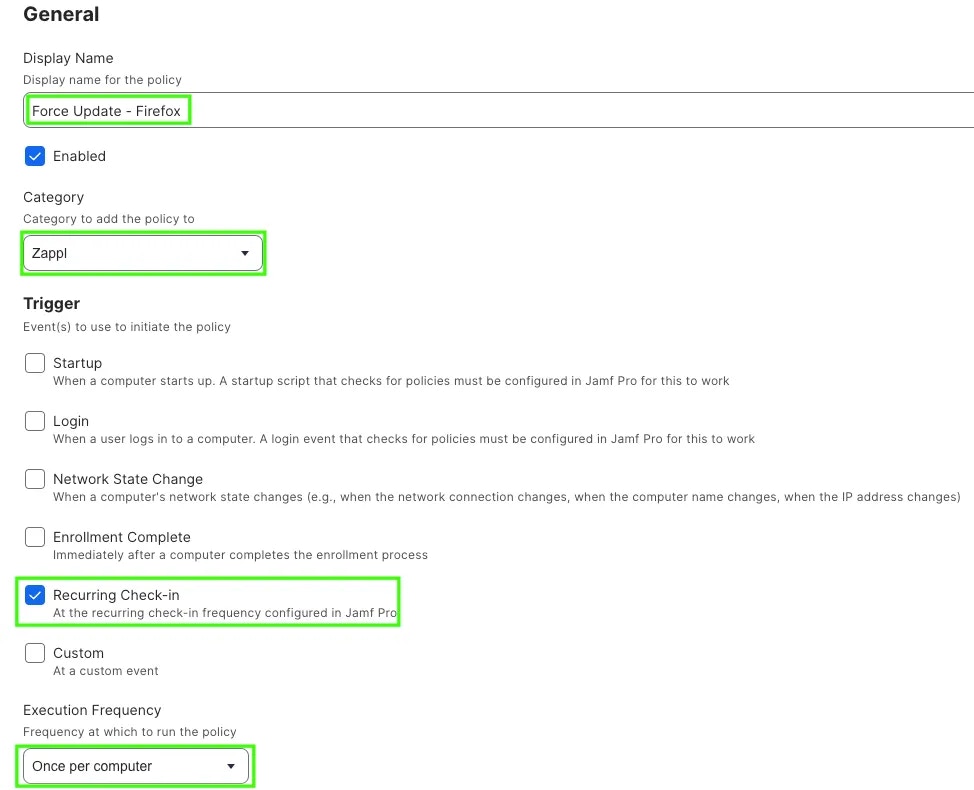
Within the **General** payload, set a suitable display name, select the **Zappl** category, select **Recurring Check-in** as the trigger and **Once per computer** as the Execution Frequency.
 Navigate to the **Scripts** payload and click **Configure**.
Locate the **Zappl - Deploy Software** script and click **Add**.
Navigate to the **Scripts** payload and click **Configure**.
Locate the **Zappl - Deploy Software** script and click **Add**.
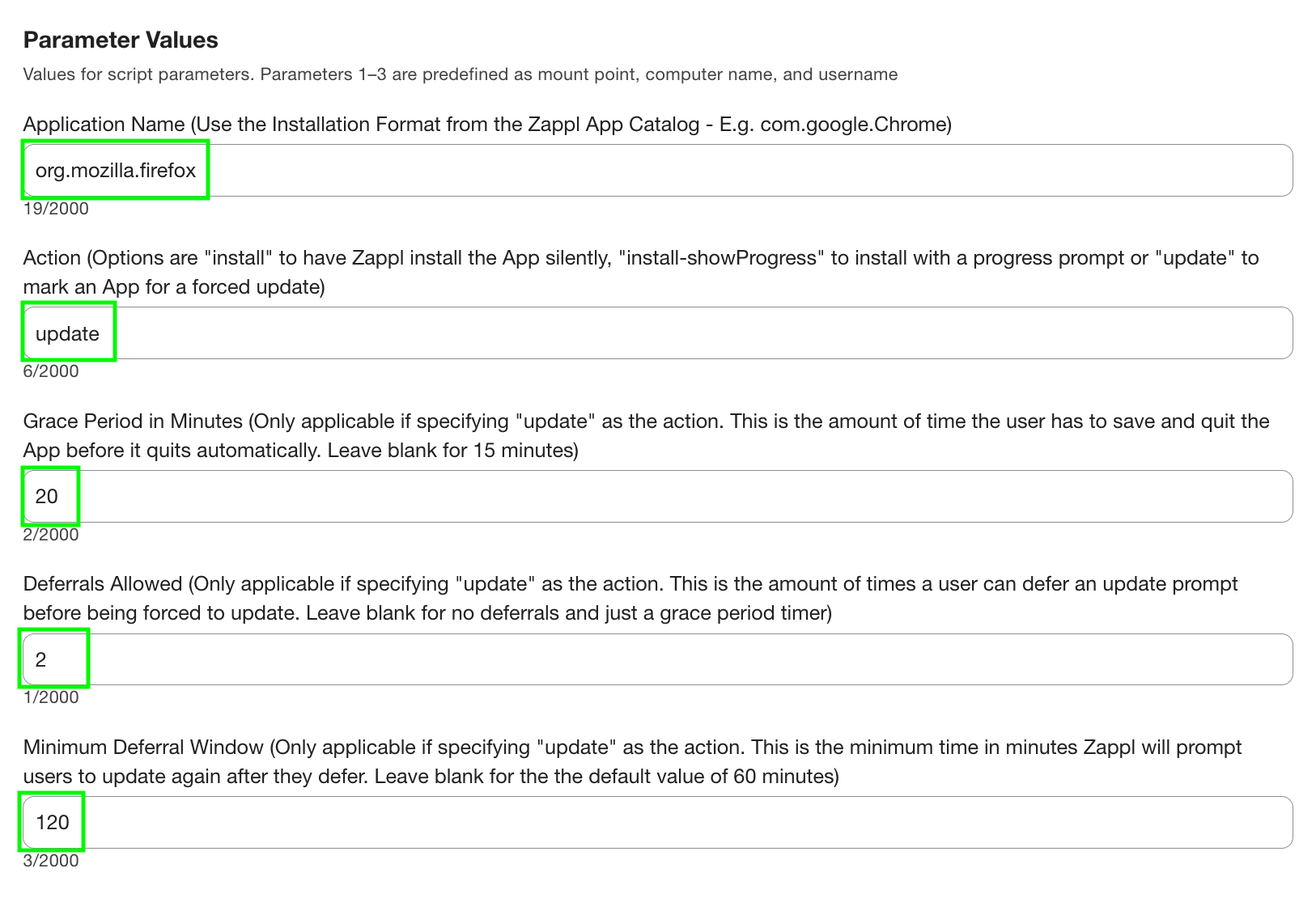
 Add the **Unique Identifier** to the Application Identifier parameter for the App you are updating (this can be found in the [App Catalog](https://zappl.co/app-catalog) then set`update` as the Action parameter value. Optionally, set a custom grace period and any allowed deferrals with a Minimum Deferral Window (the amount of time the allowed between deferrals) if desired.
 Navigate to the **Scope** tab, configure your desired scoping target for the update and click **Save**.
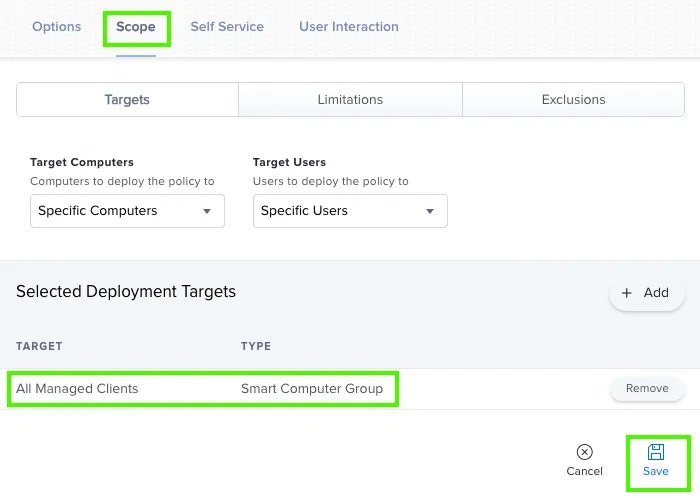 The scoping target set above is the most basic target for this type of policy and initiates a one-off patch. If desired, create a [Smart Computer Group](https://learn.jamf.com/en-US/bundle/jamf-pro-documentation-11.9.0/page/Smart_Groups.html#ID-00032060) which defines computers running a specified vulnerable version of the App, then set the Execution Frequency as **Ongoing** to ensure that the known vulnerability is patched on an ongoing basis.
#### User Experience
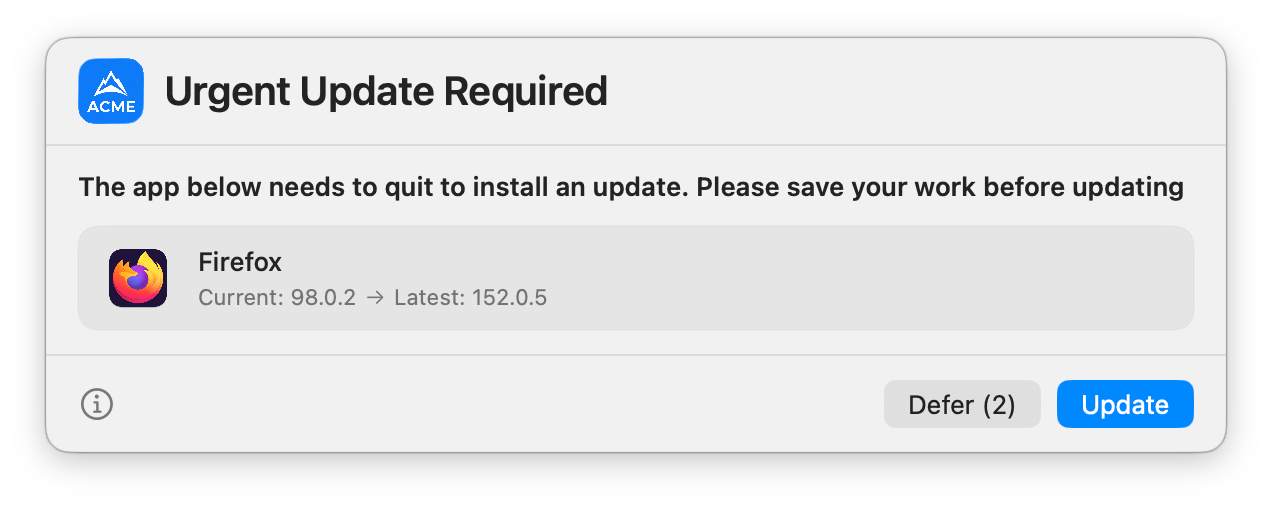
The below prompt is a typical prompt shown when Firefox has been marked for a forced update and an update is required for Firefox. Deferrals have been configured for the forced update.
The scoping target set above is the most basic target for this type of policy and initiates a one-off patch. If desired, create a [Smart Computer Group](https://learn.jamf.com/en-US/bundle/jamf-pro-documentation-11.9.0/page/Smart_Groups.html#ID-00032060) which defines computers running a specified vulnerable version of the App, then set the Execution Frequency as **Ongoing** to ensure that the known vulnerability is patched on an ongoing basis.
#### User Experience
The below prompt is a typical prompt shown when Firefox has been marked for a forced update and an update is required for Firefox. Deferrals have been configured for the forced update.
 By default, the below prompt is shown during the forced update.
 By default, the below macOS notification is shown after the forced update completes.