> ## Documentation Index
> Fetch the complete documentation index at: https://docs.zappl.co/llms.txt
> Use this file to discover all available pages before exploring further.
# AppBar Preferences
> Customise AppBar by configuring the preference keys available in the JSON Schema. This guide covers every available preference key and its purpose.
The AppBar preferences are configured via a configuration profile using the preference domain `com.zappl.AppBar`.
Download the JSON Schema to configure AppBar preferences directly within Jamf Pro.
Download a sample plist to use as a starting point for configuring AppBar preferences in your MDM of choice.
## AppBar Preference Key Guide
**Key:** `Title`
The title text displayed in the top left of the AppBar window.
**Default value:** `AppBar`
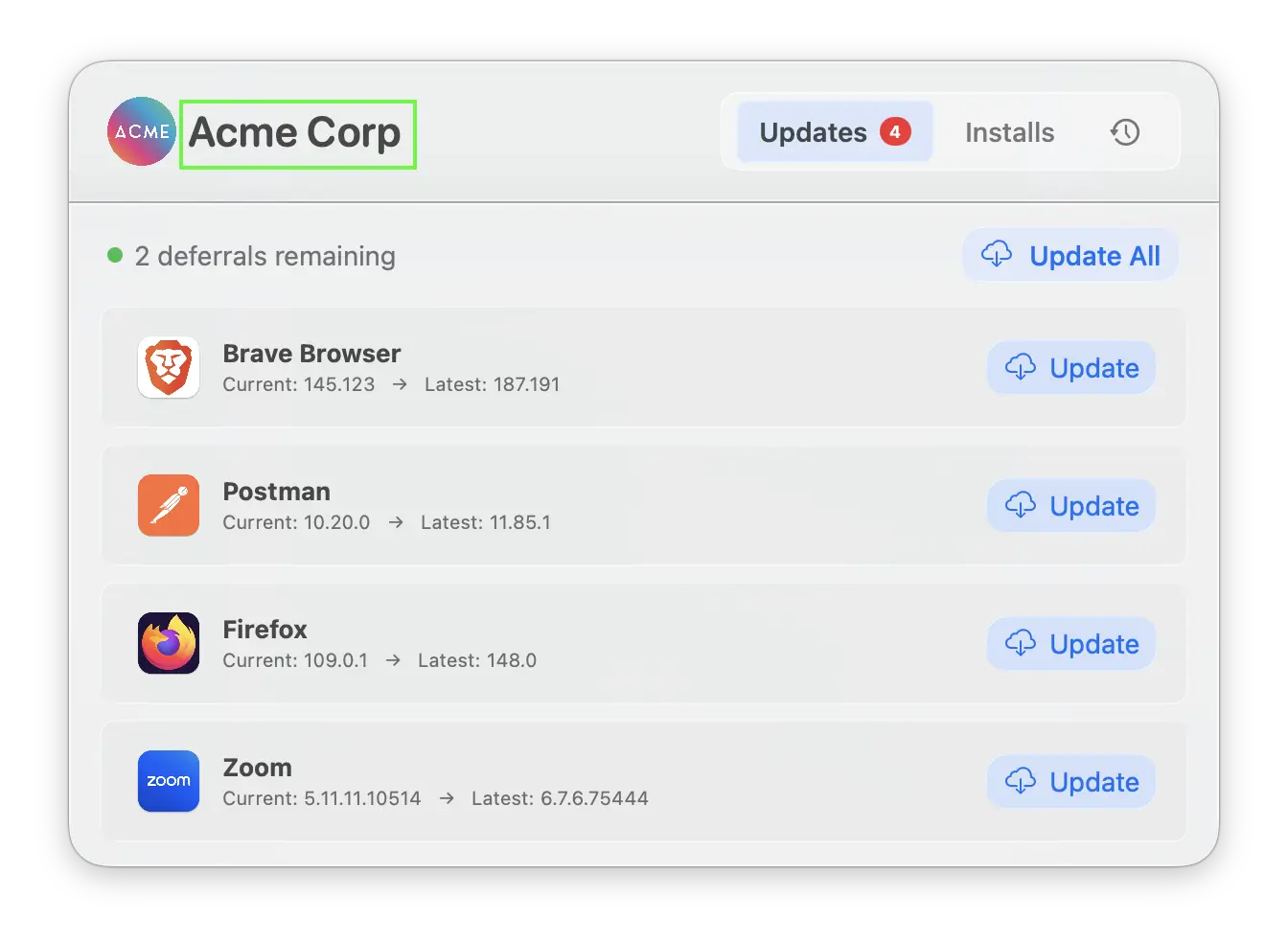 **Key:** `TitleFontSize`
The font size of the title text displayed in the top left of the AppBar window. Accepts numerical values between `16` and `32`. Values outside of this range will fall back to the default value.
**Default value:** `22`
**Key:** `CustomLogo`
The logo displayed to the left of the title text. This can be one of the following:
* A **file path** to a local image on the device
* A **URL** pointing to a remote image
* An **SF Symbol** name (e.g. `app.badge.fill`)
* Jamf Pro customers can use **selfService** to use the Jamf Self Service icon
For a full list of available SF Symbols, refer to [Apple's SF Symbols reference](https://developer.apple.com/sf-symbols/).
**Default value:** `app.badge.fill` SF Symbol — or the value set in [Custom Logo (Dark Mode)](/customise/appbar-preferences#custom-logo-dark-mode) if specified.
**Key:** `TitleFontSize`
The font size of the title text displayed in the top left of the AppBar window. Accepts numerical values between `16` and `32`. Values outside of this range will fall back to the default value.
**Default value:** `22`
**Key:** `CustomLogo`
The logo displayed to the left of the title text. This can be one of the following:
* A **file path** to a local image on the device
* A **URL** pointing to a remote image
* An **SF Symbol** name (e.g. `app.badge.fill`)
* Jamf Pro customers can use **selfService** to use the Jamf Self Service icon
For a full list of available SF Symbols, refer to [Apple's SF Symbols reference](https://developer.apple.com/sf-symbols/).
**Default value:** `app.badge.fill` SF Symbol — or the value set in [Custom Logo (Dark Mode)](/customise/appbar-preferences#custom-logo-dark-mode) if specified.
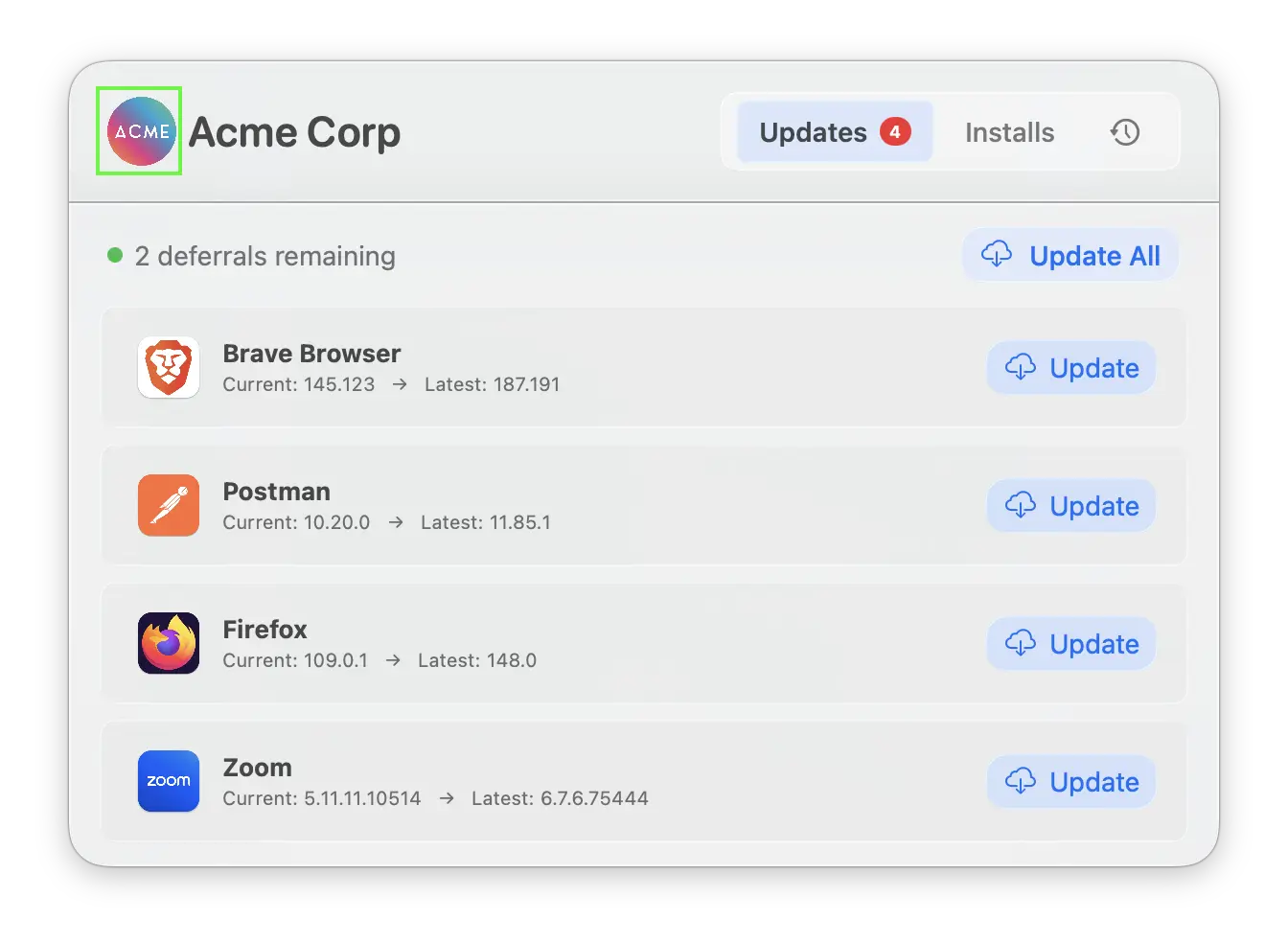 **Key:** `CustomLogoDark`
An alternative logo to display to the left of the title text when the user's macOS appearance is set to **Dark Mode**. Accepts the same values as [Custom Logo](/customise/appbar-preferences#custom-logo) — a file path, URL, or SF Symbol name. Jamf Pro customers can use **selfService** to use the Jamf Self Service icon
If this preference is not set, AppBar will fall back to the value configured in [Custom Logo](/customise/appbar-preferences#custom-logo). If neither is set, the default `app.badge.fill` SF Symbol is used.
**Key:** `CustomLogoDark`
An alternative logo to display to the left of the title text when the user's macOS appearance is set to **Dark Mode**. Accepts the same values as [Custom Logo](/customise/appbar-preferences#custom-logo) — a file path, URL, or SF Symbol name. Jamf Pro customers can use **selfService** to use the Jamf Self Service icon
If this preference is not set, AppBar will fall back to the value configured in [Custom Logo](/customise/appbar-preferences#custom-logo). If neither is set, the default `app.badge.fill` SF Symbol is used.
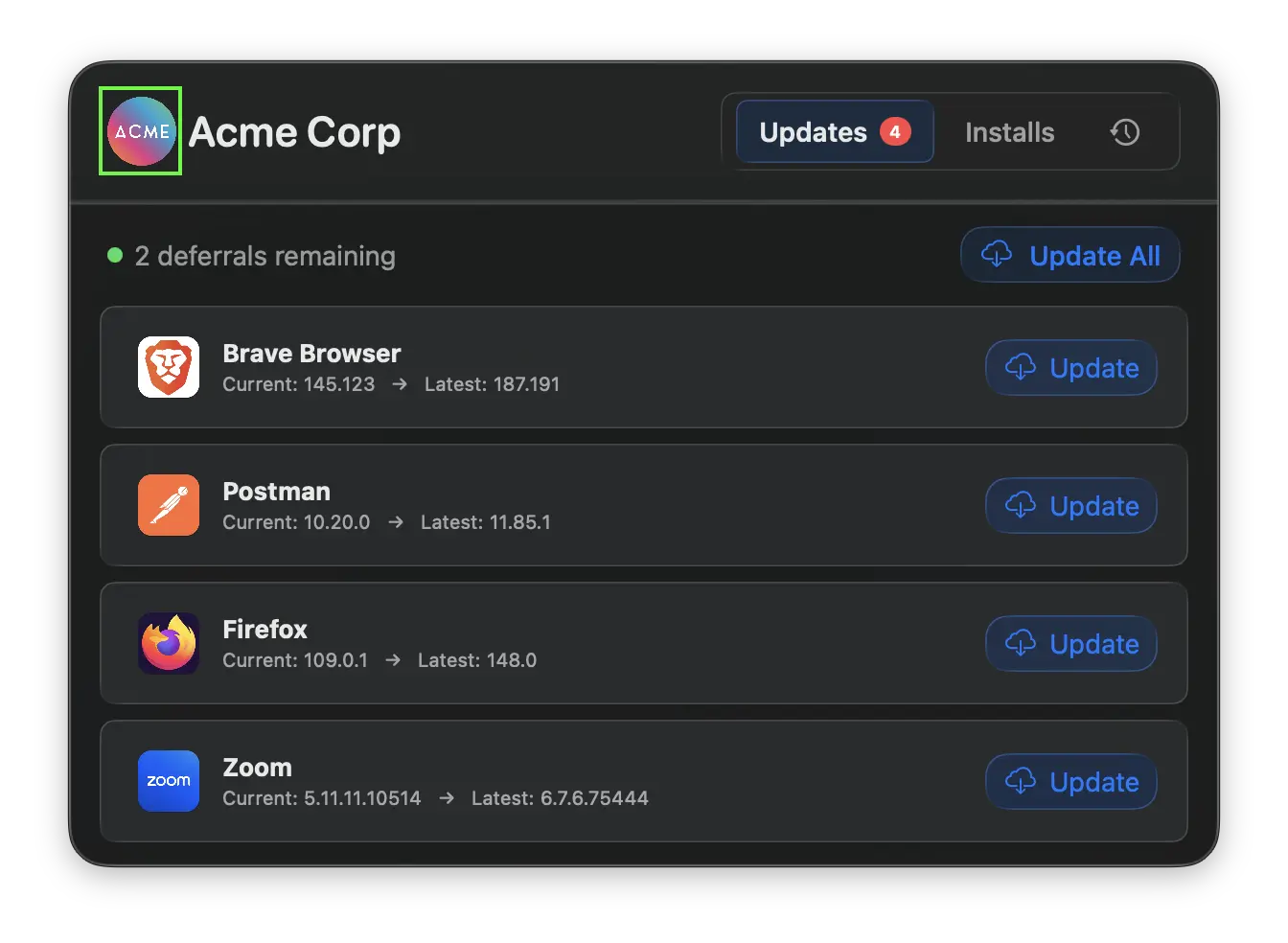 **Key:** `NotificationIcon`
A path or URL to a custom branding image displayed to the right-hand side of macOS notifications sent by AppBar.
This preference works in conjunction with the notification preferences below. A [notifications configuration profile](https://latestinstaller.zappl.co/Resources/Configuration%20Profiles/Zappl%20-%20Notifications.mobileconfig?v=3.0.0) approving `com.zappl.AppBar` must be deployed for notifications to be displayed.
**Key:** `NotificationIcon`
A path or URL to a custom branding image displayed to the right-hand side of macOS notifications sent by AppBar.
This preference works in conjunction with the notification preferences below. A [notifications configuration profile](https://latestinstaller.zappl.co/Resources/Configuration%20Profiles/Zappl%20-%20Notifications.mobileconfig?v=3.0.0) approving `com.zappl.AppBar` must be deployed for notifications to be displayed.
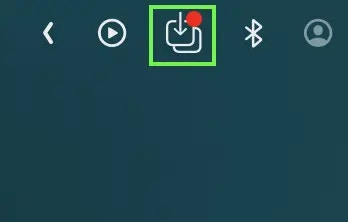
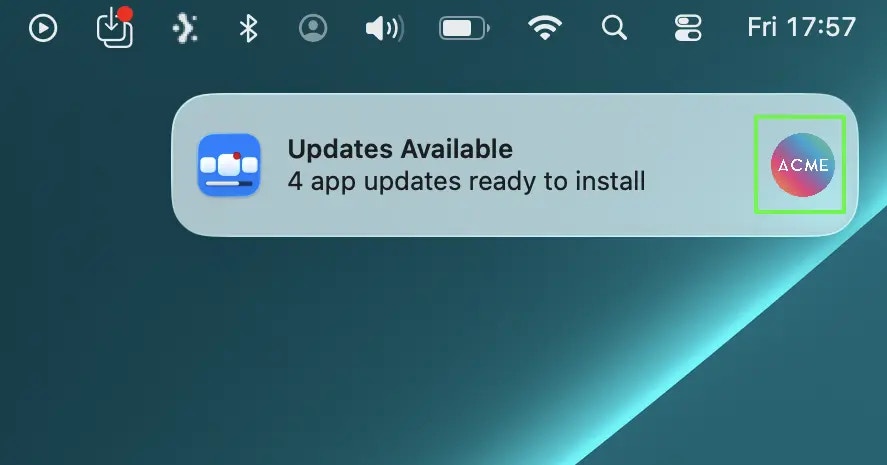 **Key:** `MenuBarIcon`
The icon displayed in the macOS menu bar for AppBar. Accepts either:
* A **path** to a local icon file (must be `16x16` points)
* An **SF Symbol** name
**Default value:** `square.and.arrow.down.on.square` SF Symbol
**Key:** `MenuBarIcon`
The icon displayed in the macOS menu bar for AppBar. Accepts either:
* A **path** to a local icon file (must be `16x16` points)
* An **SF Symbol** name
**Default value:** `square.and.arrow.down.on.square` SF Symbol
 **Key:** `AccentColor`
A custom colour applied to buttons and highlighted elements throughout the AppBar interface. Accepts hex colour codes, e.g. `#0071E3`.
If not specified, AppBar uses the **macOS system accent colour**.
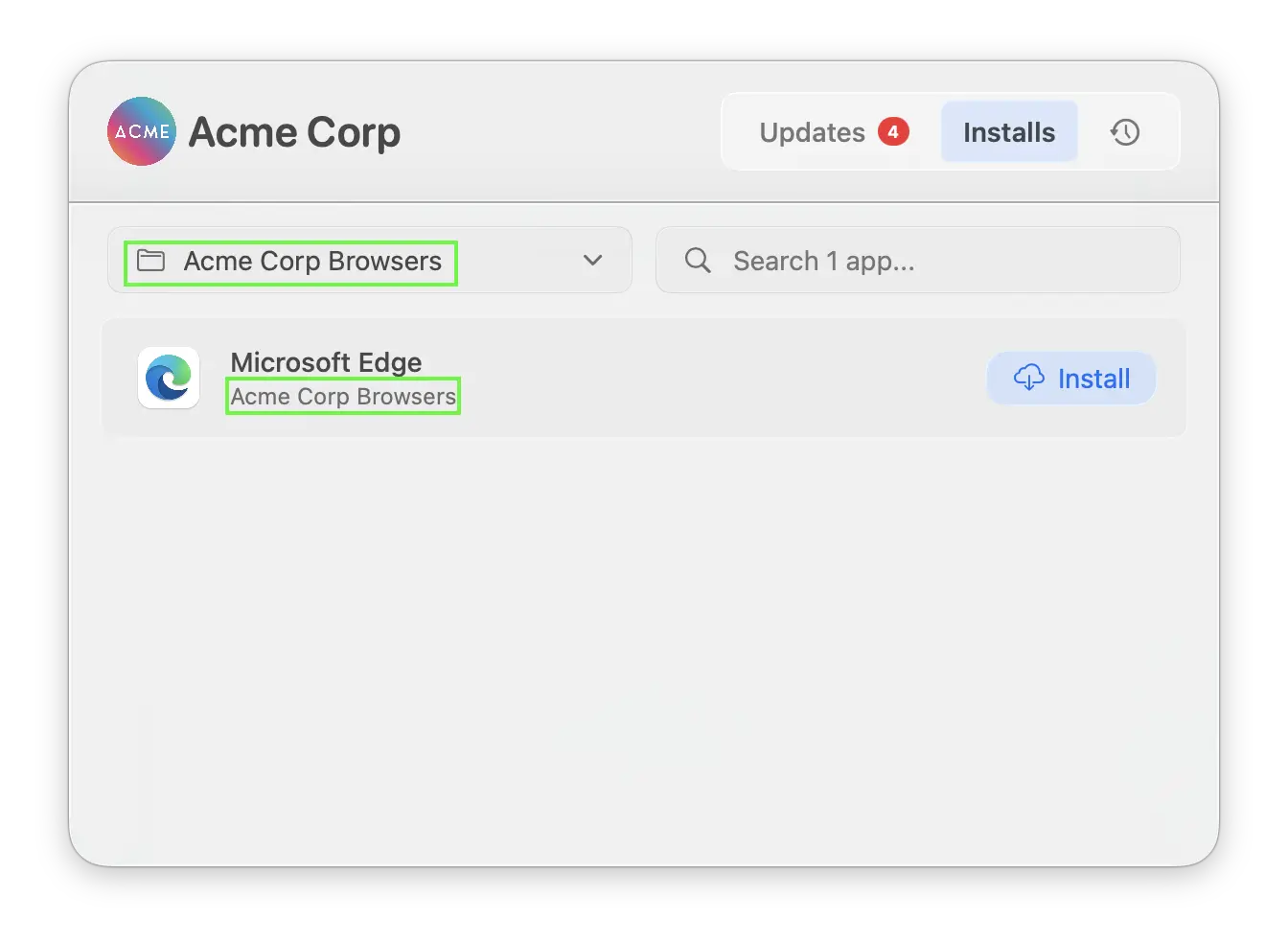
**Key:** `CustomCategories`
Customise the category that apps are assigned to within the **Installs** tab. By default, apps use the category defined in the [Zappl App Catalog](https://zappl.co/app-catalog). This preference allows you to override that on a per-app basis.
To configure this, specify an array of objects each containing an `identifier` and a `category` label:
* **App Identifier** (`identifier`) — The unique app identifier from the [Zappl App Catalog](https://zappl.co/app-catalog)
* **Category Label** (`category`) — The custom category name to display for that app in the Installs tab
**Key:** `AccentColor`
A custom colour applied to buttons and highlighted elements throughout the AppBar interface. Accepts hex colour codes, e.g. `#0071E3`.
If not specified, AppBar uses the **macOS system accent colour**.
**Key:** `CustomCategories`
Customise the category that apps are assigned to within the **Installs** tab. By default, apps use the category defined in the [Zappl App Catalog](https://zappl.co/app-catalog). This preference allows you to override that on a per-app basis.
To configure this, specify an array of objects each containing an `identifier` and a `category` label:
* **App Identifier** (`identifier`) — The unique app identifier from the [Zappl App Catalog](https://zappl.co/app-catalog)
* **Category Label** (`category`) — The custom category name to display for that app in the Installs tab
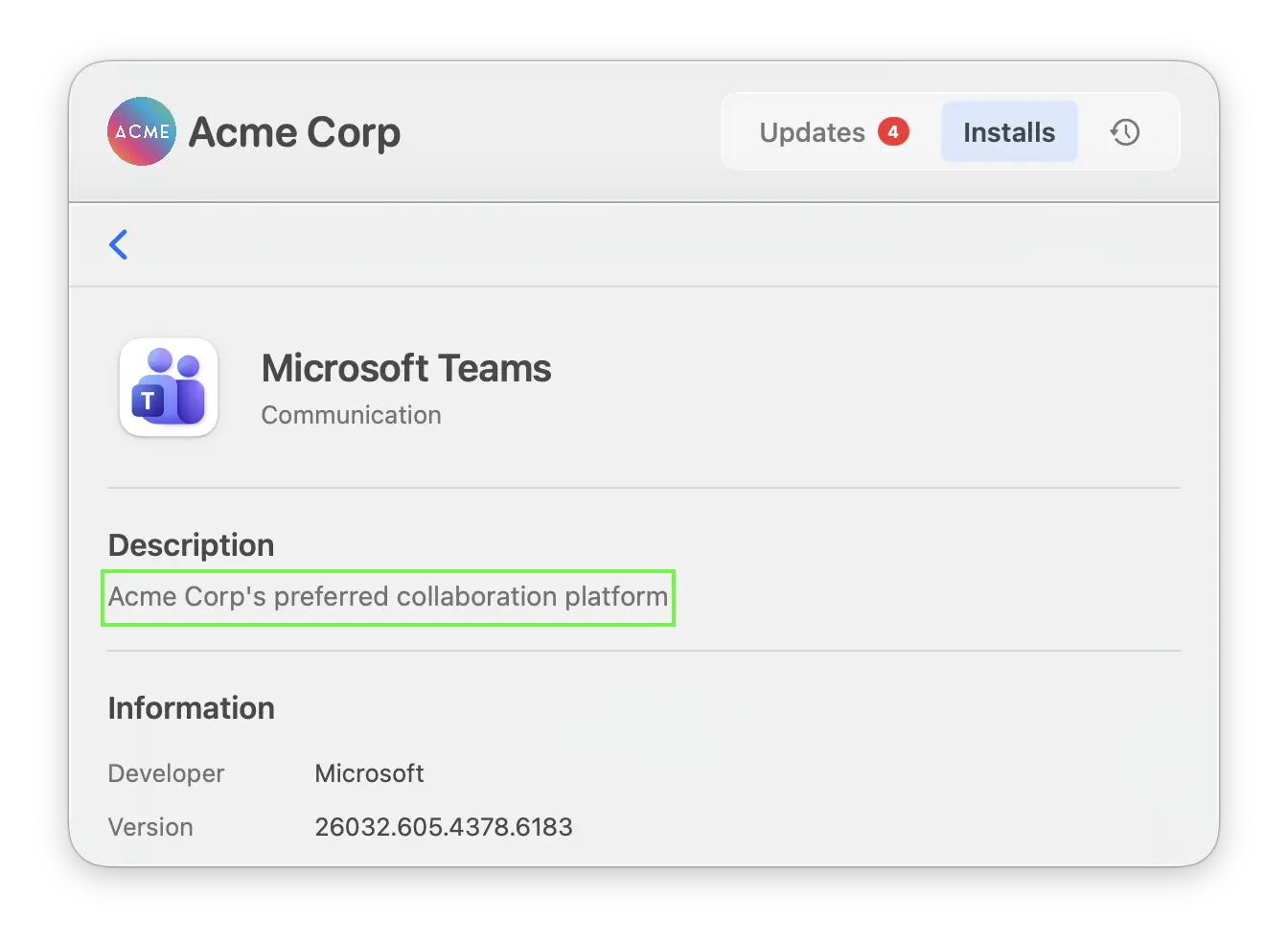
 **Key:** `CustomDescriptions`
Customise the description shown for apps in the **Installs** tab. By default, apps display their description from the [Zappl App Catalog](https://zappl.co/app-catalog). This preference allows you to provide your own description on a per-app basis.
To configure this, specify an array of objects each containing an `identifier` and a `description`:
* **App Identifier** (`identifier`) — The unique app identifier from the [Zappl App Catalog](https://zappl.co/app-catalog)
* **Description Text** (`description`) — The custom description text to display for that app
**Key:** `CustomDescriptions`
Customise the description shown for apps in the **Installs** tab. By default, apps display their description from the [Zappl App Catalog](https://zappl.co/app-catalog). This preference allows you to provide your own description on a per-app basis.
To configure this, specify an array of objects each containing an `identifier` and a `description`:
* **App Identifier** (`identifier`) — The unique app identifier from the [Zappl App Catalog](https://zappl.co/app-catalog)
* **Description Text** (`description`) — The custom description text to display for that app
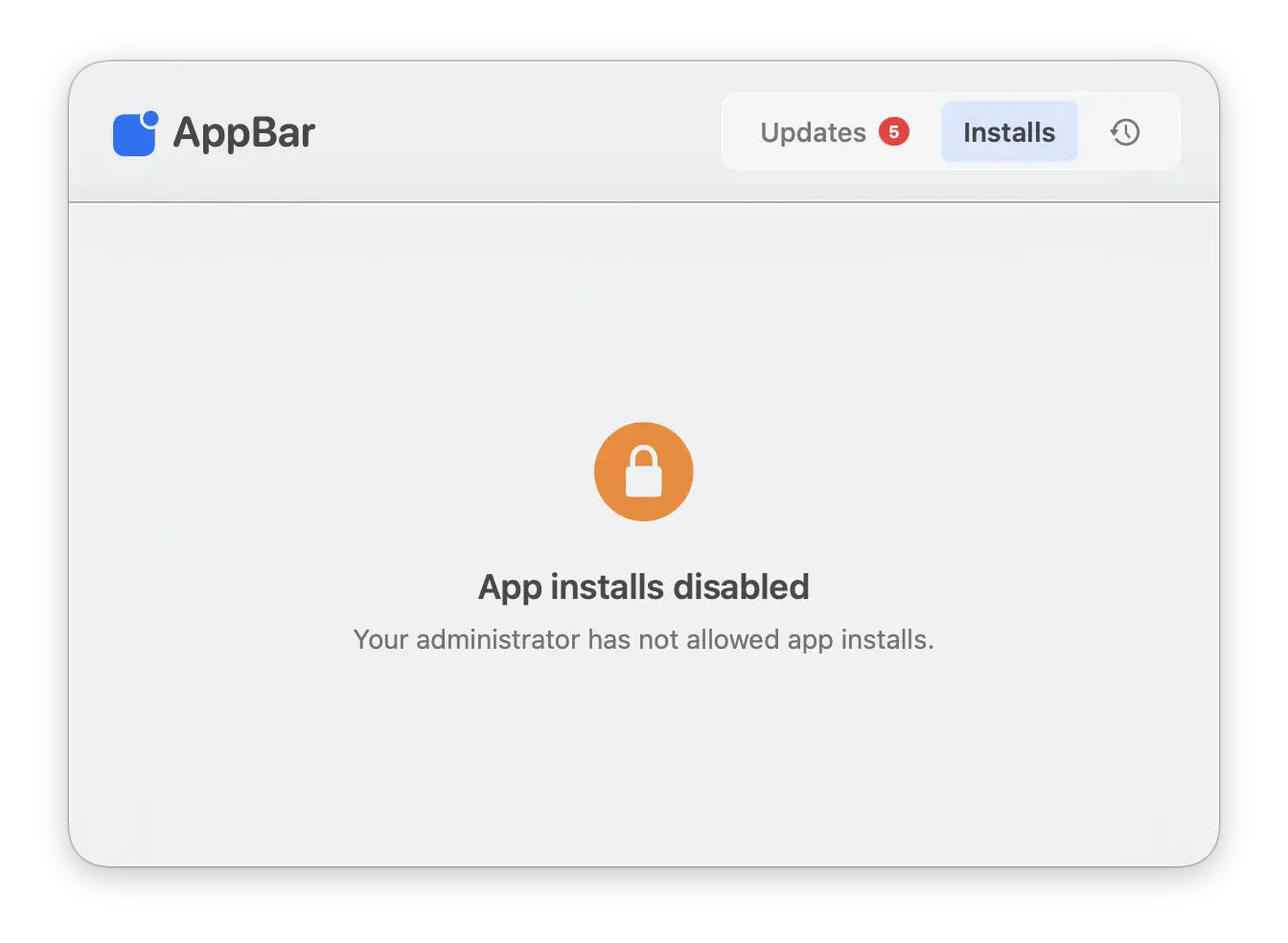
 **Key:** `InstallsTabEnabled`
Determines whether app installs are allowed in the **Installs** tab. This option is disabled by default to prevent users from installing unapproved apps from the full Zappl catalog.
**Key:** `InstallsTabEnabled`
Determines whether app installs are allowed in the **Installs** tab. This option is disabled by default to prevent users from installing unapproved apps from the full Zappl catalog.
 Check this option to allow app installs.
**Default value:** `false`
Once enabled, you can use the [Allowed Installs](/customise/preferences#allowed-installs) or [Excluded Installs](/customise/preferences#excluded-installs) options in your `com.dare.zappl.preferences` configuration profile to control which apps are approved for installs.
**Key:** `InstallsTabHidden`
Completely hides the Installs tab from the UI when true. Disabled by default. Only takes effect when the 'Installs Tab Enabled' preference is unchecked. When this option is enabled, the Installs tab will not be visible to users at all. This removes the "Your administrator has not allowed app installs" dialogue shown when 'Installs Tab Enabled' is unchecked.
**Default value:** `false`
This preference is ignored when the above **Installs Tab Enabled** preference is enabled.
**Key:** `HistoryTabEnabled`
Determines whether the **History** tab is visible within AppBar. The History tab shows users a log of recent updates, installs, and failures. Uncheck to hide this tab.
**Default value:** `true`
**Key:** `LiquidGlassEnabled`
Enables the **Liquid Glass** visual effect introduced in macOS 26 (Tahoe). When enabled, AppBar adopts the Liquid Glass aesthetic consistent with macOS 26 system applications.
**Default value:** `true` — This preference has no effect on macOS versions prior to macOS 26.
**Key:** `AllowUpdateNotifications`
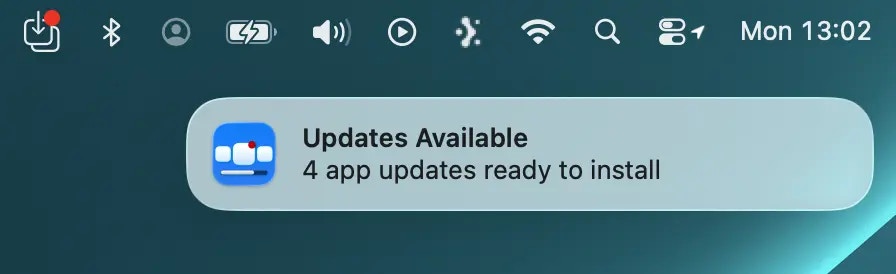
When enabled, AppBar displays a macOS notification when Zappl has cached new updates that are available to install via AppBar.
**Default value:** `true`
A [notifications configuration profile](https://latestinstaller.zappl.co/Resources/Configuration%20Profiles/Zappl%20-%20Notifications.mobileconfig?v=3.0.0) approving `com.zappl.AppBar` must be deployed for this to function.
Check this option to allow app installs.
**Default value:** `false`
Once enabled, you can use the [Allowed Installs](/customise/preferences#allowed-installs) or [Excluded Installs](/customise/preferences#excluded-installs) options in your `com.dare.zappl.preferences` configuration profile to control which apps are approved for installs.
**Key:** `InstallsTabHidden`
Completely hides the Installs tab from the UI when true. Disabled by default. Only takes effect when the 'Installs Tab Enabled' preference is unchecked. When this option is enabled, the Installs tab will not be visible to users at all. This removes the "Your administrator has not allowed app installs" dialogue shown when 'Installs Tab Enabled' is unchecked.
**Default value:** `false`
This preference is ignored when the above **Installs Tab Enabled** preference is enabled.
**Key:** `HistoryTabEnabled`
Determines whether the **History** tab is visible within AppBar. The History tab shows users a log of recent updates, installs, and failures. Uncheck to hide this tab.
**Default value:** `true`
**Key:** `LiquidGlassEnabled`
Enables the **Liquid Glass** visual effect introduced in macOS 26 (Tahoe). When enabled, AppBar adopts the Liquid Glass aesthetic consistent with macOS 26 system applications.
**Default value:** `true` — This preference has no effect on macOS versions prior to macOS 26.
**Key:** `AllowUpdateNotifications`
When enabled, AppBar displays a macOS notification when Zappl has cached new updates that are available to install via AppBar.
**Default value:** `true`
A [notifications configuration profile](https://latestinstaller.zappl.co/Resources/Configuration%20Profiles/Zappl%20-%20Notifications.mobileconfig?v=3.0.0) approving `com.zappl.AppBar` must be deployed for this to function.
 **Key:** `AllowInstallNotifications`
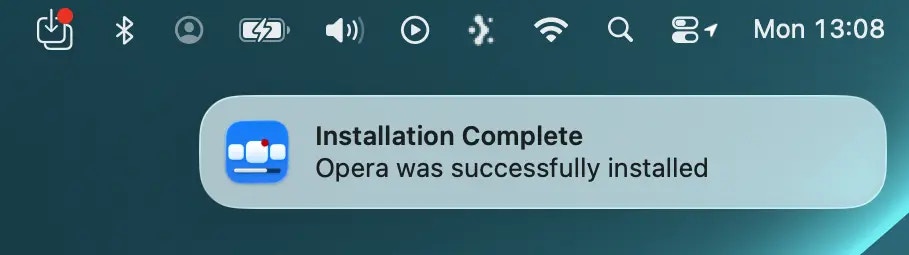
When enabled, AppBar displays a macOS notification when an app install completes successfully.
**Default value:** `true`
A [notifications configuration profile](https://latestinstaller.zappl.co/Resources/Configuration%20Profiles/Zappl%20-%20Notifications.mobileconfig?v=3.0.0) approving `com.zappl.AppBar` must be deployed for this to function.
**Key:** `AllowInstallNotifications`
When enabled, AppBar displays a macOS notification when an app install completes successfully.
**Default value:** `true`
A [notifications configuration profile](https://latestinstaller.zappl.co/Resources/Configuration%20Profiles/Zappl%20-%20Notifications.mobileconfig?v=3.0.0) approving `com.zappl.AppBar` must be deployed for this to function.
 **Key:** `AllowFailureNotifications`
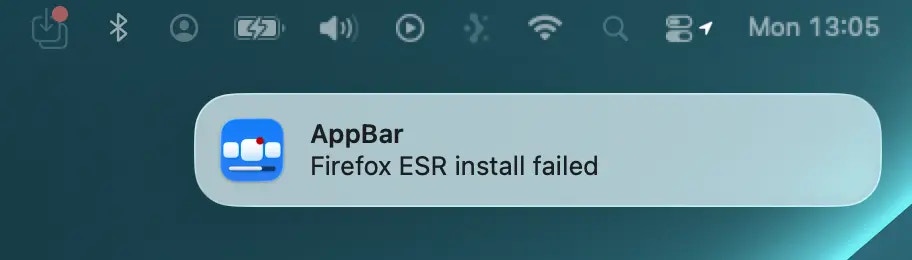
When enabled, AppBar displays a macOS notification if an install or update fails.
**Default value:** `true`
A [notifications configuration profile](https://latestinstaller.zappl.co/Resources/Configuration%20Profiles/Zappl%20-%20Notifications.mobileconfig?v=3.0.0) approving `com.zappl.AppBar` must be deployed for this to function.
**Key:** `AllowFailureNotifications`
When enabled, AppBar displays a macOS notification if an install or update fails.
**Default value:** `true`
A [notifications configuration profile](https://latestinstaller.zappl.co/Resources/Configuration%20Profiles/Zappl%20-%20Notifications.mobileconfig?v=3.0.0) approving `com.zappl.AppBar` must be deployed for this to function.
 **Key:** `EnableQuitButton`
Determines whether a **Quit** option is shown when right-clicking the AppBar menu bar icon. Uncheck to remove this option and prevent users from quitting AppBar via the menu bar.
**Default value:** `true`
**Key:** `EnableAboutButton`
Determines whether an **About** option is shown when right-clicking the AppBar menu bar icon. The About panel displays AppBar version information and other details. Uncheck to hide this option.
**Default value:** `true`
**Key:** `EnableQuitButton`
Determines whether a **Quit** option is shown when right-clicking the AppBar menu bar icon. Uncheck to remove this option and prevent users from quitting AppBar via the menu bar.
**Default value:** `true`
**Key:** `EnableAboutButton`
Determines whether an **About** option is shown when right-clicking the AppBar menu bar icon. The About panel displays AppBar version information and other details. Uncheck to hide this option.
**Default value:** `true`