> ## Documentation Index
> Fetch the complete documentation index at: https://docs.zappl.co/llms.txt
> Use this file to discover all available pages before exploring further.
# App Visibility
> Control which apps are available for users to update and install via AppBar.
AppBar controls app visibility using your existing `com.dare.zappl.preferences` configuration profile — there is no separate configuration required.
* Apps available in the **Updates** tab are controlled by the **Allowed Updates** or **Excluded Updates** keys
* Apps available in the **Installs** tab are controlled by the **Allowed Installs** or **Excluded Installs** keys
If you have already configured any of these keys in your profile, AppBar will respect them automatically.
***
## Updates Tab
By default, AppBar will display all apps supported by Zappl in the Updates tab. You can use the **Allowed Updates** or **Excluded Updates** keys to limit which apps are shown.
Use this option if you want to show only a specific set of apps and restrict everything else. Specify the apps you wish to allow using their unique identifiers from the [Zappl App Catalog](https://zappl.co/app-catalog).
Any app not included in this array will not appear in the Updates tab.
If you specify an app in the **Allowed Updates** array that is also present in **Excluded Updates**, the exclusion will take precedence and the app will not be shown.
Use this option if you want to make all apps available but hide a small number. Specify the apps you wish to exclude using their unique identifiers from the [Zappl App Catalog](https://zappl.co/app-catalog).
All other apps will remain visible in the Updates tab.
If you specify an app in the **Excluded Updates** array that is also present in **Allowed Updates**, the exclusion will take precedence and the app will not be shown.
***
## Installs Tab
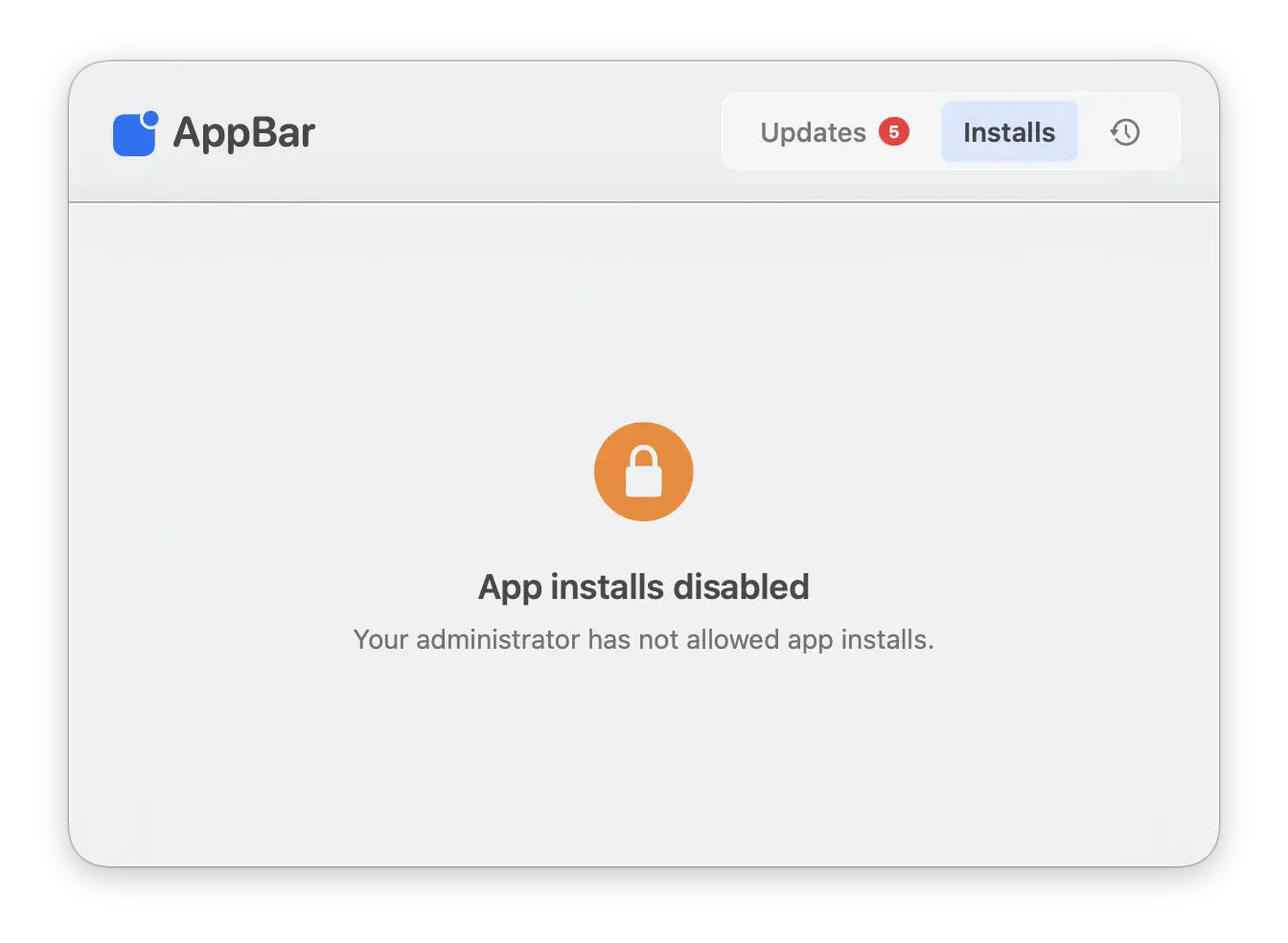
By default, the Installs tab is disabled. Users will see the message below when they navigate to it until you enable it by checking the [Installs Tab Enabled](/appbar/appbar-preferences#installs-tab-enabled) checkbox in the AppBar preferences.
 Once enabled, the Installs tab will show the full [Zappl App Catalog](https://zappl.co/app-catalog) by default. For most organisations, you’ll want to limit this to a curated set of company-approved apps.
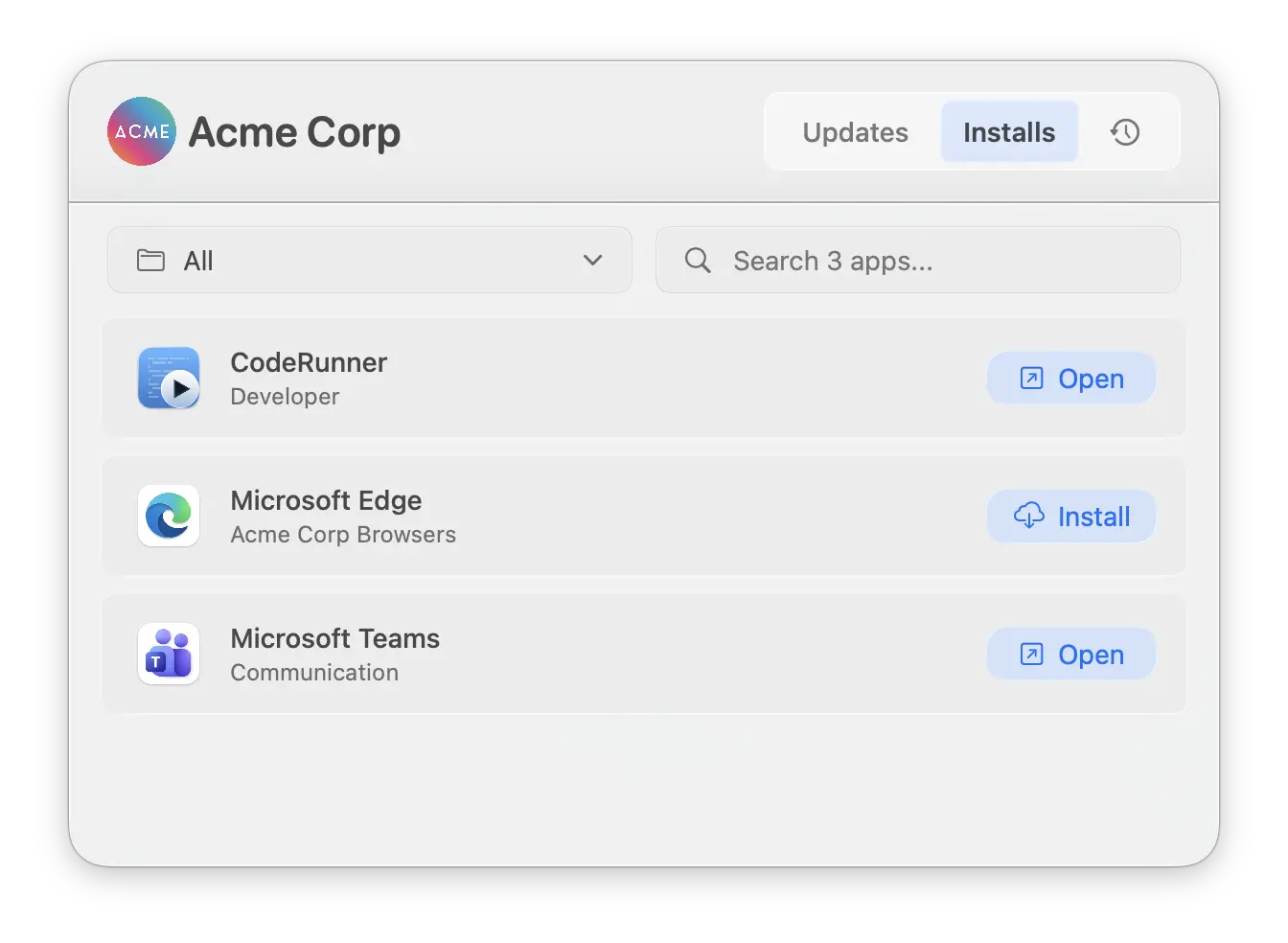
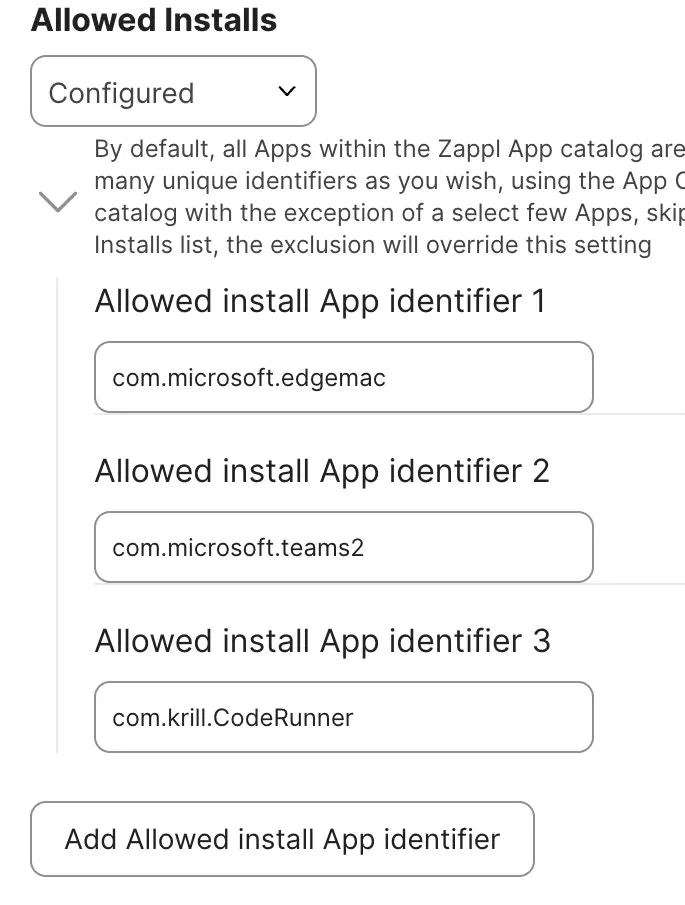
The example below shows AppBar when the **Allowed Installs** array in the `com.dare.zappl.preferences` profile includes only CodeRunner, Microsoft Edge, and Microsoft Teams.
Once enabled, the Installs tab will show the full [Zappl App Catalog](https://zappl.co/app-catalog) by default. For most organisations, you’ll want to limit this to a curated set of company-approved apps.
The example below shows AppBar when the **Allowed Installs** array in the `com.dare.zappl.preferences` profile includes only CodeRunner, Microsoft Edge, and Microsoft Teams.
 Use this option if you want to show only a specific set of apps and restrict everything else. Specify the apps you wish to allow using their unique identifiers from the [Zappl App Catalog](https://zappl.co/app-catalog).
Any app not included in this array will not appear in the Installs tab.
If you specify an app in the **Allowed Installs** array that is also present in **Excluded Installs**, the exclusion will take precedence and the app will not be shown.
Use this option if you want to show only a specific set of apps and restrict everything else. Specify the apps you wish to allow using their unique identifiers from the [Zappl App Catalog](https://zappl.co/app-catalog).
Any app not included in this array will not appear in the Installs tab.
If you specify an app in the **Allowed Installs** array that is also present in **Excluded Installs**, the exclusion will take precedence and the app will not be shown.
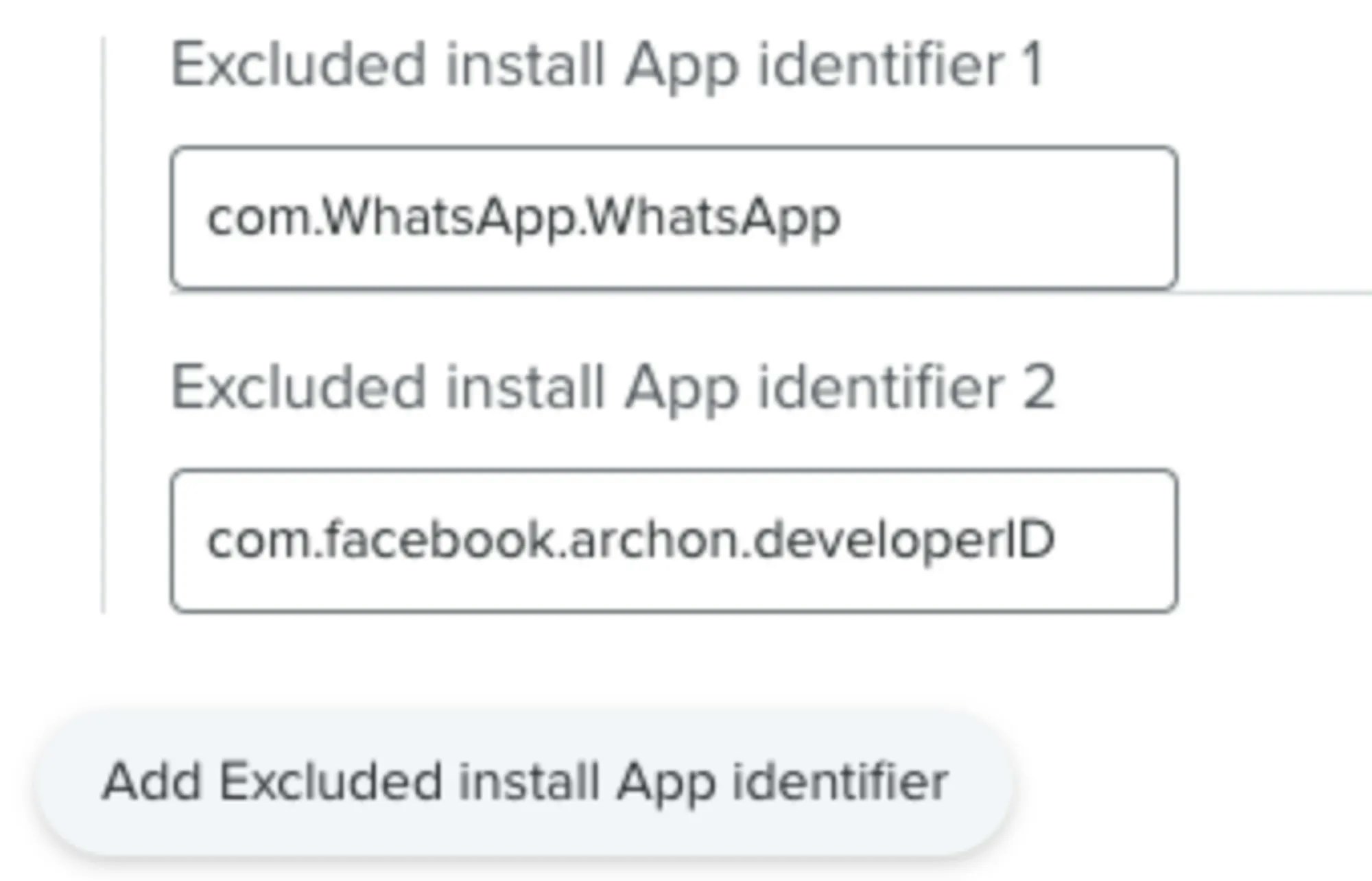
 Use this option if you want to make the full catalog available but hide a small number of apps. Specify the apps you wish to exclude using their unique identifiers from the [Zappl App Catalog](https://zappl.co/app-catalog).
All other apps in the catalog will remain visible in the Installs tab.
If you specify an app in the **Excluded Installs** array that is also present in **Allowed Installs**, the exclusion will take precedence and the app will not be shown.
Use this option if you want to make the full catalog available but hide a small number of apps. Specify the apps you wish to exclude using their unique identifiers from the [Zappl App Catalog](https://zappl.co/app-catalog).
All other apps in the catalog will remain visible in the Installs tab.
If you specify an app in the **Excluded Installs** array that is also present in **Allowed Installs**, the exclusion will take precedence and the app will not be shown.
 ***
## Configuring the Profile
All four options are configured within the `com.dare.zappl.preferences` profile. If you haven't set this up yet, download the appropriate resource for your MDM and configure whichever keys apply to your needs.
Download the JSON Schema to configure the Zappl preferences profile in Jamf Pro.
Download a sample plist to configure the Zappl preferences profile in your MDM of choice.
For a full breakdown of all available keys in the Zappl preferences profile, see the [Preferences guide](/customise/preferences).
***
## Configuring the Profile
All four options are configured within the `com.dare.zappl.preferences` profile. If you haven't set this up yet, download the appropriate resource for your MDM and configure whichever keys apply to your needs.
Download the JSON Schema to configure the Zappl preferences profile in Jamf Pro.
Download a sample plist to configure the Zappl preferences profile in your MDM of choice.
For a full breakdown of all available keys in the Zappl preferences profile, see the [Preferences guide](/customise/preferences).